

The Welcome screen
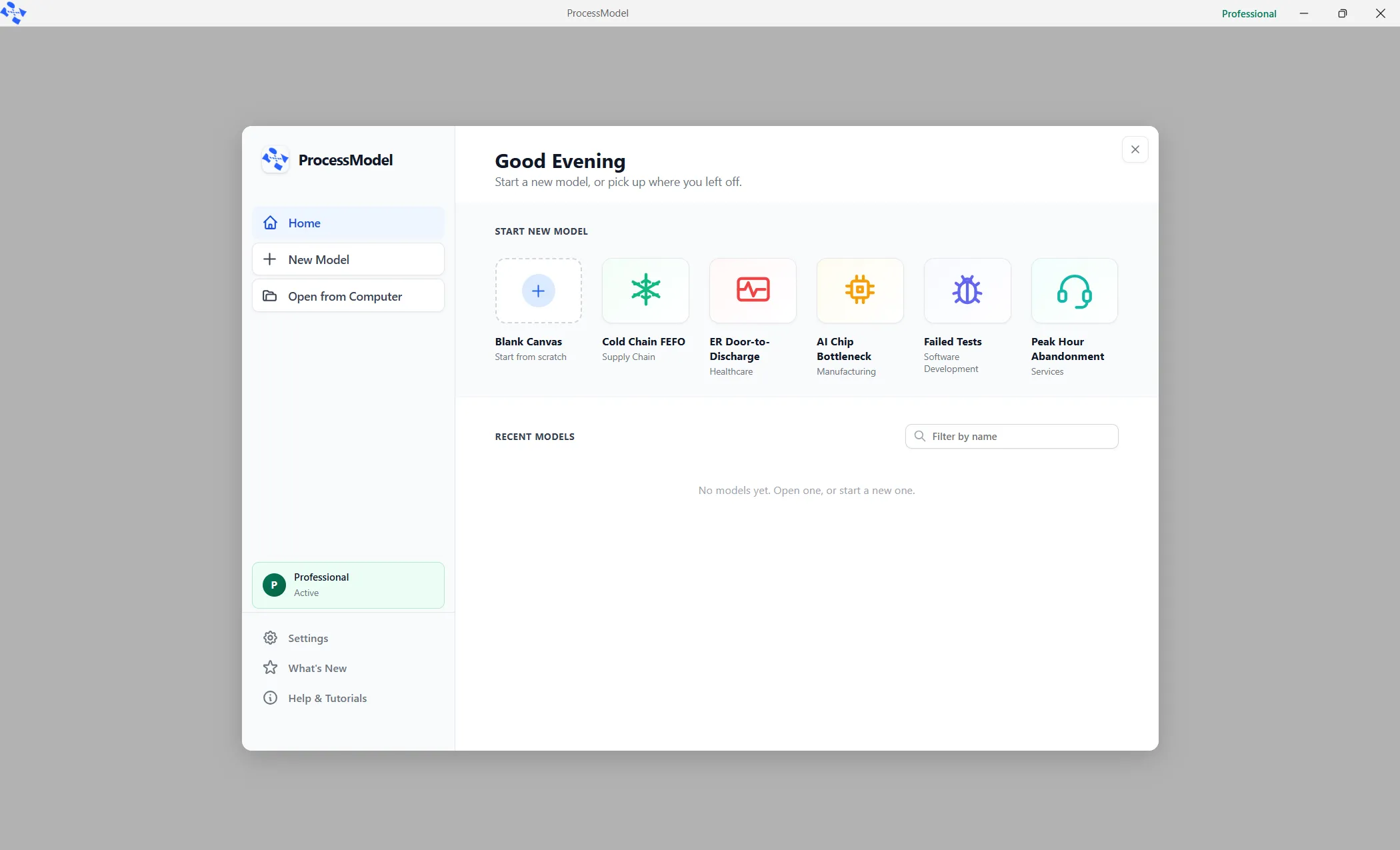
The Welcome screen is where ProcessModel starts. From it you begin a new model, pick up one you worked on recently, open a demo, change your settings and read what is new.
Getting to it
Section titled “Getting to it”ProcessModel shows the Welcome screen when it starts. To come back to it later, choose File ▸ Open, press Ctrl+O, or use the Open Model button on the toolbar. Each of these shows this screen rather than a file window, and Open from Computer is the way to a file. The X at the top right closes the screen and shows the canvas.
The first time you start ProcessModel after an update, the Welcome screen opens by itself, once, on What’s New.
The left list
Section titled “The left list”- Home shows the greeting, the Start New Model tiles and your recent models, described below.
- New Model starts an empty model, the same as File ▸ New.
- Open from Computer opens a file window, where you choose a saved model.
- The row under them shows your license, such as Professional with Active, or the days left on a trial. It only reports. Clicking it does nothing: the account card opens from the license label in the title bar, or from the sentence on Home.
- Settings opens the Settings pane. A red dot on it is a Learning Hint you have not dismissed yet.
- What’s New shows the notes for the latest versions. A red dot marks it while there are notes you have not seen.
- Help & Tutorials opens the Demo Models library over the screen.
The version number of ProcessModel sits under the list.
At the top is a greeting that follows the time of day: Good Morning, Good Afternoon or Good Evening. Under it reads “Start a new model, or pick up where you left off.”
When your license needs something from you, one sentence sits beside the greeting. It depends on how the license stands, for example:
- “Sign in to extend your trial or activate your license”
- “Upgrade to keep Professional features when your trial ends”
- “Sign in if you have a license, or upgrade to Professional”
- “Buy a license to use Professional features again”
- “Activate your license on this machine”
- “Reconnect within N days to keep your license active”
Click the sentence to open the account card, the same card the license label in the title bar opens. A license that needs nothing shows no sentence. For what each state means, see License and activation.
Start New Model
Section titled “Start New Model”Six tiles run along the middle. Blank Canvas starts an empty model. The other five open a demo model as a new model that is not saved yet: Cold Chain FEFO, ER Door-to-Discharge, AI Chip Bottleneck, Failed Tests and Peak Hour Abandonment. Each demo tile names its industry under its title. They behave exactly like the cards in Demo Models.
Recent Models
Section titled “Recent Models”This is the list of models you opened or saved most recently. A row shows the model’s name and, under it, the folder it sits in and when you last opened or saved it. Rest the pointer on a row to see the full path, and click it to open the model.
The rows come in groups: Pinned at the top, then Today, Earlier this week and Older. A group shows only when it has models, and the newest comes first within it. The pin at the left of a row pins that model so it stays at the top, and unpins it again.
Filter by name narrows the list as you type, and says “Nothing matches that name.” when nothing does. With no models yet, the list reads “No models yet. Open one, or start a new one.”
ProcessModel keeps your ten most recent models. File ▸ Recent Models lists the five most recent of them.
Starting or opening a model from here replaces the one that is open. If that model has unsaved changes, ProcessModel asks first. See Starting, opening and saving models.