

Scenarios
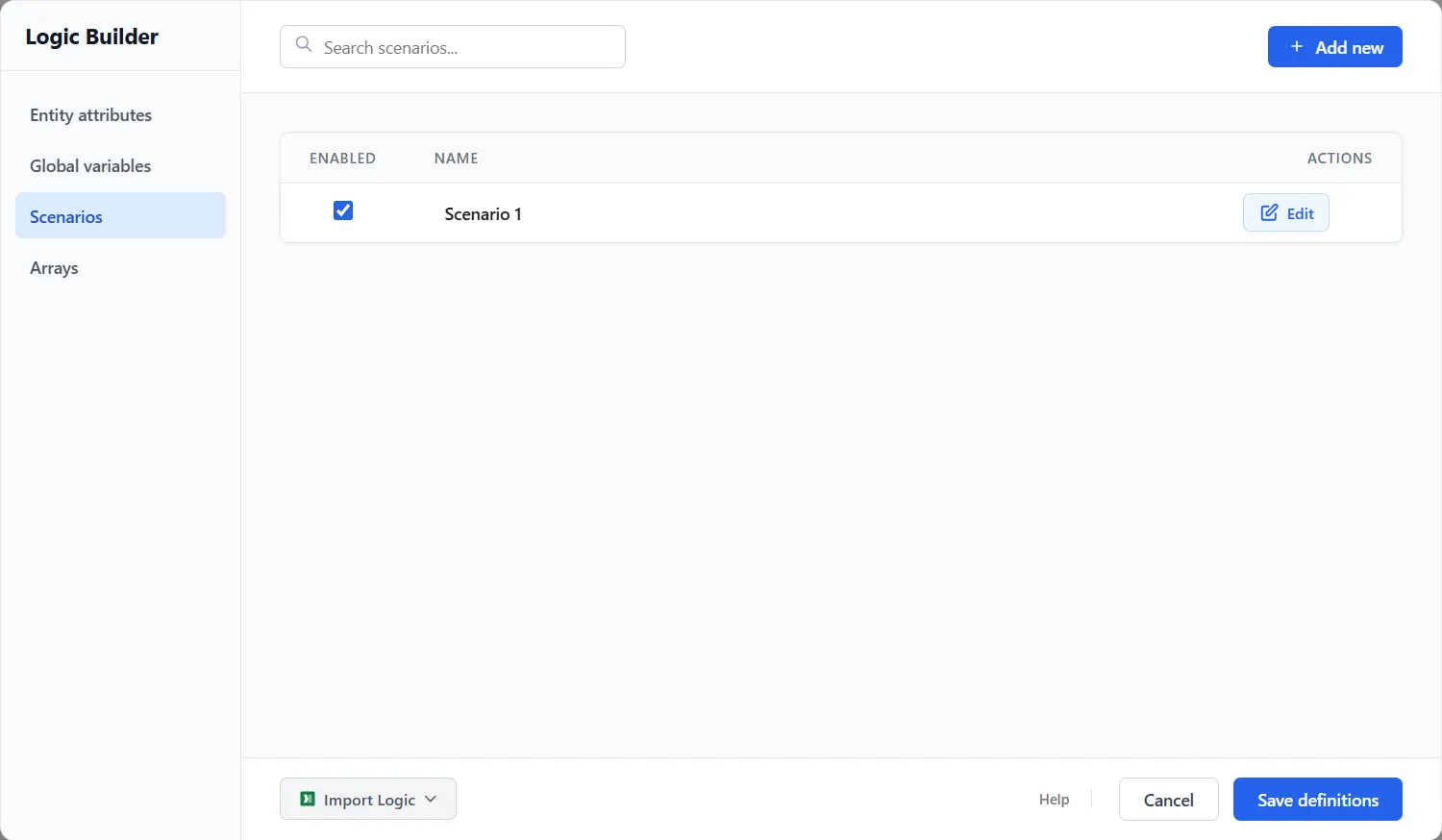
A scenario is a what-if version of your model that runs alongside the original so you can compare them side by side: what if this activity had two more units, that queue were larger, this route sent 70% of the work instead of 50%. You build a scenario as a set of changes on top of your base model. The base is never altered, and every enabled scenario runs together with the Baseline in a single simulation.
Scenarios live in the Logic Builder, on the Scenarios tab.
Building a scenario
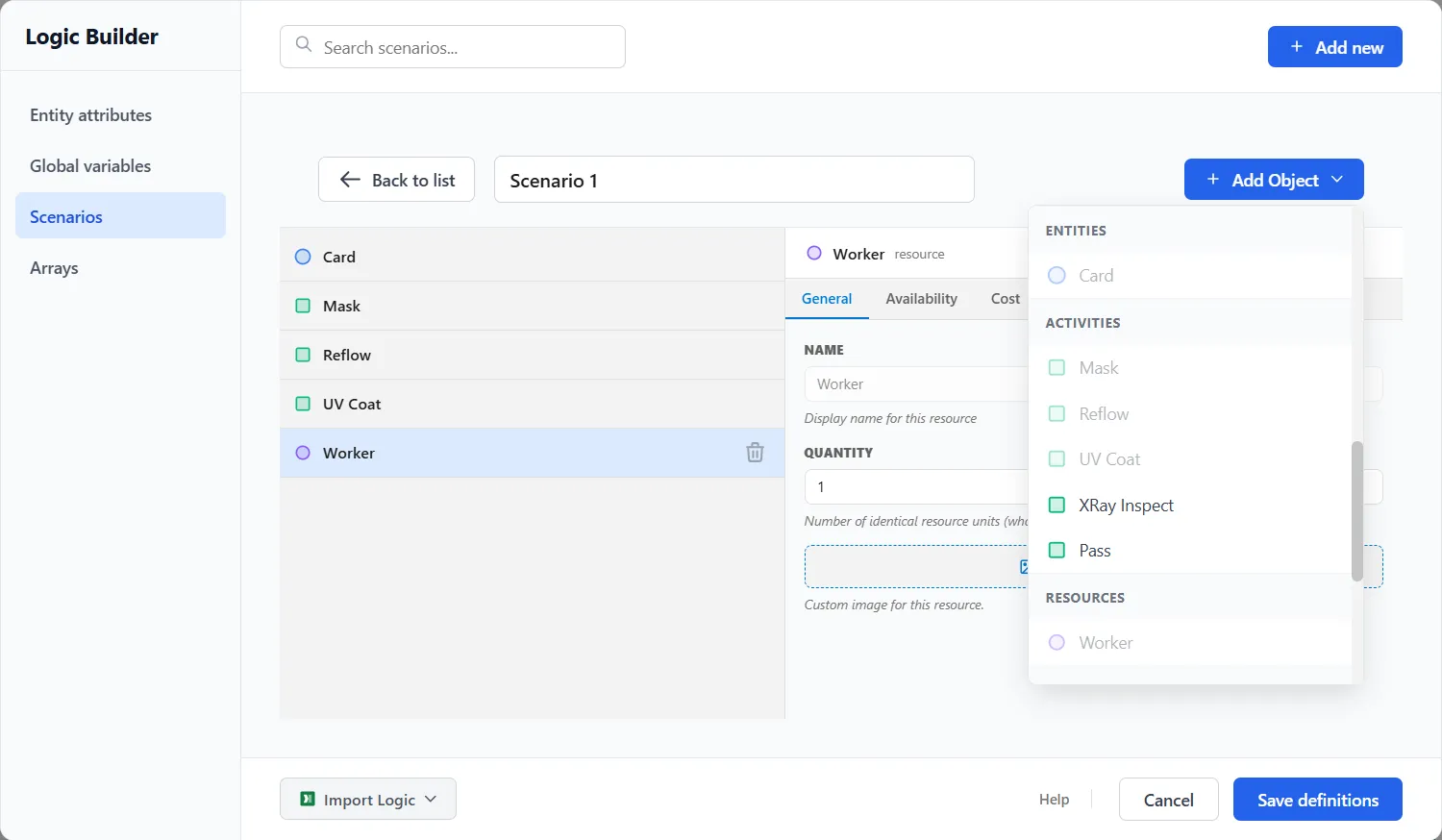
Section titled “Building a scenario”- Add a scenario and give it a name.
- Inside it, pick an object to change from the Add Object list. The list offers the kinds your model has: entities, activities, queues, resources, inventories, variables, gates, routes, arrival routes and resource connections, and the fluid and bulk elements (tanks, transfer lines, machines, fillers, dumpers, discharges, clean groups, setup groups and run tables). An arrival that a scenario cannot adjust is listed in gray with the reason.
- Edit that object’s fields just as you would in the Properties panel. Only the fields you change are stored; everything else follows the base model, and changing a field back removes it from the scenario automatically.
A scenario can change as many objects as you like. Turn scenarios on and off with the Enabled checkbox, then run the model. Each enabled scenario appears as its own column beside the Baseline throughout the reports, so the comparison is built in.
Scenario Parameters
Section titled “Scenario Parameters”Earlier ProcessModel had Scenario Parameters, named values you declared once and referenced by name. Version 7 replaces them: instead of declaring a parameter, you change the real field on the real object inside a scenario. When a value needs to be shared in many places, define a global variable, use it in your expressions, and override the objects that consume it per scenario.
Finding the best scenario automatically
Section titled “Finding the best scenario automatically”A scenario is a what-if you build by hand. When you want to search across many settings for the best combination instead of trying them one at a time, use PM Optimizer. It runs an experiment over the settings you choose, then lets you save any winning configuration back here as a scenario that arrives already turned on, so it runs with your next simulation.
LegacyHow this worked in the previous version
Scenarios
Section titled “Scenarios”Scenarios are experiments used to find the best settings in your model. Automatically compare results from scenarios in the output reports. Create scenarios by defining scenario parameters to replace changeable values.
Define Experiments
Section titled “Define Experiments”The **Scenarios **tab of the Scenarios & Parameters dialog allows you to define scenarios or experiments with different values for each of your selected parameters. It also allows you to disable specific scenarios to control which scenarios are run.
**New **This button creates a new scenario.
**Delete **This button deletes the selected scenario.
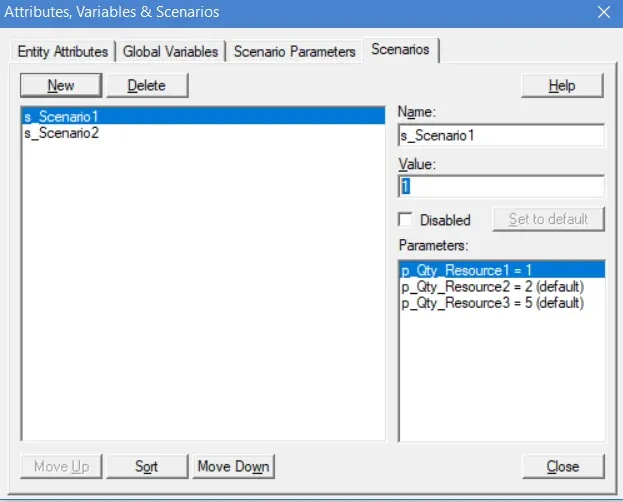
**Parameters **This box lists the parameters and their defined start-up values.
**Name **The name of the scenario to be used in reporting statistics.
**Value **The value represents the scenario parameter for the selected scenario.
**Disabled **Disables the selected scenario so that it will not be run during the simulation.
Set to Default Resets the value of the selected parameter to its default value.
How To - Define scenarios
Section titled “How To - Define scenarios”- From the Simulation menu, select Define Scenarios.
- Click on the **Scenarios **tab in the dialog (as shown in the previous graphic).
- Click on the **New **button.
- Enter the name of the scenario.
- Select a parameter from the Parameters list box and enter a value in the Value field below.
- Repeat step 5 for each parameter you wish to change for the selected scenario.
- Repeat steps 3-6 to create additional scenarios.
Scenario Parameters
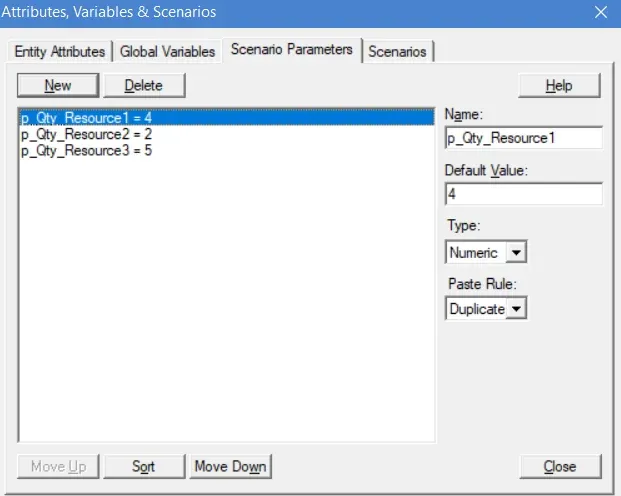
Section titled “Scenario Parameters”Scenario parameters are placeholders like variables, only to represent a value that changes from scenario to scenario. For example, if you want to run three model scenarios experimenting with different numbers of resources, you would enter a scenario parameter Quantity field and then define three different scenarios with three different numbers in the Scenarios Parameters tab of the Attributes, Variables & Scenarios dialog.
What is the actual value of using scenario parameters compared to making the changes directly to the model? Good question! Scenario parameters combined with scenarios allow the comparison of all experiments on the same output with no extra work on your part. Scenario parameters also allow the optimizer to change values to find the best solution automatically.
**New **This button creates a new parameter that may then be edited. By default, all scenario parameters start with “p_.” The common prefix avoids naming conflicts with all other model entries and makes these names easy to identify.
**Delete **This button deletes the selected parameter.
**Name **The name of the parameter to be used in the model in place of actual values.
**Default Value **The parameter’s value when the Save & Simulate Chart menu item is selected rather than Run Scenarios.
Move Up Moves the selected parameter up in the list.
Move Down Moves the selected parameter down in the list.
How To - Define a scenario parameter
Section titled “How To - Define a scenario parameter”- From the **Simulation **menu, select Define Scenarios.
- Click on the Scenario Parameters tab in the dialog (as shown on the previous page).
- Click on the **New **button.
- Enter the name of the parameter.
- Enter a default initial value. This could be a specific number (e.g., the number of resources) or a distribution function.
Using Scenario Parameters
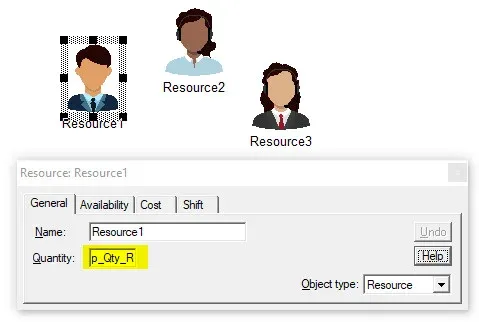
Section titled “Using Scenario Parameters”To use the scenario parameters you have defined for your scenarios, you must enter the parameter’s name in place of the value it will represent in the model. For example, you may want to enter a different number of resources for each experiment. So you would enter the parameter’s name in the Quantity field on the General properties tab of that resource, as shown below.
What’s Changeable with a Scenario Parameter?
Section titled “What’s Changeable with a Scenario Parameter?”Any field, action logic, distribution, or statement normally occupied with a number could be replaced with a scenario parameter. Some examples include:
In the activities dialog, all capacities may include a scenario parameter. In addition, any distribution entry allows adjustment with a scenario parameter. However, the name and object type don’t accept a scenario parameter.
Use a single scenario parameter to change many fields at the same time. For example, when changing the quantity of a resource, they also change the capacity of every activity where they work. changing the capacity in this fashion avoids artificial limitations due to capacity.
Change many other things using scenario parameters to replace values in a model.
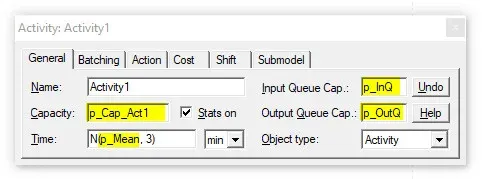
Scenario parameter entries to the activities dialog.
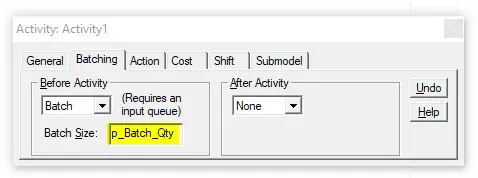
Change the batch quantity using scenario parameters.
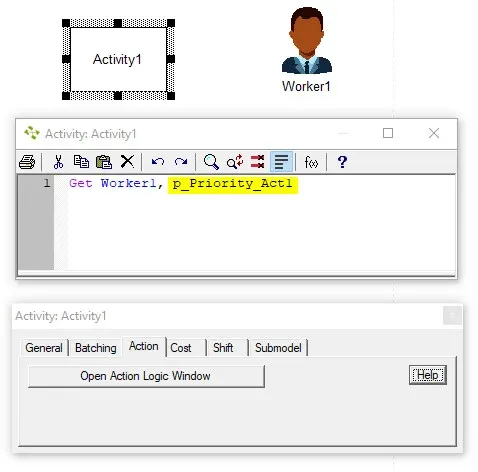
Changing the priority of a Get statement in Action Logic using scenario parameters.