

Display
DISPLAY writes a message to the output while the model runs, which is the main way to trace what is happening. DEBUG adds a diagnostic marker used when checking logic.
DISPLAY shows plain text, and can weave in live values by placing a name in braces. The four lines below show text on its own, then text with an attribute, with a variable, and with an array value:
DISPLAY "Batch complete"DISPLAY "Priority is {a_Priority}"DISPLAY "Backlog is now {v_Backlog}"DISPLAY "Third setup time is {r_SetupTimes[3]}"LegacyHow this worked in the previous version
Pauses the simulation and displays a message. The simulation will resume when the user selects OK.
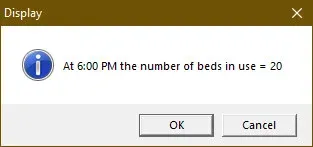
A Display statement stops the simulation, and in this case, shows the value of a variable.
The **Display **statement is valuable for debugging complex models by stopping the model and displaying one or more critical pieces of information (attribute / variable / function call/mathematical formula.) In addition, the **Display **statement works well during presentations to stop the model temporarily at predefined times. The display statements might contain hints or words to remind you what to discuss. Pressing enter resumes the simulation. Even if you are interrupted or distracted the model will wait until you proceed.
Syntax
Section titled “Syntax”RElTUExBWSDigJw8IHRleHQgc3RyaW5nID7igJ0gWyQ8IGF0dHJpYnV0ZSAvIHZhcmlhYmxlIC8gZnVuY3Rpb24gY2FsbCA+XQpESVNQTEFZIOKAnE5vdyBjb21wbGV0aW5nIHRoZSAxMDB0aCBzZXTigJ0KRElTUExBWSDigJxUaGUgY3VycmVudCBudW1iZXIgb2YgZW50cmllcyBpczog4oCdICQgVmFyMQpESVNQTEFZIOKAnFZhcmlhYmxlMSA9IOKAnCwgJFZhcjEgJCBDSEFSKDEzKSAkIOKAnEF0dHJpYnV0ZTEgPSDigJ0gJCBBdHRyMQpvcgpESVNQTEFZIOKAnFZhcmlhYmxlMSA9IOKAnSAkIFZhcjEgJCDigJwKQXR0cmlidXRlMSA9IOKAnSAkIEF0dHIx
text string The message ProcessModel will display. The text string must be enclosed in quotes.
[attribute / variable / function call] The text string or numeric value you wish to display.
After the original set of information (i.e. text string, variable) the ”$” character is used to add additional information (i.e another text string or variable). You can force a carriage return by using the statement CHAR(13). Each new item that is appended to the statement must be prefaced with the ”$” character.
Example 1
This example displays a message whenever a new order type begins processing at the current activity. A variable, v_ Last_Order , stores the order type of the last entity processed at the activity. If the current entity’s a_ Order_Type attribute value is different from the previous order type, ProcessModel displays a message stating the new order’s type.
SUYgT3JkZXJfVHlwZSA8PiBMYXN0X09yZGVyIFRIRU4KewoJRElTUExBWSDigJxOZXcgT3JkZXIgVHlwZTog4oCdICRhX09yZGVyX1R5cGUgJCDigJwKCXZfTGFzdF9PcmRlciA9IOKAnSAkYV9PcmRlcl9UeXBlX0xhc3QKfQ==
Example 2
Section titled “Example 2”This example displays the entity name during the simulation.
RGlzcGxheSDigJxFbnRpdHkgTmFtZSA9IOKAnCwgTmFtZQpPcgpEaXNwbGF5IOKAnEVudGl0eSBOYW1lID0g4oCcLCBFbnQoTmFtZSk=
Using just Name will display the entity number rather than the text name. Name is the system-defined attribute that contains the numeric value of the entity name. Ent(Name) will display the text name of the entity.
Use Display statements in normal model action logic to trigger when a state is achieved or by using a trigger activity for precise timing of the Display statement. See what is a Trigger Activity?
[
Logic Statements](/help/statements/)
Displaying a count
Section titled “Displaying a count”Variables allow tracking of customized information critical to process improvement projects. Tracking the live count of items in the process, also known as Work-In-Process (WIP), has three steps.
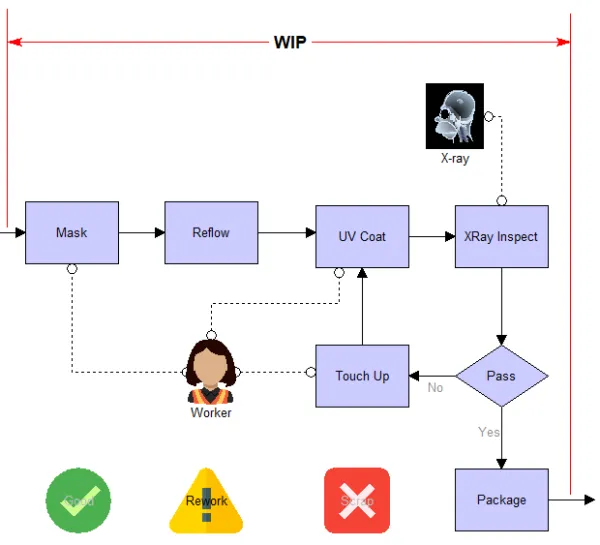
Steps to Creating WIP Count
Section titled “Steps to Creating WIP Count”- Define a Global Variable of type Integer. For more information about defining a Global Variable, use the help topic “Declare a Global Variable.”
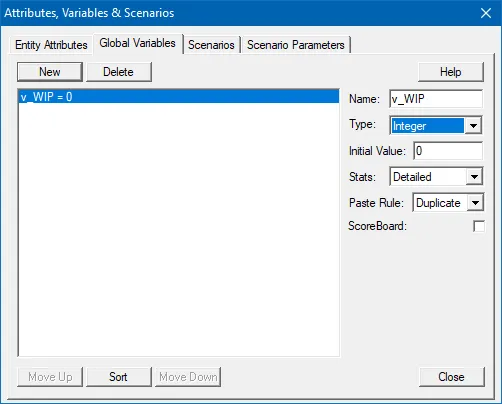
- Increment the variable at the start of the collection area.
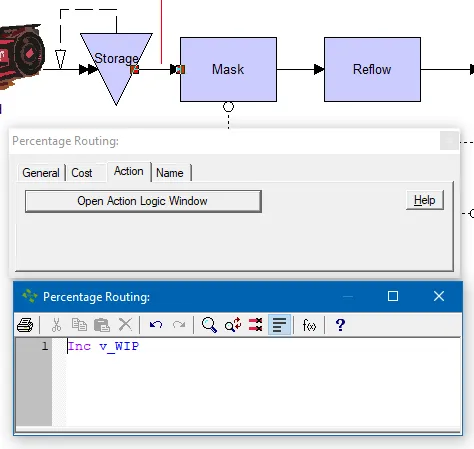
- Decrement the variable at the end of the collection area.
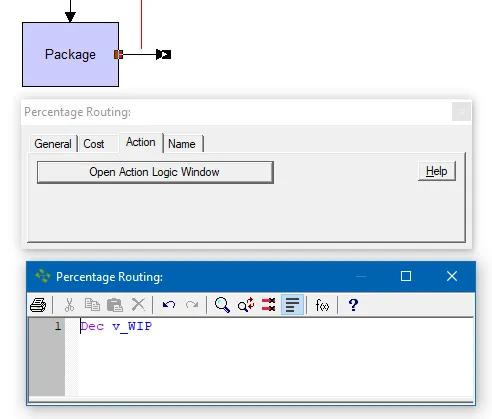
Show the live value of the WIP during the simulation
Section titled “Show the live value of the WIP during the simulation”In addition, to show the value of a variable during the simulation, search for the help topic “Displaying Custom Statistics on the Screen.”
REPORT statement (legacy)
Section titled “REPORT statement (legacy)”Calculates and reports the current statistics to the output database. This is useful to get a snapshot of the model at various points during the simulation.
The REPORT statement may be followed by the WITH RESET option to reset the statistics after the report is made to the database. When you use the WITH RESET option, you generally want to provide some periodic looping event that will call the report function at specific times.
Used with the AS option, REPORT creates a report with the name specified in the expression.
Syntax
Section titled “Syntax”UkVQT1JUIFtXSVRIIFJFU0VUXSBbQVMgPCB0ZXh0IHN0cmluZyA+XQpSRVBPUlQKUkVQT1JUIFdJVEggUkVTRVQKSUYgdl90aHJ1cHV0ID0gNTAgVEhFTiBSRVBPUlQgQVMg4oCcUmVwT3ZyNTDigJ0=
**text string **A unique name given to the report so it can be easily identified in the General Stats dialog in the Output Program. If any reports have the same name, a number is tacked on the end of the name to make it unique.
Example
To get a snapshot report every 40 hours, schedule a “dummy entity” to arrive periodically (every 40 hours) at a “dummy activity.” In the action logic field, enter the statement REPORT WITH RESET AS 40HOUR and set the activity time to 0.
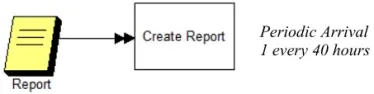
This results in reports named, 40HOUR, 40HOUR2, 40HOUR3, etc.
-
Variables are not automatically reset. You will need to manually reset the variables with the report statement if they are being used to track statistics.
-
When a REPORT statement is used in a model, the final report is not generated. So unless a Report statement occurs exactly at the end of the simulation, there will likely be some additional processing that occurs. But that last bit of processing won’t be reported. Make sure the last Report statement occurs exactly at the end of simulation time.
-
The “reset” doesn’t reset the number of entities in the activity. So at the start of each new report, there could be entities already in the activity. Therefore, if we add the Total Entries values for each report, we will have a number greater than the actual number of entities that entered that activity. Rather than add the Total Entries values, increment a variable in the activity in question. Then view that variable in the output report.
Logic Statements](/help/statements/)