

Teams and people
A Team is the people who do the work. Under the Software lens it is a resource, renamed: People is how many exist, and Working hours is when they are available.
People
Section titled “People”On a Team’s General tab, People is how many people the team has. This is a different number from the People box on a step, which is how many of them may be on that step at once. See Steps and step kinds.
Working hours
Section titled “Working hours”A new Team has no working hours and so works around the clock, which no real team does. Open the Shift tab and give it Working hours, such as an office nine to five.
Check that the Downtime Rule reads Preempt & Wait. That way a person puts the work down at the end of the day and picks it up the next morning, rather than working past the end of the day to finish an item and booking hours nobody worked.
The People table
Section titled “The People table”The People tab opens with the People table, one row for each kind of person on the team. Row 1 is the team itself: its first box reads The team and holds the team’s name, and its other boxes are the team’s own settings, so editing row 1 edits the team you have open. Every row after it adds a kind of person, such as a Senior or a Junior, with a Kind of person box for its name.
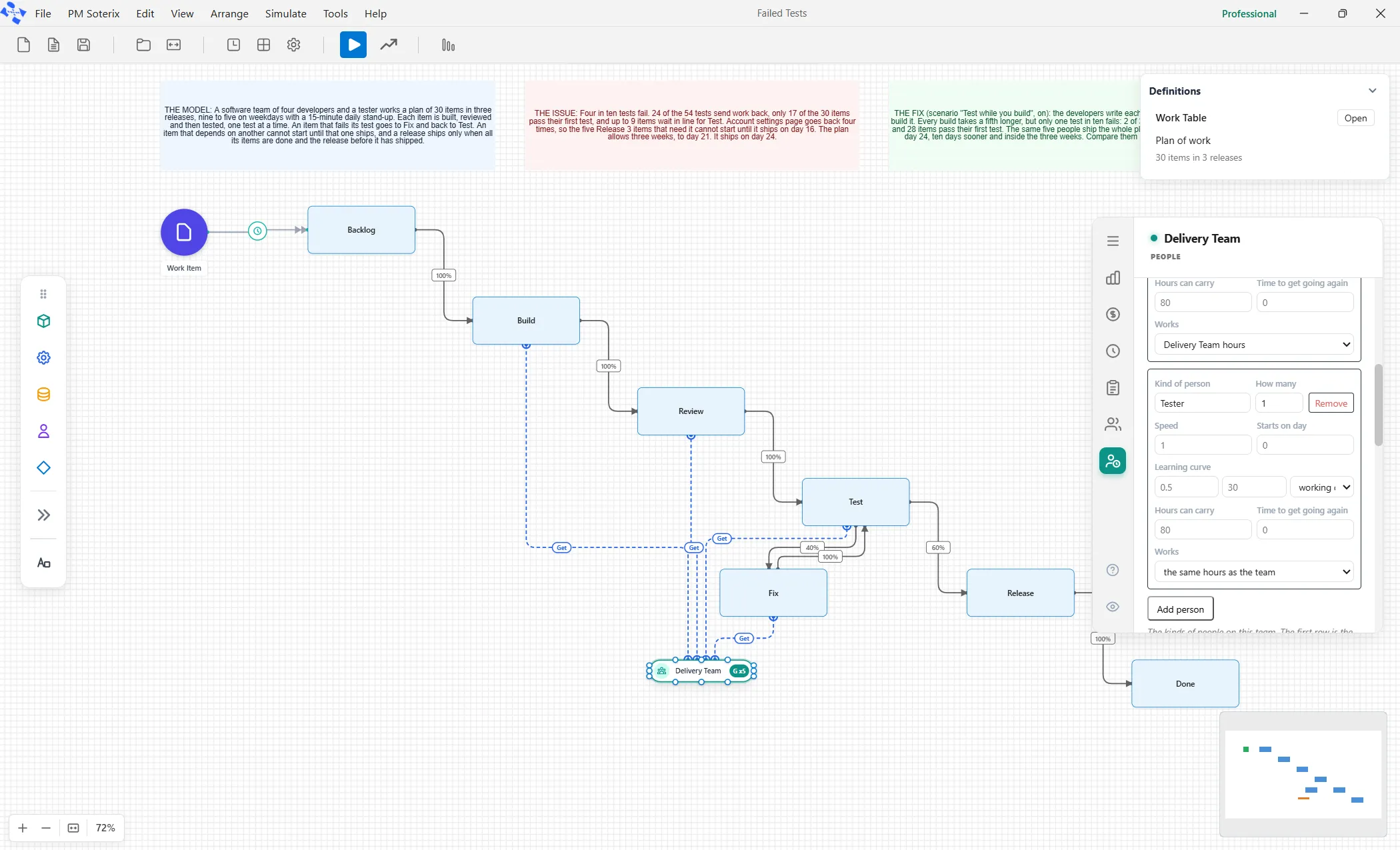
Each row has these boxes:
- How many is how many people. Row 1 takes a whole number. Any other row takes a whole number of people or a share of one person, a fraction between 0 and 1. Left empty, a row is one person.
- Speed is how fast this person works compared with normal. Leave it empty for normal.
- Starts on day is the day of the run they join. Leave it empty and they are there from the start.
- Learning curve holds the share of full speed on their first day, how many days it takes them to reach full speed, and whether those days are working days or calendar days.
- Hours can carry is the weighted workload this person can hold at once. Empty means no ceiling.
- Time to get going again is how long they take to pick the work back up after being pulled off it.
- Works is the hours this person works. Empty means the team’s own hours.
Add person adds a row, and Remove takes away a kind of person and the people behind it.
A row that cannot be used as typed is refused, and the message says why. A count of zero reads “A row needs at least a share of one person.” A count such as 1.5 is neither whole people nor a share of one, so the message asks you to use two rows. A share of a person needs hours to take a share of, so on a team with no hours the message reads “A share of a person needs the team to have a shift; set the team’s shift first.” Give the team its Working hours first, as described above, or give the row its own hours in Works.
Interruptions and the stand-up
Section titled “Interruptions and the stand-up”The People tab holds the People table and, below it, a table headed Interruptions. That is where meetings, questions and incidents go, because they are hours of work like any other.
The starter model carries one interruption row, the Stand-up. Its Time Between Interruptions is how often it happens, and its Interruption Time is how long it lasts, both in minutes. A daily fifteen-minute stand-up is 1440 and 15. Make the meeting longer and the team finishes later, because the time comes straight off every working day.