

Logic Builder
The Logic Builder is the single window that holds everything a model defines by name rather than by shape: its attributes, its variables, its scenarios, and its arrays. Each one has its own tab down the left, and the tab you are on fills the rest of the window with an editable grid.
Open it from the Tools menu, with Ctrl+Shift+L, or with the Logic Builder button on the toolbar.
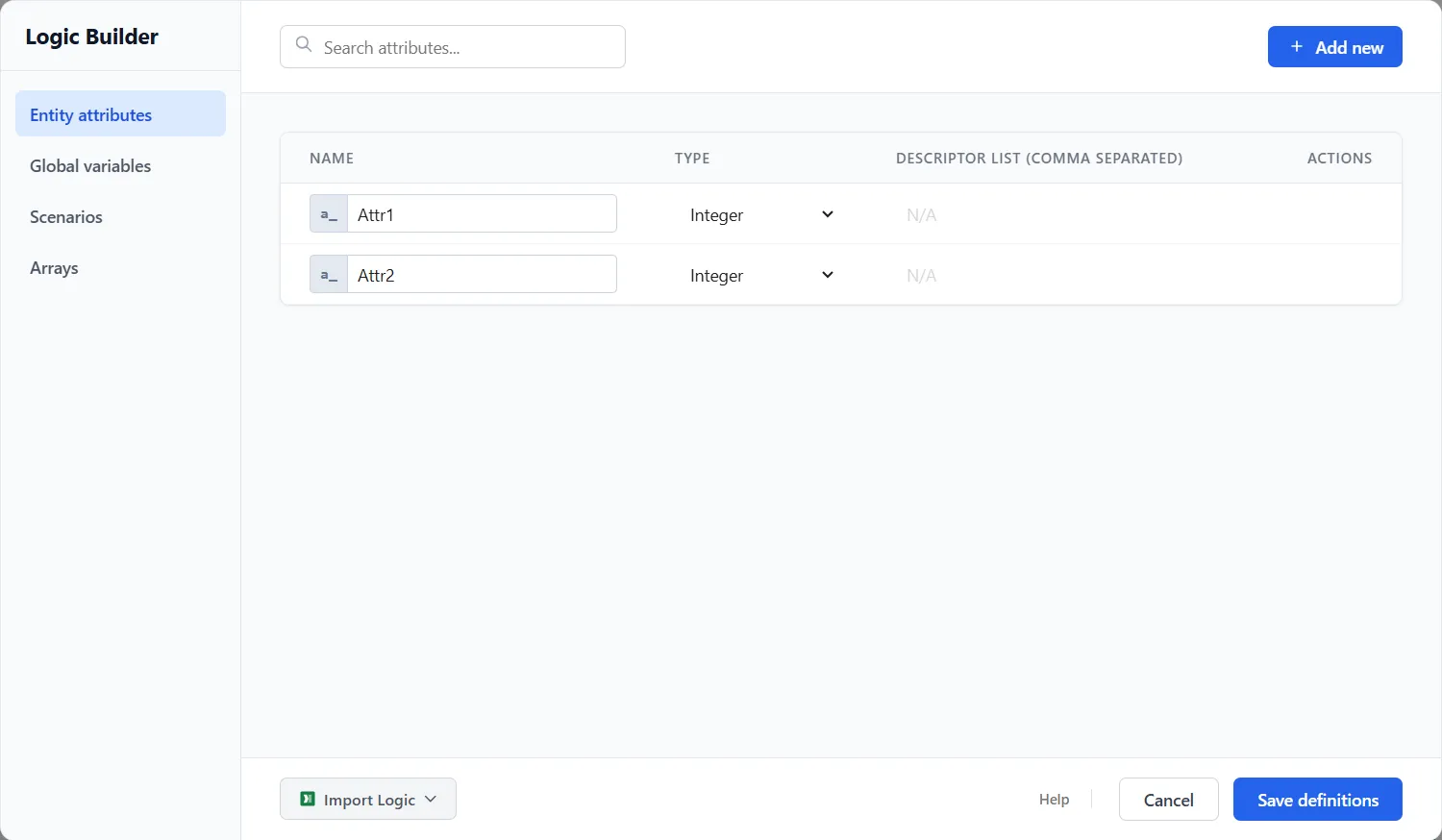
The four tabs
Section titled “The four tabs”Each tab has its own article. This one covers the window they share.
| Tab | What it defines |
|---|---|
| Entity attributes | Values that ride on each individual entity, prefixed a_. See Attributes. |
| Global variables | Single values shared by the whole model, prefixed v_. See Variables. |
| Scenarios | What-if versions of the model that run beside the baseline. See Scenarios. |
| Arrays | Grids of values reached by position, prefixed r_. See Arrays. |
The window opens on Entity attributes every time.
Working in the window
Section titled “Working in the window”Add new adds a row to whichever tab you are on, already named and ready to edit.
The search box above the grid filters the tab you are on, by name. It belongs to that tab and it clears itself when you switch tabs, so a search never quietly hides rows on a tab you have moved to.
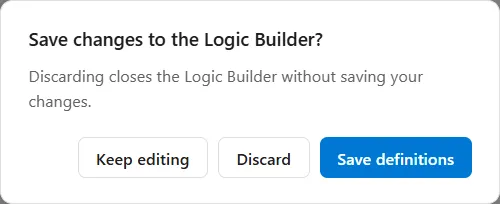
Nothing you do is committed until you choose Save definitions. With changes unsaved, Cancel, the X and pressing Escape ask before they close: “Save changes to the Logic Builder?”, with Save definitions, Discard and Keep editing. Discard throws the whole session away, including anything you imported. With nothing unsaved they close at once. While a simulation is running the question reads “Discard changes to the Logic Builder?”, because nothing can be saved then. Pressing Enter anywhere outside a field saves and closes.
You can drag the window by its heading if it is covering something you need to see.
The Logic Builder is unavailable while a simulation is running, and it opens read only on a model protected in Run Only mode. See Protect Model.
Loading a set in from a spreadsheet
Section titled “Loading a set in from a spreadsheet”Import Logic at the bottom left is the one thing in this window that belongs to no single tab: it loads attributes, variables, and arrays in one pass, from one Excel file, and drops each row on the tab it belongs to. For a model that starts life as a list of field names in a spreadsheet, this is far quicker than typing them in three tabs at a time.
It offers two choices.
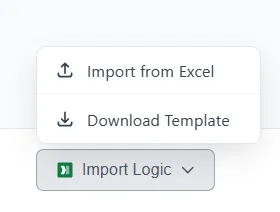
Download Template
Section titled “Download Template”Download Template writes a starter workbook named LogicImportTemplate.xlsx wherever you choose to save it, then confirms with the full path and a button to copy it.
The workbook has two sheets. The first holds six example rows, one of each shape, so you can see what a valid row looks like before you replace them with your own. The second is an Instructions sheet describing every column.
The columns are:
| Column | What it holds |
|---|---|
| Name | The name. Prefixes are optional: add a_, v_, or r_ if you like, or leave them off and let the import add the right one. |
| Type | Integer, Real, Date, or Descriptive. |
| Descriptor List | For a Descriptive item, the allowed values, separated by commas. |
| Initial Value | The value it starts each run with. |
| Statistics | TRUE to record every change during the run. YES and 1 are accepted too. |
| Default Value | An alternative to Initial Value. |
| Persist | Keep or Reset. |
| Dimensions | The size of an array, written as 10, 10x5, or 10x5x3. |
Import from Excel
Section titled “Import from Excel”Import from Excel reads the first sheet of an .xlsx or .xls file. Rows are sorted for you, from the columns you filled in:
- A row with Persist or Dimensions set becomes an array.
- Otherwise, a row with an Initial Value, a Default Value, or Statistics set becomes a variable.
- Anything else becomes an attribute.
So the columns you leave blank matter as much as the ones you fill. A name and a type on their own give you an attribute; add an initial value and the same row gives you a variable instead.
Two details worth knowing before you build the file:
- A row with no name is ignored, so blank rows between blocks are harmless.
- An array cannot be Descriptive. A row that asks for both comes in as an Integer array.
Scenarios are not part of the import. They are built on their own tab.
What you see afterwards
Section titled “What you see afterwards”The import reports back with a count of what came in and a breakdown by Entity Attributes, Global Variables, and Arrays.
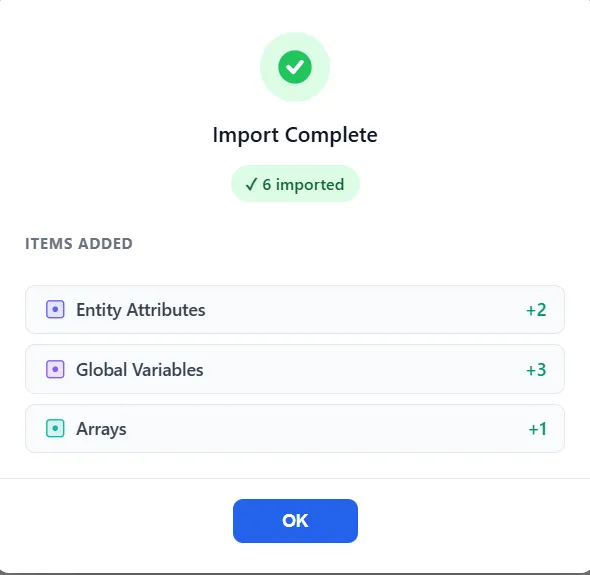
Names that already exist in this model are skipped rather than duplicated, and the count of skipped rows is shown beside the imported count. Matching ignores capitalization, so a_Status will not import a second time as a_status. If every row was already defined, the result says so instead of reporting an empty success.
Imported rows land in the grids as ordinary rows. They are still yours to edit, and they are still uncommitted, so Save definitions is what makes them part of the model.
A note on limits
Section titled “A note on limits”On the free Personal tier the number of attributes, variables, arrays, and scenarios a model may hold is capped. When Add new would take you past a cap, ProcessModel tells you which one you have reached instead of adding the row. See Free Trial and Personal Mode.