

Batch
A Batch node collects several entities and combines them into a single batch that travels on together. Use it to fill a box or pallet, gather a full set before assembly, or hold entities until there are enough to move as one.
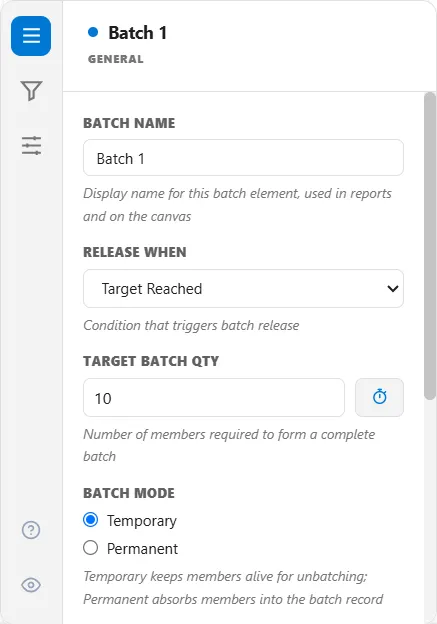
How many to collect, and when to release
Section titled “How many to collect, and when to release”- Target Batch Qty is how many members make a full batch (10 by default).
- Release When decides what actually sends the batch on:
| Release when | The batch leaves as soon as |
|---|---|
| Target reached | It reaches the target quantity (the default) |
| Target or timeout | The target is met, or a timeout passes |
| Target or scheduled | The target is met, or a scheduled time arrives |
| Timed release | A timeout passes, whatever the count |
| Scheduled release | A scheduled clock time arrives |
| Target or Timed or Scheduled | Whichever of these happens first |
For the timed and scheduled modes you set a Timeout or Scheduled Times, plus a Min Size so a release never fires an almost-empty batch. Scheduled Release names that field Min Size for Scheduled, and Target or Scheduled has none. A Max Size caps the batch and sends it on the moment it fills, but under a target rule the batch leaves at the target, so a Max Size above the target never applies.
Temporary or permanent
Section titled “Temporary or permanent”Batch Mode decides what happens to the members inside:
- Temporary keeps each member alive within the batch, so an Unbatch node can split them back out later with their attributes intact. Use this for boxing, palletizing, or any grouping you will undo.
- Permanent merges the members into the one batch entity. Use it when the parts genuinely become a single thing and never separate again.
Batching only like items
Section titled “Batching only like items”By default any waiting entities can batch together. Match Keys narrow that: name a key (the entity type, or an attribute) and only entities that agree on it batch together, so different products never share a box. Match Key Mode chooses whether members must match on every key or just one. To build an assembly from different entity types, leave the type out of the match keys so mixed types combine, and set the Batch Entity Type for the finished item.
Choosing which entities go in first
Section titled “Choosing which entities go in first”When more entities are waiting than a batch needs, the Selection Rule sets the order they are drawn in: FIFO (first in, first out), LIFO (last in, first out), by an attribute’s priority, earliest due date, oldest in the system, FEFO (first expired, first out), Random (SIRO), or weighted random.
Varying the batch size
Section titled “Varying the batch size”Target Batch Qty accepts an expression, not just a number, so the size can change from batch to batch. Use a variable, an entity attribute, or a distribution such as U(5,15), which is sampled once as each batch opens.
Rebatching to a target output
Section titled “Rebatching to a target output”If some members are scrapped downstream and you still want a set number to come out, switch the target to count output and give an Expected Yield. ProcessModel raises the input target so the surviving output matches the number you asked for.
Rolling member values up
Section titled “Rolling member values up”On the Advanced tab, aggregation rules carry attribute values from the members onto the batch: sum a weight, count the members, take the earliest timestamp, and so on. Every batch also carries MemberCount, BatchFormedTime, and BatchId automatically.
The batch node’s other tabs
Section titled “The batch node’s other tabs”The batch node keeps its finer settings on two more tabs. Every tab shows by default, each with its own icon, and the eye icon in the tab strip lets you hide the ones you do not use:
- Batch: Intermediate: selection rule, match keys, the formation resource, queue capacity, and the size cap
- Batch: Advanced: aggregation rules, timeout mode, eligibility, yield, traceability, and nesting
Tracking a batch in logic
Section titled “Tracking a batch in logic”Entity.GroupQty reads how many members a batch is carrying, so downstream logic can react to the batch size.
Seeing what is inside during a run
Section titled “Seeing what is inside during a run”While a run is going, a blue badge on the batch node counts the batches that are open and still collecting members. Click it (rest the pointer on it and it reads “Click to inspect open batches”) to open a list with one row per open batch: its batch ID, how many members it holds against its target, such as 4 / 10, with a fill bar, and its member IDs, which open from an arrow. The list refreshes while you watch, and Esc, the X or a click outside closes it.
Queue fill indicator
Section titled “Queue fill indicator”On the General tab, under Animation Display, tick Show queue fill indicator to put a thin vertical bar on the edge of the batch node that shows how full the open batch is, its members against its target size. Threshold (% of capacity) is the warning level, 80 to begin with: the bar is green, turns yellow from half the threshold, red from three-quarters of it, and red and pulsing above it. Scale measures the fill against % of target size or % of historical max, the largest fill seen so far in the run.
Collecting statistics
Section titled “Collecting statistics”Collect Stats on the General tab is on by default. It tracks throughput, wait times and utilization for the batch node. Clear it to stop collecting them.
LegacyHow this worked in the previous version
The batching tab allows you to hold entities in queue until a specified quantity is reached. For example, parts might be held in front of a heat treating oven until a specified quantity is reached. The group of part is moved into the oven and the entire batch is heat treated for a specific time. The batch is then moved out of the oven. This batching is performed to increase the efficiency of an expensive resource allowing it cycle only when it has a full load.
When the batch is created in the input queue, one entity is moved into the capacity for processing (the batch). The processing time will be for the batch. If the batch is created in the output queue, then the routing time will be for one entity (again the batch).
A basic explanation of how ProcessModel works may prove helpful. When the batch quantity is reached, all entities are then attached to a new entity (the batch). You may change graphics, set attributes, accumulate cost and assign resources to the new entity. Recognize you are making assignments to the new entity. If the batch is unbatched, the batch entity goes away and the attached entities are removed from the batch and continue on. VA Time accumulated as a batch will be divided among the unbatched entities. Cost added to the batch will also divide to the unbatched entities.
If a resource is assigned (Get) to an entity prior batching, the resource will be trapped in the batch. If you have less resources than the quantity of the batch, the models will be unable to process the request to get the next resource and entities will stop at the Get statement. If a resource is assigned to a batch and is unbatched before the resource is released (Free), the resource will be transferred to the first exiting entity from the batch.
When and unbatch occurs, entities will exit the batch in the same order as they entered the batch.
A batch can consist of other batches. When unbatching, only one level of batch is unbatched at a time.
It is possible to accomplish many other types of batching. For example you could
- Batch at the end of a shift regardless of quantity - see the model object “short batches”
- Batch all waiting entities - see the model object “all waiting entities at a specific time”
- Produce separate batches for different entities - see the model object “group similar entity types”
- Batch based on multiple criteria - see the model object “smaller quantity because the batch was open too long”
The batch will assume the name of the last entity entering the batch. For example, if you had Car and Truck entities being batched together, and Truck was the last entity to enter the batch, then the batch name would be Truck, regardless of how many of each entity type were contained within the batch. The batched entity name ‘Truck’ can not be change with the ‘New name’ property in the properties dialog.
Attaching is just creating a batch. So if a batch was -not- created after an attach operation, and you then unbatch, the attached child entities will be detached.
However, unbatching should not be used as a detaching method because of the following; When forming a batch, a temporary entity is created and the batching entities grouped together with it. When you unbatch, that temporary entity is destroyed. Therefore, if you unbatch a group of “attached” entities, the parent entity will be destroyed and the child entities will detach and move downstream in the model.
Before Activity
Section titled “Before Activity”- **None **No batching occurs before the activity. (No Batch Size field appears.)
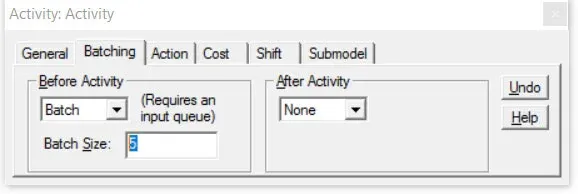
- **Batch **The activity will batch or group incoming entities (whether or not the entities have already been batched) and process them as a batch. The number batched is defined by the Batch Size field.
-
An input queue with a capacity that meets or exceeds the maximum batch size is required.
-
An Attribute may be used in the Batch Size field to set the number to be batched. The specified batch quantity is evaluated each time an entity is batched. If the entity attribute is less than or equal to the number already waiting to be batched, the batch is formed (with possibly a new size) and released for processing. This allows the specified batch quantity to vary if desirable. It also allows for the creation of short batches.
- **Unbatch **The activity unbatches or ungroups the incoming entity (if the entity has not been batched, the unbatching is ignored) and processes each entity individually.
- **Rebatch **The activity will batch or group the same number of entities back together that were unbatched previously. This means you don’t have to know how many entities were previously unbatched in order to rebatch them-no batch size is required.
- An input queue with a capacity that meets or exceeds the maximum batch size is required.
After Activity
Section titled “After Activity”- **None **No batching occurs after the activity. (No Batch Size field appears.)
- **Batch **The activity will batch or group entities (whether or not the entities have already been batched) after the activity has completed processing. The number batched is defined by the Batch Size field.
- An output queue with a capacity that meets or exceeds the maximum batch size is required.
- **Unbatch **The activity unbatches or ungroups entities after the activity has completed processing. If the entity has not been batched, the unbatching is ignored. No output queue capacity is required, but without sufficient capacity downstream, processing could be delayed while the unbatching occurs.
- **Rebatch **The activity will batch or group the same number of entities back together that were unbatched previously or arrived in quantities greater than one (in which case the quantity batched is the quantity of the arrival). This means you don’t have to know how many entities were previously unbatched in order to rebatch them-no batch size is required.
- An output queue with a capacity that meets or exceeds the maximum batch size is required.
Batch Size Determines the number of entities to be included in each batch. (Used only when batching entities.) An Attribute may be used in the Batch Size field to set the number to be batched. The specified batch quantity is evaluated each time an entity is batched. If the entity attribute is less than or equal to the number already waiting to be batched, then batch is formed (with possibly a new size) and released for processing. This allows the specified batch quantity to vary if desirable. It also allows for the creation of “short batches,” or batches that formed early before the normal size is achieved.
Before using batching, consider that your batch may just as easily be modeled as a single entity (see Job Shop Scheduling). Also, remember that batching may require an input queue or output queue. Follow the directions on the properties dialog. If a queue is needed, make sure it has sufficient capacity to hold an equal or greater number of entities than the expected maximum batch size. Also note that all batches or groups are unbatched when the batched entity exits the model in order to complete statistics collection on each entity. However, if a batch or group has had an entity attached to it during the simulation, ProcessModel will not unbatch that particular batch (or any groups within that batch).
Variable Batch Size
Section titled “Variable Batch Size”Existing “in process” batch sizes change when variable batch sizes change.
First some definitions. A batch is a group of items that will be processed at one time. In ProcessModel when a number is entered into the Batch Size field, all processing at that activity will stop until the batch size is met. That means that a batch could wait for hour or even days for the batch to reach the specified size. Changing the batch sizes allows the modeler to have control over what to do if the batch size isn’t met and yet the batch still needs to close. For example: at Quest Diagnostics human samples are processed within predefined response times. The economic order size is to process 24 at one time , but when the end of the day arrives and the economic order quantity has not been reached, the order must still be closed even if there is only one specimen in the batch. These undersized batches are called Short Batches.
An entity needs to enter the batching location to trigger the review of the batch size. In other words you can’t cause the release of a batch by simply changing a variable, but the next entity to enter will cause the review of the batch size.
The entities waiting to be batched don’t know anything about the batch size value. They are always released into the batch when the number of waiting entities equals or is greater than the “current” batch size.
For example, suppose your initial batch size is 10 and you have 5 entities waiting to be batched. Then your batch size changes to 6 AND a new entity enters the batching activity. Those 5 waiting entities will be released into the batch as soon as one more entity arrives. They will not wait for a batch quantity of 10.
When Variable Batch Sizes Change
Section titled “When Variable Batch Sizes Change”Sometimes a batch size is controlled by an attribute on the entity arriving at the batching location and other times by a variable. Use the method that best suites your needs. See the model object Batching Short Batches for an example of how to change the batch size.
- What is Action Logic?
- What is Activity Cost?
- What is an Activity Shift?
- What is an Activity Submodel?
Batching before an activity
Section titled “Batching before an activity”Collect two or more entities in the input queue of an activity in order to process them together as a batch. Useful for batching a specified quantity or for rebatching a batch of items that had been previously unbatched. To unbatch entities after the operation, see Ungrouping or Unbatching After an Activity.
Suggested Technique (batching a specified quantity)
Section titled “Suggested Technique (batching a specified quantity)”- Specify an input queue capacity for the activity that is at least as great as the largest batch size. (Activity input queues are automatically set to 999 as the default capacity.)
- In the Batching tab, select Batch for Before Activity.
- Specify the quantity to be batched.
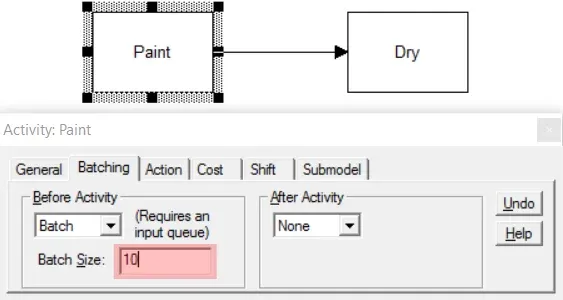
Example: Parts are collected in groups of ten and painted in an automatic painting process. The Parts enter the Paint activity input queue individually, they are grouped in sets of 10, painted, and routed to the Dry activity as a group.
TO DO: Select the Paint activity’s Batching tab. Choose Batch for Before Activity and set the quantity to be batched at 10.
- To see how the Parts are ungrouped after the Dry activity, see Ungrouping or Unbatching After an Activity.
Batching after an activity
Section titled “Batching after an activity”Collect two or more entities into a batch or group after an activity in order to move them onto the next activity as a batch. Useful for accumulating a batch of a specified quantity or recreating a batch that had been previously batched.
Suggested Technique (batching a specified quantity)
Section titled “Suggested Technique (batching a specified quantity)”- Specify an output queue capacity for the activity that is at least as great as the largest batch size.
- In the Batching tab, select Batch for After Activity.
- Specify the quantity to be batched.
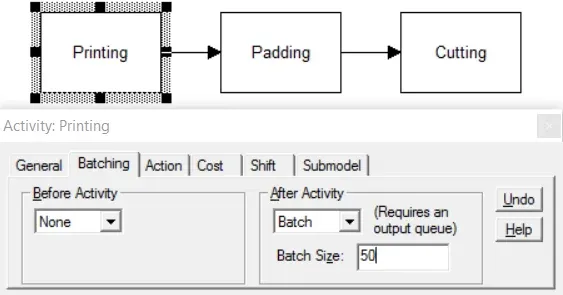
Example: In producing TO-DO pads, the printer groups the pads into batches of 50 as they come off the press (after the Printing activity). The pads are then routed to the Padding activity and then to the Cutting activity.
TO DO: Select the Batching tab of the Printing activity and choose Batch for After Activity, then enter a Batch Size of 50. Select the General tab and enter 50 in the Output Queue Cap. field.
Batching arrivals
Section titled “Batching arrivals”Arrivals in which two or more entities arrive together (i.e. the arrival quantity is greater than one) and are then batched together.
Suggested Technique
Section titled “Suggested Technique”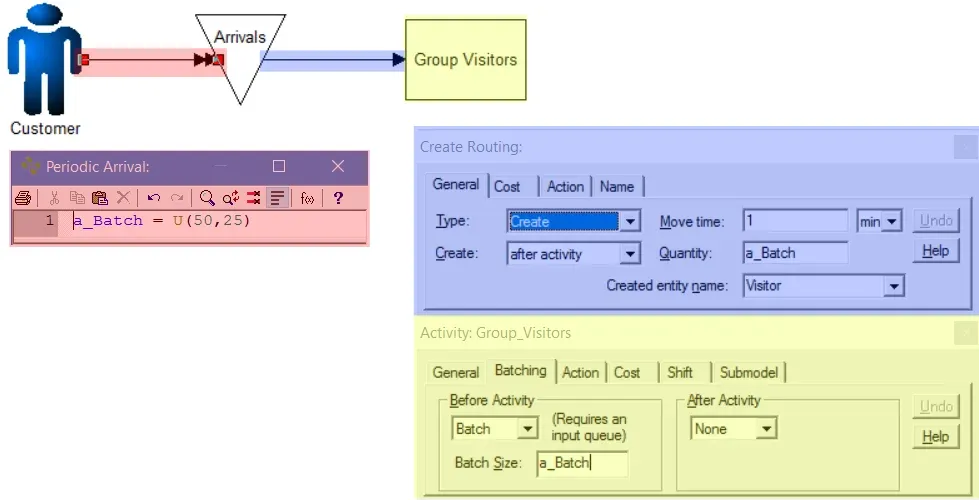
- Create a Periodic or Scheduled arrival with a temporary entity for the arrival. Set the quantity per arrival to one.
- In the action logic of the arrival, set an attribute equal to a distribution of the quantity to be batched.
- From the first activity define a Create route with the newly created attribute in the quantity field.
- In the second activity set the Batch Quantity to the same newly created attribute.
Example: A theme park groups or batches its customers in the Lobby for tours and other activities. Every hour the park begins a new tour and groups the customers that have arrived up to that time. (No more than about 75 show up at one time for a tour.
TO DO: Create an arrival to a storage. In the action logic of the storage set a attribute to the distribution that represents the quantity desired. Make a Create route from the storage with the attribute used for the quantity. In the Batching Area activity set the batch size to the same attribute. Set the input queue to at least 75.
Rebatching to a previous quantity
Section titled “Rebatching to a previous quantity”Create a batch that is the same size as a previous batch without specifying a quantity. This allows the batch size to be set in one place and all subsequent batches to be set automatically. To unbatch entities after the operation, see Ungrouping or Unbatching After an Activity.
Suggested Technique (re-creating a batch)
Section titled “Suggested Technique (re-creating a batch)”- Specify an input queue capacity for the activity that is at least as great as the largest batch size. (Activity input queues are automatically set to 999 as the default capacity.)
- In the Batching tab, select Rebatch for Before Activity
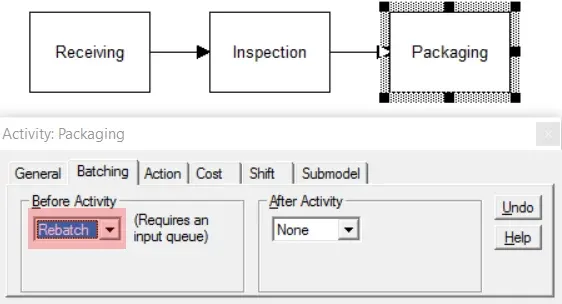
Example: A batch of 48 PC boards must be unpacked (unbatched) at the Receiving activity, individually inspected at the Inspection activity, and then moved individually (on a conveyor) to be rebatched at the Packaging activity.
TO DO: Select Rebatch for Before Activity in the Batching tab of the Packaging activity. Then enter a number greater than or equal to 48 in the Input Queue Cap. field in the General tab.
- The Rebatch option may also be used to create a batch for arrivals defined with a quantity greater than one. See Batching.
Batching a variable quantity at a set time
Section titled “Batching a variable quantity at a set time”Collect two or more entities into a batch or group after an activity or queue in order to move them onto the next activity as a batch. Useful for holding entities for daily processing.
Suggested Technique (batching a variable quantity)
Section titled “Suggested Technique (batching a variable quantity)”- Make the routing prior to batching activity an Attach routing. In place of a quantity to attach, insert the word ALL.
- Place a new (temporary) entity with an arrival connector to the batching location.
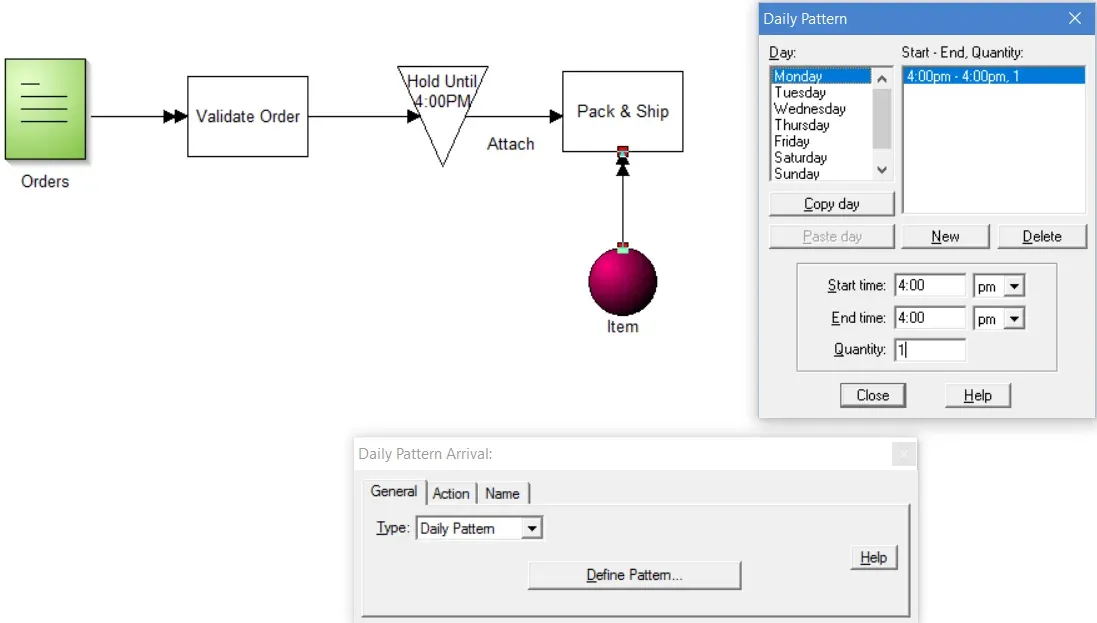
- Set the arrival type to match your batching pattern. Often a Daily Pattern arrival will provide all the flexibility needed to set batching times.
Example: Product orders arrive throughout the day but are not processed until 4:00 PM
TO DO: Create a new entity that will act as a trigger to cause batching to occur. Create a Daily Pattern arrival for the “trigger” entity. Set the pattern of arrival, for each day, to have a single entity arrive at the time the batch is to occur. Create a queue, or holding location, for the entities that will be batched. Make the routing an Attach routing from the queue to the batch location with a quantity of ALL.
Creating an assembly
Section titled “Creating an assembly”Attach or join one or more entities (e.g. component parts) to a base entity.
Note that in many instances you may not need to model the actual entities being joined but only the time to join them. If it is known, for example, that the components assembled to a base entity are always available when needed, it is sufficient to specify an assembly time for the base part at each assembly station as it moves through the process.
Suggested Technique
Section titled “Suggested Technique”If it is necessary to model the component entities feeding into the assembly activity, do the following:
- Route the main or base entity into the assembly activity using any routing other than an Attach.
- Connect each storage or activity holding the entities to be attached to the assembly activity using the Attach routing (each type of component to be assembled must come from a separate storage or activity).
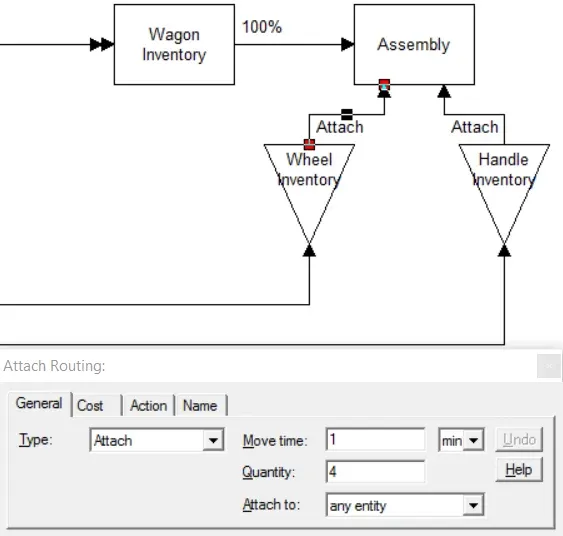
Example: Four Wheels and a Handle are assembled to a Wagon at the Assembly station
TO DO: Route the Wagon by any routing other than an Attach or Pickup. Route the Wheel (quantity of 4) and the Handle using an Attach routing for each as shown above. The time to perform the assembly activity may be defined in the activity’s Time field.