

PM Soterix
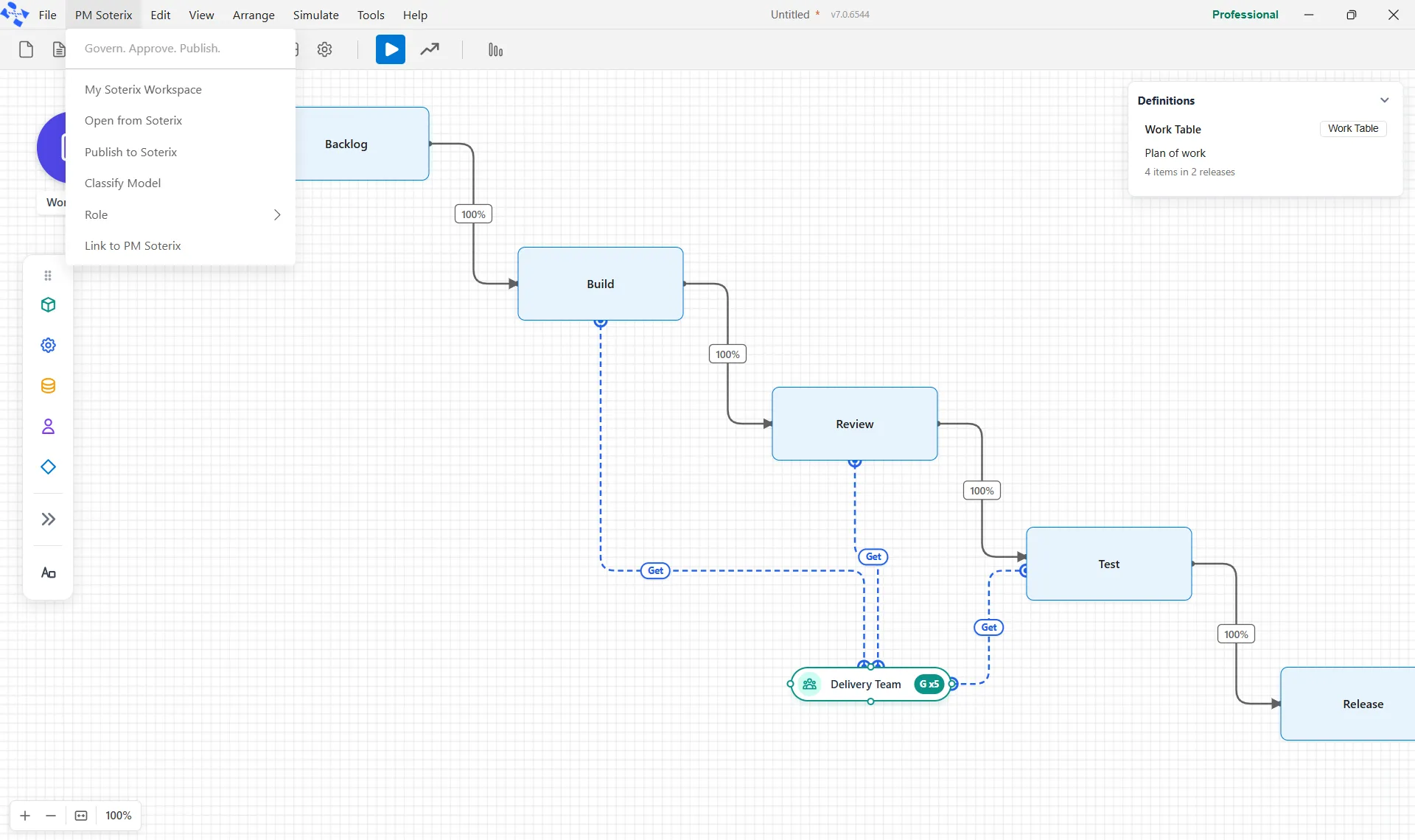
PM Soterix is a shared model library with governance: a place to publish models, control who is changing them, and get a change approved before it becomes the version everyone uses. It has its own menu on the top bar, headed Govern. Approve. Publish.
Connecting to a library
Section titled “Connecting to a library”Link to PM Soterix connects this installation to a library. Once it is linked, the rest of the menu works against that library. Until then, every other entry opens a window that says PM Soterix is not connected: the library lives on your organization’s own server, and an administrator invites you to it.
Your workspace
Section titled “Your workspace”My Soterix Workspace opens your own view of the library: the models you have out, what is waiting on you, and what you can open.
Open from Soterix opens a list of the models in the library. Each row offers Record, which opens the model’s full record of versions, history and approvals; View, which opens the model to read and run and takes no lock; and Check out, which takes the check out and opens the model for editing under your name, so everyone can see it is being worked on.
Publishing and checking in
Section titled “Publishing and checking in”One state-labeled entry manages your working copy, and its label follows whether the open model is already in the library. A model that is in the library reads Check In to Soterix, which uploads your changes and releases your check out so someone else can take the model. The box Keep the check out after uploading holds on to the check out, so you can carry on working. A model that is not in the library yet reads Publish to Soterix, which asks for a destination folder and publishes the model there.
Getting a change approved
Section titled “Getting a change approved”Submit for Approval asks someone to approve a checked-in version before it becomes the one others use. It is how a change is reviewed, rather than simply appearing in the library. The entry shows only for a model that is in the library.
Classifying a model
Section titled “Classifying a model”Classify Model tags a model so the library can find and group it: what it is, what it is for, and whatever else your team classifies by.
Seeing as a role
Section titled “Seeing as a role”Role is a submenu that shows the library as one of the roles you have been granted.