

Factors
A factor is a setting you allow PM Optimizer to change while it searches. Each factor names one thing in your model and the values to try for it.
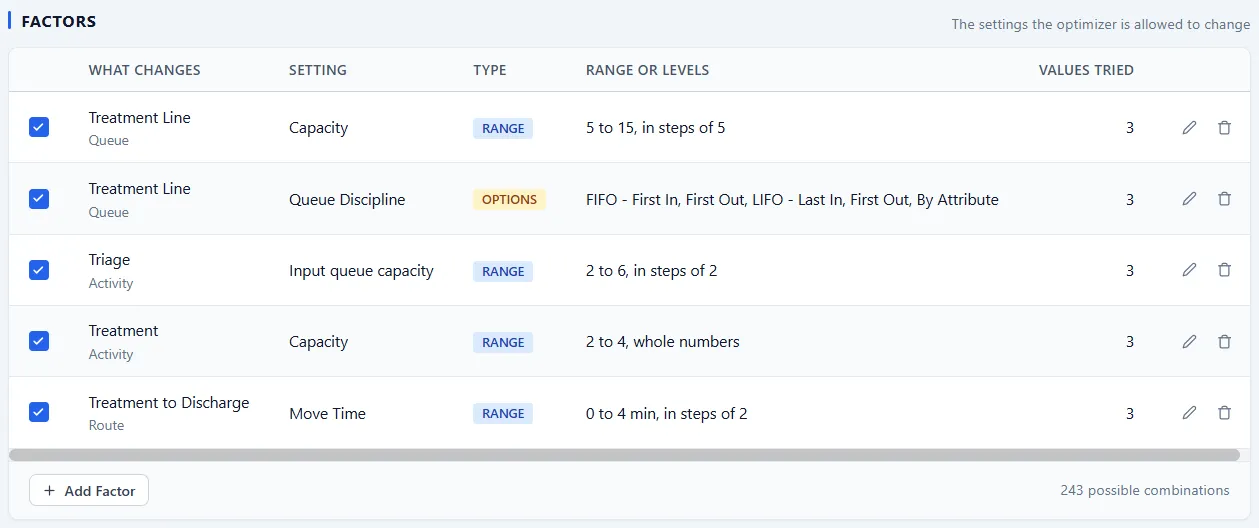
The factors table
Section titled “The factors table”Each row is one factor and shows what it changes, which setting, its type, and the range or list of values to try. The count in the corner, the possible combinations, multiplies the choices together so you can see how big the experiment is before you run it. Clear the checkbox at the start of a row to hold that factor out without deleting it; its setup stays exactly as you left it.
Factors come in a few types:
- Range: a number swept between a low and a high value, such as a capacity from 5 to 15 in steps of 5, or a variable’s Initial Value.
- Options: a choice from a list, such as a queue’s Queue Discipline, which has seven options: first in first out, last in first out, by attribute, Earliest Due Date, Oldest in System, Random (SIRO) and Weighted Random.
- On or Off: something the experiment turns on in some runs and off in others.
- Model change: a change to the shape of the model, such as a new resource that exists in some runs and not in others.
- Logic: whole pieces of logic swapped in and out, found under Advanced on an activity or queue. Each variant is a complete replacement for the logic on that object, and every run uses exactly one variant.
Add a factor
Section titled “Add a factor”Add Factor opens a picker that lists everything in your model you can change, grouped by the kind of object.
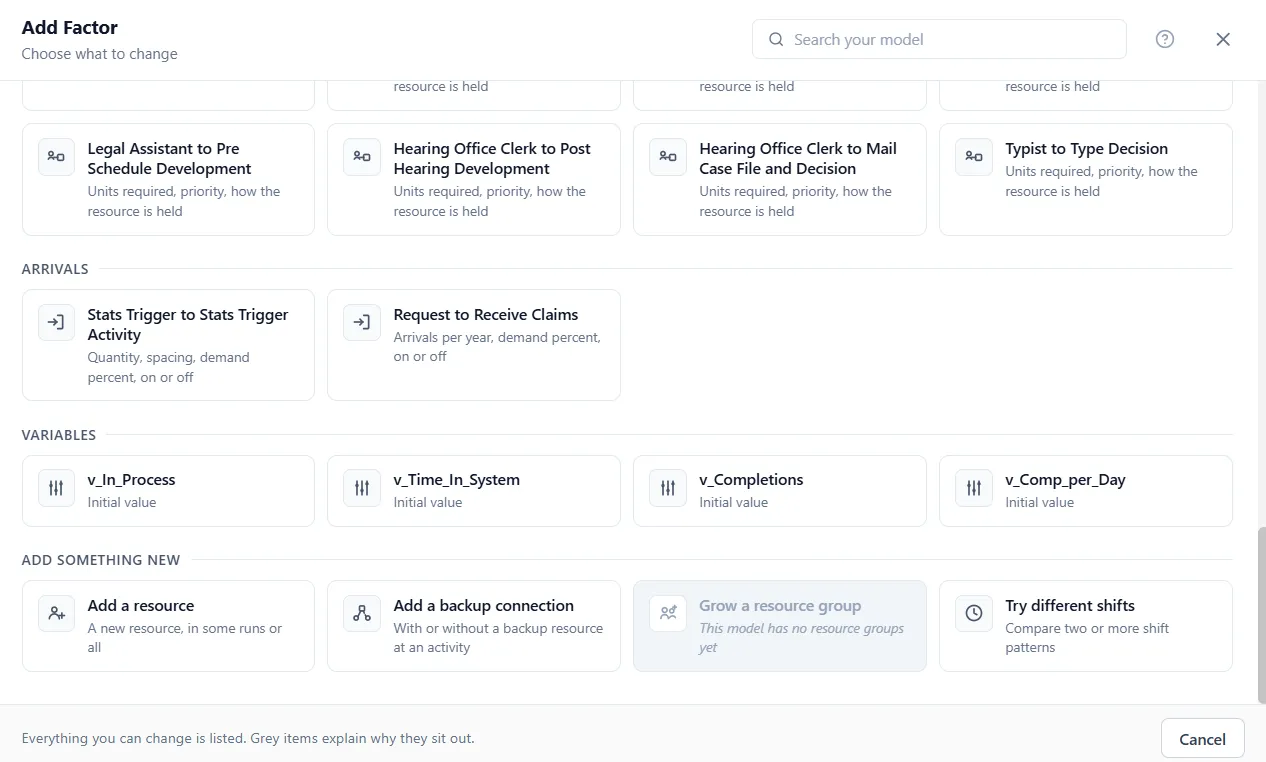
- Entities: carrying capacity and costs.
- Activities: capacity, processing time, shift, and costs.
- Queues: capacity, priority rule, and costs.
- Resources: quantity, availability percent, shift, and costs.
- Gates: how the gate releases and how long its window holds.
- Routes and connections: a route’s Move Time (and Renege After on a Renege route), and, on a resource connection, the units required, the priority, and how the resource is held.
- Arrivals: quantity, spacing, demand percent, and on or off.
- Inventory: reorder level and quantity, lead time, and costs.
- Variables: a variable’s initial value.
A final group, Add something new, tries things your model does not have yet: Add a resource (a new resource that exists in some runs or all), Add a backup connection (with or without a backup resource at an activity), Grow a resource group (add a member to an existing group), and Try different shifts (compare two or more shift patterns).
Everything you can change is listed. An item shown in gray cannot be a factor, with a short note on the row explaining why, so you are never left guessing what is missing.
Set the values
Section titled “Set the values”Choosing a card opens a second step. All options at its top takes you back to the picker, and nothing you entered is lost. To change a factor later, use the pencil on its row: it opens straight into this step, as Edit Factor.
- Which setting shows a pill for each setting the chosen object offers, and Advanced opens the rest. The one you pick decides what you enter below.
- Details appears for the Add something new cards and asks for what the new thing needs, such as a Name, an Hourly cost (optional), a Shift, where it Works at, a Backup resource or a Group.
- Values to try: for a number, choose Use a range and give a Minimum, a Maximum and, if you like, a Step (optional), or choose Try specific values and type them separated by commas. A range is required, so every run stays inside limits you chose. For a choice, tick the options to try. For a shift, tick built-in shifts, this model’s shifts and any you add with Add a shift for this experiment. An on or off setting has nothing to enter. Add a resource asks for the units to try instead, in whole numbers, where 0 means some runs go without it.
- A Today chip beside the heading shows what your model has now: it reads “Today:” and the current value.
- Values tried counts the values the factor will try, before you save.
Save Factor adds the factor to the table, and stays gray until the settings are sound.
Keep the list short
Section titled “Keep the list short”Every factor you add multiplies the number of runs, so start with the few settings you think matter and set tight, realistic ranges. If you are not sure which settings matter, use the screening panel on the Define step, right below the factors table: it runs a handful of cheap probe runs and tells you which factors actually move your result, so you can hold the rest out before the real experiment starts. The designs article covers how it works.