

Employee Absenteeism
To model people who step away now and then, lower the resource’s Availability % below 100 on the Availability tab. The resource is then randomly unavailable for that share of its scheduled time, in breaks of about five minutes, so this cannot model a missed day. To model a day off, switch the tab to Time and set an Interruption Time such as 8 hours, with a Time Between Interruptions that says how often it happens.
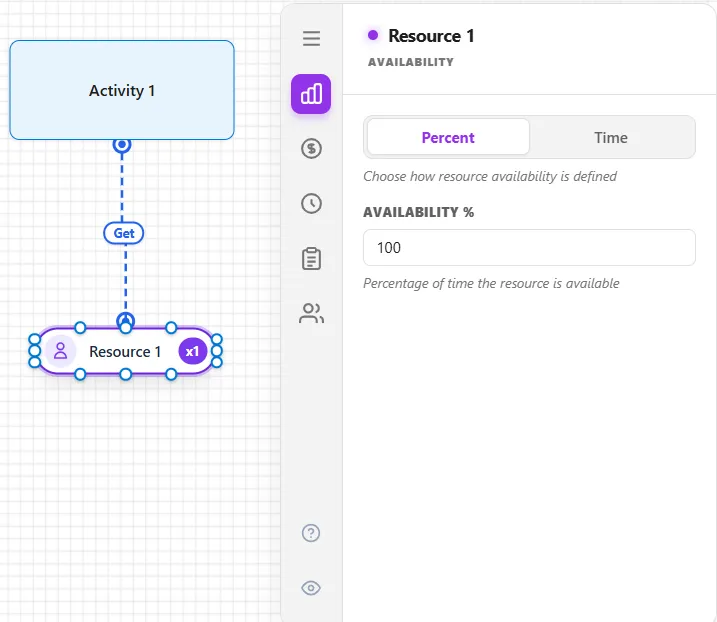
Because availability downtime waits for the current entity to finish, this models “sometimes absent” rather than someone walking off mid-task. For planned time off, use a shift schedule instead.
LegacyHow this worked in the previous version
Employees, for one reason or another, are not always available. An employee may miss a day, half day, or an hour of work.
Suggested Technique
Section titled “Suggested Technique”- Select the employee (resource) to display its properties dialog.
- Click on the Availability tab.
- Select the Time option and enter a Time between interruptions (the number of hours between the employee’s absences). This is usually a distribution to indicate the variability of absenteeism.
- Enter the number of hours the employee is absent in the Interruption time field. Often this is 8 hours to indicate a full day of work missed. (It could also be a distribution.)
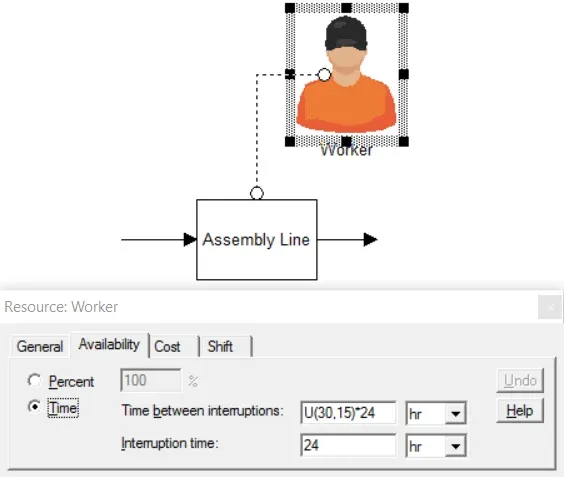
Example: The assembly line has 10 workers. Each worker misses a day of work an average of every 30 days worked (Uniformly distributed between 15 and 45 days).
TO DO: Select the Workers resource and click on the Availability tab. Select Time and enter the values as shown above, using a distribution to introduce variability to absenteeism. Multiply the distribution described above by 24 ash shown below in order to achieve units of days instead of hours.