

Resource Caseload
Normally a resource is a pool and any free unit serves whoever is next. Caseload changes that on the resource connections you set to Dedicated or Assign only: a case is bound to one unit of the resource, and that same unit serves it on every later visit. This is continuity of care, the pattern behind a named nurse, a case worker, an account manager, or a mechanic who owns a job from start to finish.
The tab is one toggle until you turn caseload on, and the rest of the fields appear beneath it.
Enable caseload
Section titled “Enable caseload”Off by default. Turning it on does not bind anything by itself: a case binds only on a resource connection whose Assignment is Dedicated (same worker every visit) or Assign only (assign a worker now, use them later). On a connection left on the default, Pool (any free unit), any free unit serves the entity. On a Dedicated connection, the first time an entity is served by this resource it is bound to the unit that served it, and every later request from that entity goes to the same unit, waiting for it if it is busy. The three Assignment choices are described under Assignment in Resource Connectors.
How much one worker can carry
Section titled “How much one worker can carry”Two independent ceilings, both optional. Leave either blank for no limit.
- Max active cases is a straight count of concurrent bound cases.
- Max workload is a ceiling on the total weight of those cases, so a worker can hold many simple cases or a few heavy ones.
The two are checked separately. Max active cases takes no notice of case weight at all, so a worker at a count ceiling is full even if every case is trivial. Set the one that matches how the real constraint works, or set both when both apply.
Both accept a number, a variable, or a distribution, and both are worked out once at the start of each replication. Entity attributes are not allowed, because the ceiling belongs to the worker rather than to any one case.
Case weight
Section titled “Case weight”Case weight is how much of the workload ceiling one case takes up, and it is read from the case itself, so it can be an attribute such as a_Acuity, an arithmetic expression, or a plain number. It defaults to 1, which makes workload behave the same as a case count until you change it.
The weight is re-read every time the case comes back, so a case that gets heavier as it progresses takes up more of its worker’s capacity as it goes. A weight of zero or less stops the run, since it would let a worker take on unlimited cases.
Case weight and the workload ceiling sit behind a Weighted workload disclosure, which opens on its own once any of them is set.
When no worker has room
Section titled “When no worker has room”When no worker has room (new cases) sets what happens when a new case arrives and every unit is at a ceiling:
- Wait unassigned: the case waits, bound to no one, until a worker has room. Capacity is respected, and the wait shows up in the results.
- Assign over cap (track violations): a worker takes it anyway, and the over-cap is recorded. It binds only onto a free unit that is on shift. Use this when the real system does not turn work away, and you want the report to show how often that happened.
Always accept when
Section titled “Always accept when”A condition that bypasses both ceilings for the cases that match it, for example a_ESI = 1 for a top-priority patient. Leave it blank and nothing bypasses them.
Two ways to get it wrong: an override on a resource with no ceilings set has nothing to bypass and does nothing, and an override that does not reference a case attribute is true for every case, which is a slower way of choosing Assign over cap (track violations).
Handoff partners
Section titled “Handoff partners”When a worker goes off shift their bound cases have to go somewhere. Handoff partners is the list of other caseload-enabled resources that may inherit them.
At each shift change, the cases of the departing worker are redistributed heaviest first onto the least loaded partner who is on shift, and a partner coming on shift picks up cover before taking any new arrivals. If no partner is on shift, nothing moves and the cases stay bound where they are until someone is available.
The list only appears when the resource has a shift schedule, since handoff happens at shift boundaries. Give the resource its shift first.
Reading the load in logic and times
Section titled “Reading the load in logic and times”Two queries read a caseload resource’s load. They work in action logic, in a route or gate condition and in any time field:
CASELOAD("Nurse")is the total load now, across all the units of that resource.CASELOADHEADROOM("Nurse")is the room left now, added up across the units that are on shift. With no ceiling set it is unlimited.
A resource with no caseload reads 0 on both, and a name that is not a resource in the model stops the run. To send work elsewhere when the nurses are full:
IF CASELOADHEADROOM("Nurse") < 1 THEN ROUTE TO FastTrackENDIFA time can read the load too, so a crowded team works more slowly. A step time such as U(10, 12) * (1 + CASELOAD("Nurse") / 10) draws from a distribution and makes the draw longer as the load grows. The other queries are in Resource Queries.
A case counts against its worker until it leaves the system. A patient who changes team can stop counting against the team it leaves sooner: under the Emergency Department lens a route does that with Leaves the team of, described in Settings for an emergency department model.
Working with other resource settings
Section titled “Working with other resource settings”- Resource groups: a group’s defaults stamp its caseload settings onto every member, so a whole team can be configured once. Handoff partners are the exception and stay per resource, unless the group is set to hand off among its own members.
- Dedicated resource connections: a connection set to Dedicated or Assign only requires caseload on the resource it comes from, and the connection’s own Quantity must be 1, because a case is owned by one unit. The resource itself may hold many units. A Quantity other than 1 typed as a number is refused before the run, and an expression that resolves to another number ends the run. Without caseload on the resource, the model will not run. See Resource Connectors.
The live Track board
Section titled “The live Track board”Caseload is easiest to follow while it runs. During an animated run on a caseload model, a toggle on the Simulation Bar opens the Track board, a live whiteboard of who is carrying what, in the spirit of the board on an emergency department wall.
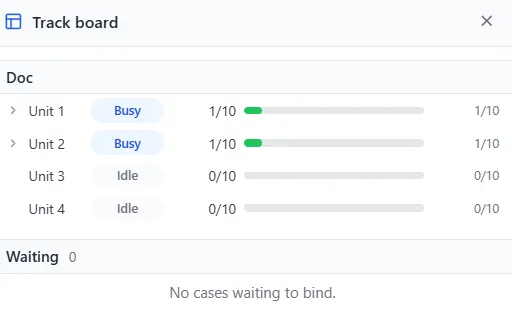
Each caseload resource gets a section, with a row for every unit. A row shows the unit’s state (Busy, Idle, Off shift, or Over cap), its bound case count against the ceiling (for example 1 of 10), and a load bar that fills as the unit takes on weight, turning amber as it nears the ceiling and red past it. Open a row to list its bound cases with their weights.
Below the units, the Waiting list is the cases queued to be assigned, in the order the model works through them, priority first and then by how long each has waited. A green dot means the case fits a worker right now, a gray dot means it is blocked, and hovering a blocked case names the worker leg that is full and by how much.
The toggle appears only for a caseload model, and it needs animation on, since the board is drawn from the animated run. Turn animation off and the toggle is disabled with a note saying so.
The load pill on the resource
Section titled “The load pill on the resource”While a caseload model runs, a caseload resource on the canvas wears a second small pill under the one that counts its units in use. It shows the load against the ceiling across all the resource’s units, such as 21/36, which is Max workload times the number of units. With only Max active cases set it shows the cases against that ceiling, and with no ceiling it shows the load alone. The pill turns amber from 90% of the ceiling and red once a worker is over it. A ceiling written as an attribute, a variable or a distribution cannot be worked out on the canvas, so the pill leaves it out.