Using Gates
LegacyHow this worked in the previous version
This Model Object will be used to stop and start the flow of entities at specific times of the day/week. To visually show the status of a gate while the model is running.
A gate has two parts:
- The section that becomes part of the flow of your model. This gate blocks or unblocks the flow of entities.
- The section that is independent of your main model. This will add an extra entity, arrival, and activity into your model that controls when the entities are held or released.
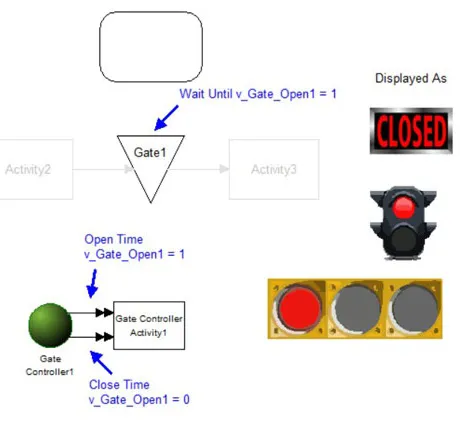
Each model object has a unique display graphic.
Several display graphics are shown above to illustrate some of the possibilities.
Where to Find the Model Object
Section titled “Where to Find the Model Object”One of the following Model Objects can be used to add a gate to your model:
- Gates - Gate1
- Gates - Gate2
- Gates - Gate3
- Gates - Gate4
- Gates - Gate_Display1
- Gates - Gate_Display2
- Gates - Gate_Display3
- Gates - Gate_Display4
- Gates - Gate_Display5
- Gates - Gate_Display6
- Gates - Gate_Display7
- Gates - Gate_Display8
- Gates - Gate_Display9
- Gates - Gate_Display10
Difficulty Level
Section titled “Difficulty Level”- Ease of Use: Easy
- Ease of Modification: Moderate
How to Use the Model Object
Section titled “How to Use the Model Object”- Open Your Model
- Insert Any One of the Above Model Objects into Your Model: Locate the appropriate location where you would like to place the model object, move the view to the location and then insert the model object.
- Connect to and from Gate: Connect a route from your model to Gate**#. Connect a route from Gate#** to the remainder of your model.
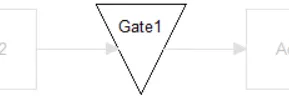
- Determine Gate Open / Close Times: Determine if the gate is to be open or closed at the start of the simulation (12:00 AM Monday Morning):
If the gate is to be OPEN at the start of the simulation, set the default value of v_Gate_Open1 = 1.
-
If the gate is to be CLOSED at the start of the simulation, set the default value of v_Gate_Open1 = 0.
-
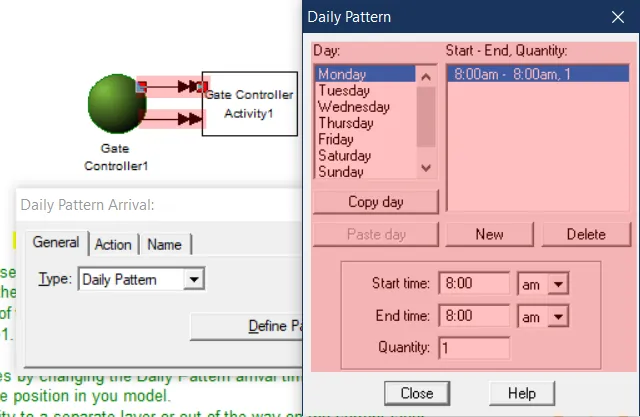
Change the gate OPEN and CLOSE times by changing the Daily Pattern arrival times on the gate controller arrival routes.You can choose any type of arrival based your needs
- Move Assets
Move the Gate 1 graphic to an appropriate position in you model.
-
The box around the animated sign is important. It covers the static open and closed graphics. To make rounded rectangle disappear, paint the black bounding line white, or remove its color.
-
Move the Gate Controller entity and activity to a separate layer or out of the way on the current layer.
-
Completion: The gate model is now integrated into your model, you should now be able to see the gate open and close.
Controls Usage
Section titled “Controls Usage”Variable:
Section titled “Variable:”- v_Gate_Open1: Used to signal when the gate is open or closed
Scenario Parameters:
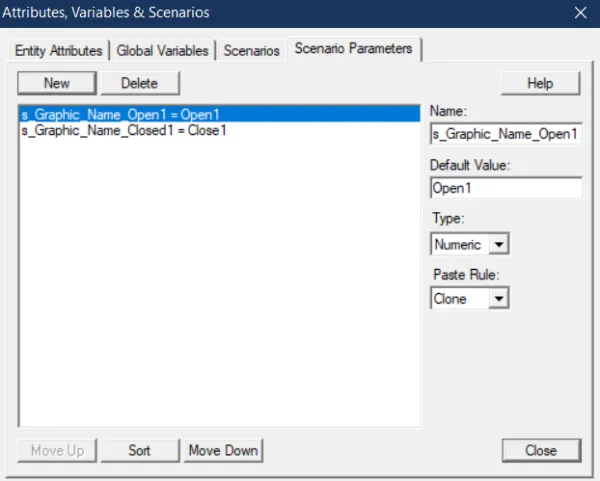
Section titled “Scenario Parameters:”- s_Graphic_Name_Closed1: Used to pass the name of the entity to the action logic controlling which entity is used to show the closed gate.
- s_Graphic_Name_Open1: Used to pass the name of the entity to the action logic controlling which entity is used to show the opened gate.
Advance Topics
Section titled “Advance Topics”How to Use Two or More Gates?
Section titled “How to Use Two or More Gates?”This model object may be used multiple times in your model. When used more than once, the following will need to be changed:
- The OPEN and CLOSE times in the periodic arrivals for the new gate
- The graphic names defined through scenario parameters. The original graphic name for the open gate is Open1 The original graphic name for the closed gate is Close1. When a second gate is pasted, the graphic numbers automatically increment.
This model object can be changed to use the new graphic names without actually changing the action logic. Just change scenario parameter default value to use the new graphic name. The second gate will use Open2 and Close2 An example is shown below of the scenario parameters tab of the scenarios dialog.