

Find and Replace
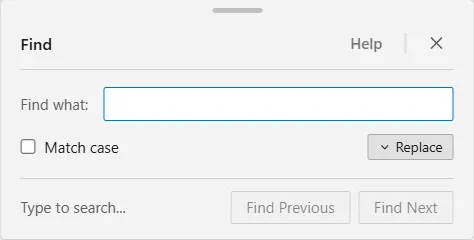
Find searches your model by name. Type part of a name and ProcessModel selects every matching shape at once and pans the canvas to the current match, which is the quickest way to reach something in a model too big to scan by eye. Open it from Edit ▸ Find / Replace, or press Ctrl+F.
What it searches
Section titled “What it searches”Names, and only names. Specifically:
- Node names, on every kind of shape: activities, queues, resources, entities, gates, signals and the rest.
- Route names, the label carried on a connection. A route match selects nothing on the canvas and does not move it.
- Annotations: the text of any label you have placed, and the name of an image or shape if you have renamed it. Images and shapes you have left with their default names are not matched, so searching for “Image” does not return every unnamed picture in the model.
It does not search inside action logic, expressions, attribute or variable definitions, or process tables. To search within a piece of action logic, open that logic and use the editor’s own Find, on Ctrl+F, with the full set of editor shortcuts behind it.
Moving between matches
Section titled “Moving between matches”The window lists what it found in two groups, Model nodes and Background items, with a count on each. Click any row to jump straight to it.
Find Next and Find Previous step through the matches in order, and the counter reads “3 of 12 matches” so you know where you are. Enter does the same as Find Next, Shift+Enter the same as Find Previous. When the current match is an annotation, ProcessModel switches to annotation mode to select it and tells you it has done so.
Match case decides whether capitalisation has to agree. With it off, “queue” finds “Queue”.
The window floats over the canvas and does not block it. Drag it by the bar at the top to move it out of the way. Escape closes it.
Replacing
Section titled “Replacing”Replace is hidden until you ask for it. Click Replace with the small arrow beside Match case and a second box appears, along with two more buttons:
- Replace changes the current match only, the one the counter is pointing at.
- Replace All changes every match in the list that can be renamed, across shape names, route names and label text together. A renamed image or shape is listed under Background items, but Replace and Replace All never change it.
Replacing changes the matched text inside each name and leaves the rest of the name alone, so replacing “Rev” with “Review” turns “Rev Claim” into “Review Claim”.
Both can be undone. Ctrl+Z reverses a replacement, and a Replace All comes back in a single step rather than one name at a time.
Names of things that are pointed at from elsewhere are worth a second look after a bulk rename: a route or a piece of action logic that refers to a shape by name still refers to the old name.
Related
Section titled “Related”- Keyboard shortcuts lists every shortcut for the canvas, including this window’s Ctrl+F.
- Annotations and labels covers the labels, images and shapes that this window can find.
- Action logic keyboard shortcuts for searching inside a piece of logic.
- Logic Builder for finding and renaming attributes, variables and arrays.