

Protect Model
Protect Model puts a password on a model. Use it when a model is going somewhere you do not control: a client who should see the results but not the method, a shared machine where the file will sit on disk, work you are not ready to hand over in full.
Open it from the Tools menu.
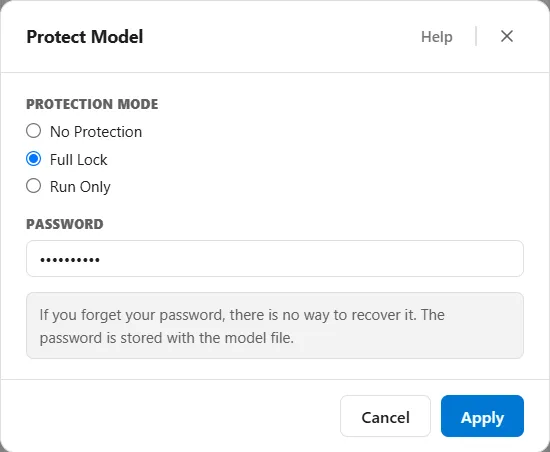
The three modes
Section titled “The three modes”| Mode | What it does |
|---|---|
| No Protection | The model opens and edits normally. This is the default, and choosing it is how you remove protection. |
| Full Lock | The model cannot be opened at all without the password. |
| Run Only | The model can be simulated but not edited. |
Pick a mode, type a password, and choose Apply. No Protection needs no password, so the password field is hidden for it. The other two do: Apply stays unavailable until you type one.
Escape closes the window without changing anything. Enter does the same as Apply.
About the password
Section titled “About the password”There is no minimum length and no character rules, and the password is case sensitive, so Fleet2026 and fleet2026 are two different passwords.
If you forget the password, the model cannot be recovered. There is no reset, no master password, and no back door. Nobody at ProcessModel can open the file for you. This is the single most important thing to know before you protect a model.
So before you lock a model you care about, keep an unprotected copy of it somewhere safe. Protection lives inside the model, so a copy saved before you applied it stays open to you no matter what happens to the protected one.
Full Lock
Section titled “Full Lock”Apply Full Lock, then save the model. From then on, opening that file asks for the password before anything loads.
Get it right and the model opens normally, with full editing. Get it wrong and it says so and asks again. Back out of the prompt and you are returned to the welcome screen, with the model never loaded.
The lock applies to opening the file, not to what you may do once you are in. A model you have just unlocked behaves like any other.
Run Only
Section titled “Run Only”Run Only restricts the model to being run rather than changed.
Apply Run Only and then save the model the way you always do. There is no separate export step: the protection is stored inside the model, so the file you save is already the protected one, ready to hand over. Anyone you send it to can open it and run it, but cannot change it or save it.
Keep an unprotected copy before you hand one out. Applying Run Only leaves your own session working normally, so you can finish up and save. The next time you open that file, though, you are in exactly the position of the person you sent it to: it opens locked, and stays locked until you enter the password and take the protection off. Lose the password and you can still run that model, but you will never edit it again. A copy saved before you applied Run Only is the way back.
On a model opened in Run Only, the canvas freezes: nodes cannot be moved, selected, connected, or deleted, routes cannot be redrawn, and nothing new can be dropped onto it. Save and Save As are unavailable, as are Undo, Redo, Cut, Copy, Paste, Select All, and Delete, by menu and by keyboard shortcut alike. The toolbar’s save button goes with them. File ▸ Backups is unavailable too, because a Run Only model is never backed up, and Backup Now says as much: “This model is protected as run only, so it is not backed up”. The Shift Manager is unavailable, because every action in it writes to the model. The Logic Builder still opens, read only, so definitions can be inspected but not changed.
Everything that reads rather than writes carries on working. The simulation runs, the Output Report is complete, and printing is unaffected.
ProcessModel shows the state in two places: a lock beside the model name at the top of the window, and a Run-Only badge at the right of the toolbar.
Tools then Protect Model stays available in Run Only, which is what makes it reversible. Use the steps below to lift it.
Changing or removing protection
Section titled “Changing or removing protection”Choose Tools then Protect Model again. On a model that already carries protection you are asked for the password first, and the settings do not open until it is right.
Once in, switch the mode or change the password as you like. To take protection off entirely, choose No Protection and then Apply. Full editing is restored at once.
Protection is part of the model rather than a setting on your computer, so save the model for a change to it to reach the file.