

Add, move and remove a care model
A care model is a way of running the department that adds its own steps, staff and spaces. You can switch one on in a scenario, and you can place one straight onto the canvas from the palette. This article is about the canvas: finding the care model, reading its card, adding it, and taking it out again. For the care models themselves, see Care models.
Find a care model
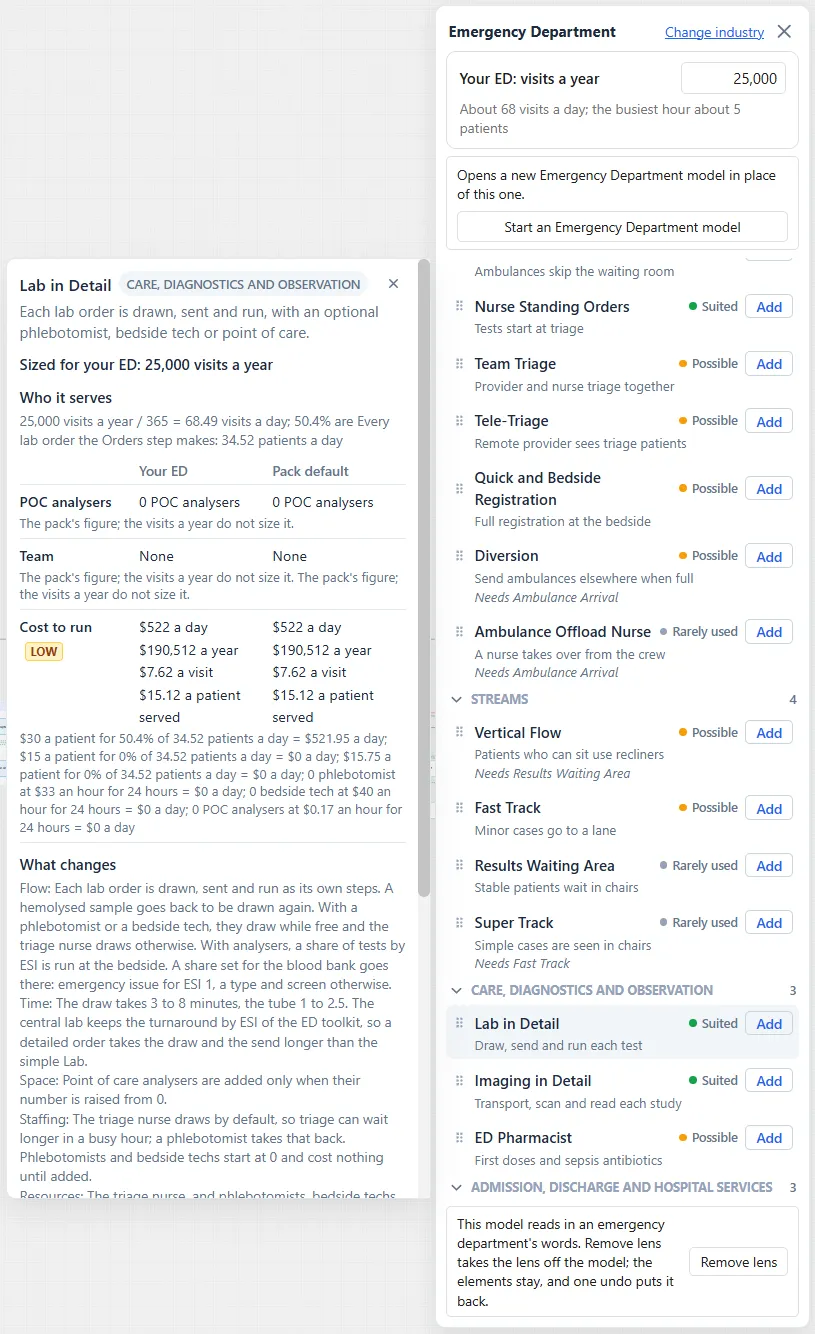
Section titled “Find a care model”The care models sit under the tiles on the Emergency Department face, in four groups that start closed. A box, Find a tile or care model, and a switch, Suited to your ED, narrow the list. Each row shows the care model’s name, its mark (Suited, Possible, Rarely used or No size data), an Add button, a line about it and, where it needs another care model, a last line such as “Needs Ambulance Arrival”. Rest the pointer on a row for its sentence and what it costs to run a day at your visits. The Emergency Department palette describes the rail.
The card
Section titled “The card”Click a row, or press Enter on it, and its card opens to the left of the face. Escape, the close icon named Close, or a click on the same row again closes it.
From the top, the card holds:
- The care model’s name, with a chip for its group, and the close icon.
- Its sentence, then a line such as “Sized for your ED: 25,000 visits a year (the pack default)”.
- Who it serves.
- A table with the columns Setting, Your ED and Pack default. It has one row for each space and one row, Team, for the staff, such as “1 APP, 1 RN” beside “2 APPs, 2 RNs, 1 tech”, and any other sized field. Each figure has its working under it, and a LOW chip marks a figure with weak evidence behind it. Rest the pointer on the chip for the reason.
- Cost to run, with the figures for a day, a year, a visit and a patient at each column’s sizes, and One-time cost.
- What changes, with the rows Flow, Time, Space, Staffing, Resources, Fixed cost, Choices and Needs.
- Why: the mark and its reason, the share of EDs at this size that run it, and the studies nearest in size first.
- Evidence.
Two buttons act on it: Add to model, which places the care model sized to your ED, and Use pack sizes, which places it with the sizes the pack gives it.
Add it
Section titled “Add it”Add on a row and Add to model on the card place the care model sized to the visits in your model. Use pack sizes places it with the pack’s own sizes. You can also drag a row onto the canvas.
When the place where the care model joins is missing or in doubt, a pick asks Where it joins, and its box starts at Pick one. When a care model cannot be placed, a warning says why and nothing is added, so there is nothing to undo. A care model of an industry your license does not include is not added, and the message says so. While PM AI Bridge holds the canvas, or the model is open as Run Only, the rows look locked, do not drag and Add is disabled.
After it is placed, the view fits to the new frame. The care model arrives inside a frame, a group that holds all of its steps, staff and spaces.
Where it lands
Section titled “Where it lands”A care model lands beside the step it changes, so you can read the new path against the old.
- In line. A care model that puts steps into the patient’s path, or swaps one step for another, lands in line. The frame stands with its first step level with the step it changes, a little to its right. When the care model replaces a step, its first step stands where the replaced step stood. Everything beyond the right edge of that step moves right, by the least whole grid step that clears the frame. The step it changes never moves. A last check walks the frame right and down to a clear place.
- In a lane above. A care model that branches off the path, or stands alone with a route into it, lands in a lane above the step it branches from, with its first step one column to the right of that step. Anything in the way moves down one grid step.
- No step to sit beside. A care model with no such step lands in the first clear place to the right of the step it joins, or else to the right of the model.
- Dragged. When you drag a row onto the canvas, the frame’s corner goes where you drop it and nothing else moves.
ProcessModel keeps a record of what it moved, and Remove Care Model uses it to put everything back.
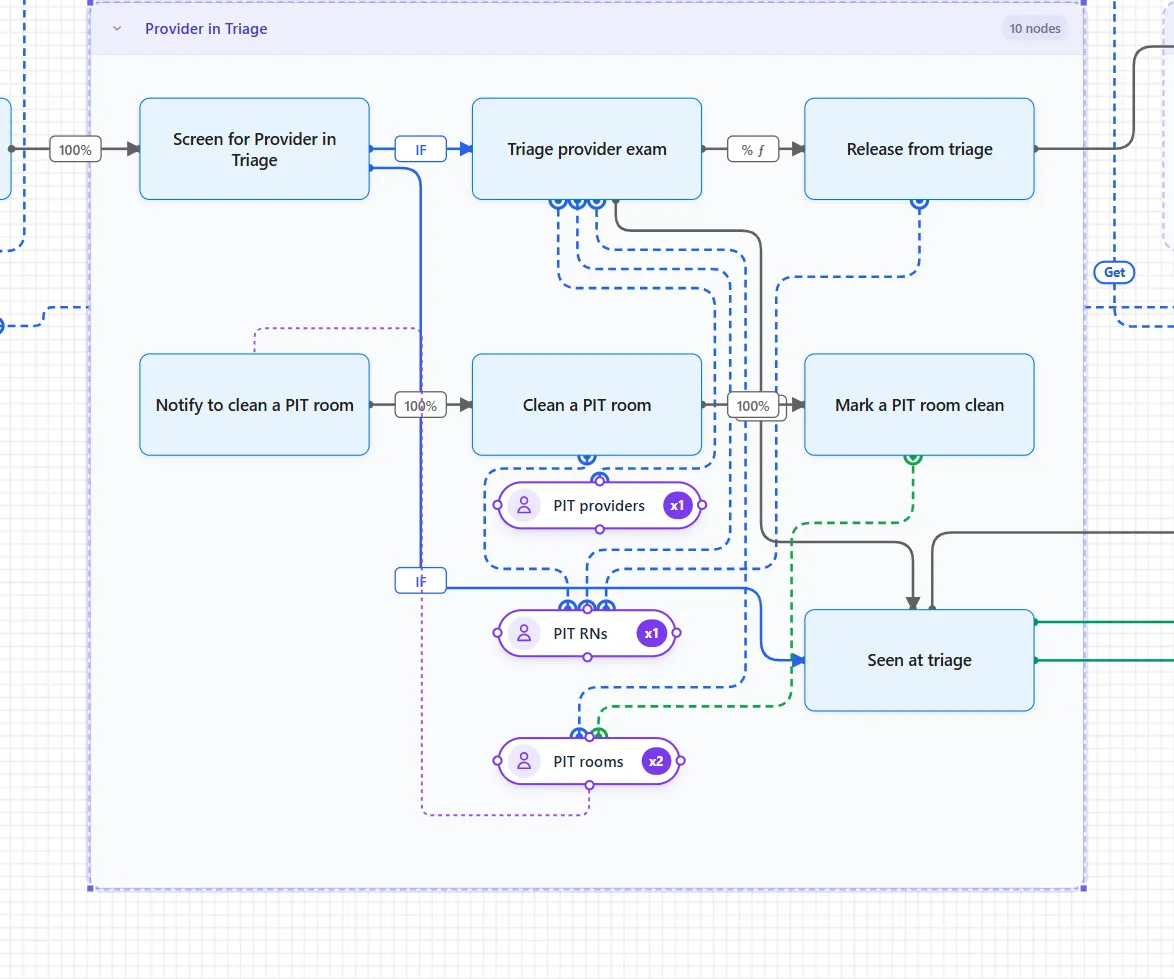
Inside the frame, the steps read left to right in the order patients take them. A second step at the same place in the path sits one row down. The patient types stand in a column first, and the staff and spaces stand under the step they serve. The cleaning steps stand in a row of their own below the flow, starting one column to the right of the step that claims the space, with the crew’s column hung under it. See Cleaning beds, chairs and rooms.
One Undo
Section titled “One Undo”Adding a care model is one Undo (Ctrl+Z). It takes back the frame, the nodes that moved, and the variables and attributes the care model declared. See Keyboard shortcuts.
Remove Care Model
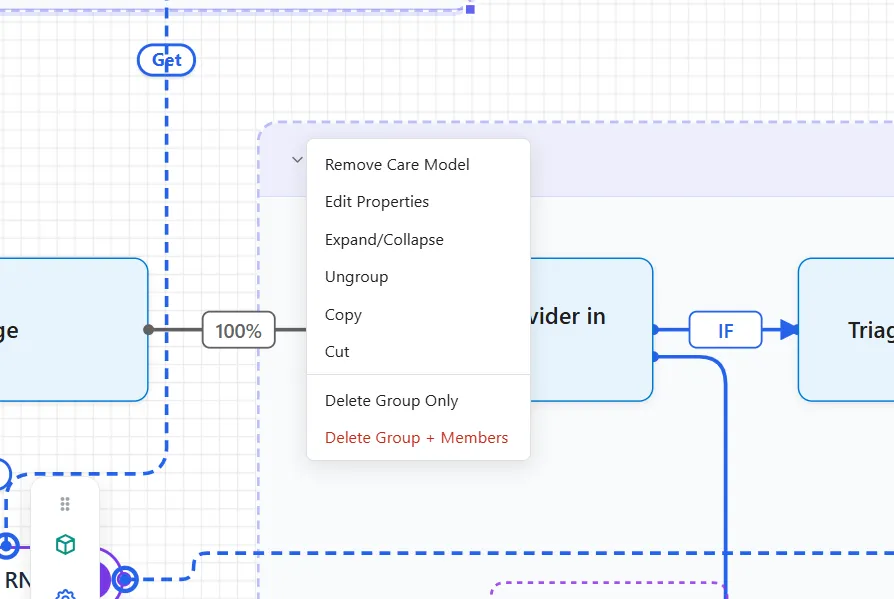
Section titled “Remove Care Model”Right-click a care model’s frame. The menu starts with Remove Care Model, then the usual group items. Choosing it takes out the frame, every step, staff and space under it, and every route that touches them. Then it puts back what the care model changed: the routes and nodes it replaced, each field it patched, each node it moved, and each bend. The flow closes up as it was, and a model you had not edited comes back the same as before. The variables and attributes the care model declared go too, unless something left in the model, its routes or a scenario still names them. A message names the care model and says it was taken out, such as “Fast Track taken out.”
Removing a care model is one Undo as well, and the variables and attributes it took out come back with it.
A care model that cannot be taken out exactly is refused with a warning, and nothing is removed:
- A scenario uses it, by switching it on or by naming its frame, a step or a route. The message names the scenario and says to take the care model out of that scenario first.
- It was copied after it was placed.
- It holds a step you added.
- Another care model was placed after it and depends on it. The message says to remove that one first.
- It was changed after it was placed.
- It is no longer in the model: “That care model is not in the model.”
A frame placed before its names were recorded still comes out, and a message says that the variables and attributes it declared stay in the sheets.
In a scenario
Section titled “In a scenario”The Care models list of a scenario shows all nineteen care models under their four group headings, with a filter box, Find a care model. Its switches, boxes and Where it joins work as Care models describes.
Where to read more
Section titled “Where to read more”- The Emergency Department palette: the rail, the tiles and dropping a tile.
- Care models: the nineteen care models and how a scenario uses them.
- Visits a year and sizing: the number every placed care model is sized to.
- Scenarios: switching a care model on or off in a scenario.