

Activity
An activity is a step where work happens to an entity: assembly, approval, checkout, inspection, and so on. Drop an Activity shape on the canvas, give it a name, and connect entities in and out. An activity with no resource attached simply takes time.
General tab
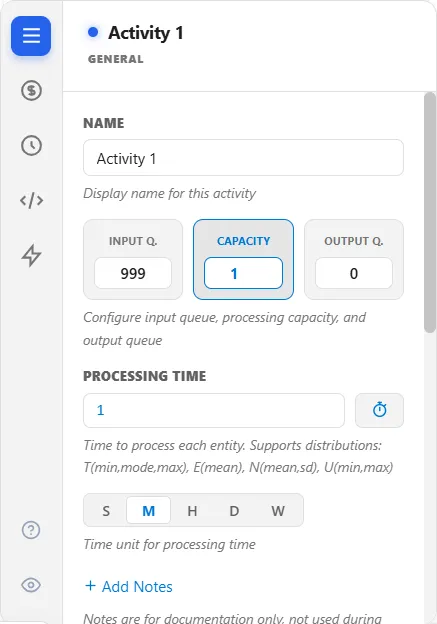
Section titled “General tab”- Name: the activity’s name (for example, Check In).
- Capacity: how many entities it can process at once. A capacity of 3 lets three entities be inside at the same time.
- Input Q and Output Q: optional waiting buffers before and after the activity. The input queue holds entities until capacity frees up; the output queue holds finished entities until they can route on, which creates back-pressure. Set either to 0 for none.
- Processing Time: how long the activity takes per entity, with a time unit. Enter a fixed number, a distribution like
T(1,3,5),E(5),N(10,2), orU(4,8), or any expression.
Varying the processing time
Section titled “Varying the processing time”Because the time accepts any expression, it can differ from entity to entity:
- By attribute: reference an attribute, for example a per-entity
a_ServiceTime. - By condition or percentage: use an expression that returns a different time under a condition.
- By pass: increment a variable each time an entity passes through and use it in the time, so repeat visits take longer or shorter.
If you also set the time with a TIME statement in action logic, leave the General-tab time at 0, or the two add together.
Action logic
Section titled “Action logic”The Logic tab holds action logic for the activity, and an activity has three moments it can run at:
| Section header | Runs |
|---|---|
process.EntryLogic | As the entity is admitted into the activity’s capacity |
process.OperationLogic | During processing, the main body of the work |
process.ExitLogic | As the entity leaves capacity for the output queue |
One field feeds all three. Write the headers and ProcessModel sends each block to its moment. Write no header and the block runs once, at the operation moment, unless the text contains process., route. or queue. anywhere, which sends it to all three moments. Write only the process.OperationLogic header and the missing entry and exit headers fall back to it, so that block runs at all three moments as well. Add a header for each moment you want logic at, so every block runs only where you mean it to.
Only headers that name a real moment do anything. A header that is spelled differently is reported as an error, “Unknown section header” with “The body of this section will never run.”, on the Logic tab and in the check before a run, and errors stop Simulate, so fix the spelling before you run.
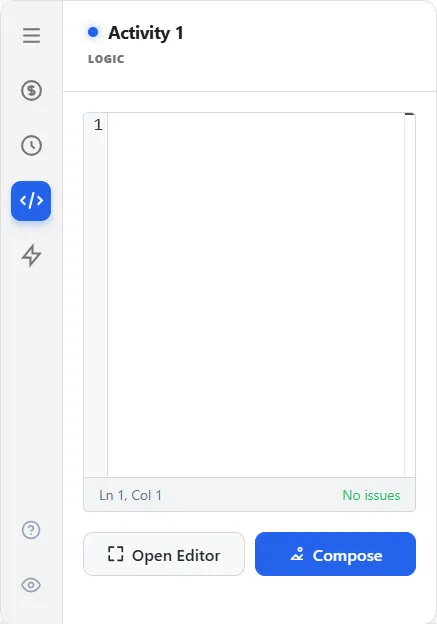
Write logic inline on the tab, choose Open Editor for the full-screen Action Logic Editor with its checking, or choose Compose for the card-based Action Logic Builder.
The other tabs
Section titled “The other tabs”- Cost: a per-entity cost plus a cost per minute of processing, each a number or an expression, and a VA / NVA / RNA classification that decides which cost and time bucket the work lands in.
- Shift: a Shift Schedule, a Downtime Rule (Finish Current, Preempt & Wait, or Clear Queue First), an Off-Shift Rule (Wait in Queue or Balk), and a Startup Delay.
- Triggers: reorder more entities of a type when the count of them at this activity falls below a level, fulfilled by an Ordered Arrival.
- Seed: a fixed seed so this activity’s processing-time samples are reproducible.
Interrupting an activity
Section titled “Interrupting an activity”Work in progress can be interrupted when a higher-priority entity needs the same resource, or when the resource goes off shift under a Preempt & Wait rule. The interrupted entity keeps its remaining time and resumes when the resource is free again (see Resource Downtime and Maintenance).
Tracking what is inside
Section titled “Tracking what is inside”During a run, an activity shows its current contents on the canvas, and the Activities report gives its utilization, average time, and throughput. In logic you read the same figures with an activity query: Activity("X").Contents, Activity("X").Cap, Activity("X").FreeCap, and Activity("X").QueueLength, naming the activity in double quotes.
While a run is going, click the badge that counts the entities inside the activity (rest the pointer on it and it reads “Click to see entities”) to open a window of them. Its title ends “entities currently here”, a line under it counts them (“Showing 4 entities”, for example), and it lists each entity’s ID, Type and Entry time, with up to three of the attributes it carries. The list refreshes while you watch, and Esc, the X or a click outside closes it.
Queue fill indicator
Section titled “Queue fill indicator”To see how full the waiting areas get, find Animation Display on the General tab and tick Show queue fill indicator. A thin vertical bar then sits on the edge of the activity, apart from the utilization bar: the left edge shows the input queue and the right edge the output queue. Three more boxes appear:
- Threshold (% of capacity) is the warning level, 80 to begin with. The bar is green, turns yellow from half the threshold, red from three-quarters of it, and red and pulsing above it.
- Scale measures the fill against % of capacity or % of historical max, the largest fill seen so far in the run.
- Side is Input, Output or Both, the default.
A decision shape has no queues, so it shows none of this.
Queue diagnostics
Section titled “Queue diagnostics”An activity has two queues, and the Diagnostics group on the General tab has a setting for each: Input Queue Bucket Collection and Output Queue Bucket Collection. Each overrides, for that one queue, the master Queue bucket collection switch in Simulation Options, with three choices: Use master setting (the default), On and Off. What they collect feeds the Queue Diagnostics view of the Output Report. A decision shape has no queues, so it does not have these settings.
LegacyHow this worked in the previous version
Activities define the process steps and work accomplished on the entities-e.g., such as assembly, document approval, or customer checkout. First, define an “activity” by selecting one of the white icons in the middle of the palette and then clicking on the layout. Next, change the name of the graphic by typing. There is no need to select the activity dialog. The entity dialog reflects changes made to the picture. Choose a different step in the process by double-clicking on the next shape.
An activity includes time and capacity, with an optional input or output queue.
General
Section titled “General”**Name **The name of the activity (e.g. CheckIn).
**Capacity **The maximum number of entities (1 - 999,999) that can be processed concurrently (either individually or in batch). Scenario Parameters may be used in place of numeric values. INF may be used to represent the largest numeric value allowed (999,999).
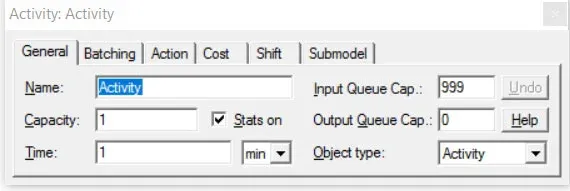
Stats on This check box allows you to turn off statistics collection for individual activities in your model. By default, this option remains checked.
**Time **The time to perform the activity. Any expression including distributions, attributes, or variables may be entered as the time value. If a resource is connected to the activity, the resource is captured before the time is taken. Activity times may also be defined using TIME statements in the Action section of the dialog.
If an entity is spending more time than expected at an activity where you are using action logic, you likely have time on the General tab AND in a TIME statement in your action logic. If you use a TIME statement in action logic, you should typically set the time on the General tab to 0. Otherwise you will first execute the time in the action logic. Then the time on the General tab will be executed. Thus your two time settings add together.
Input Queue Cap. The capacity of the input queue. The input queue is like a waiting area. If the input queue has available capacity, entities may be routed into it to wait until the activity has available capacity to process the entity. If the queue has no available capacity, entities must wait at the previous activity (or in that activity’s output queue) until capacity becomes available in the input queue or the activity (0-999,999). Scenario Parameters may be used in place of numeric values.
Output Queue Cap. The capacity of the output queue. The output queue is like a waiting area where entities will wait for available capacity at the intended destination (0-999,999). Scenario Parameters may be used in place of numeric values.
Object Type Allows the type of the object to be changed to something other than an activity. For instance, you may want to change an activity object into a storage or resource.
- What is Activity Batching?
- What is Action Logic?
- What is Activity Cost?
- What is an Activity Shift?
- What is an Activity Submodel?
Activity action logic
Section titled “Activity action logic”Develop customized behavior for entities at an activity. In addition to the information set in the General tab of the activities properties dialog, logic can be developed to report statistics, control processing, collect information and a host of other items. Variables, entity attributes, systems information and if-then statements allow expansive capabilities to be accessed from the action tab.
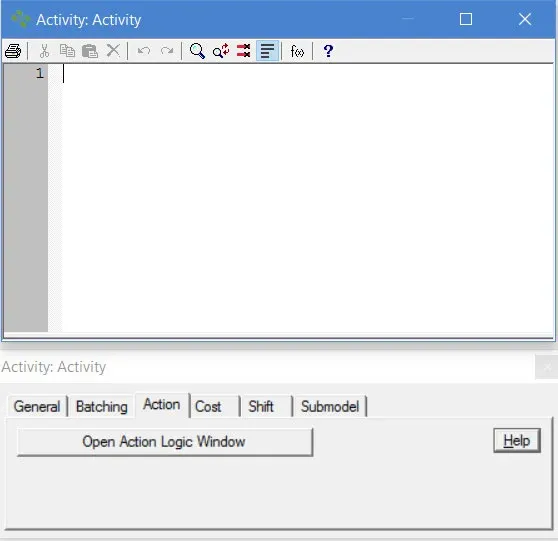
Action logic is processed when the entity enters the Capacity of an activity, and then entities also process the time entered on the General tab. For this reason, when action logic is used, often a TIME statement is included in the action logic and the General tab time is set to 0.
Action logic does not occur in the Input Queue of an activity. If a situation requires action logic in the input queue, see the model object “Flow control - action logic in the input queue”
- What is activity batching?
- What is activity cost?
- What is an activity shift?
- What is an activity submodel?
Activity cost
Section titled “Activity cost”The cost tab provides a method of adding cost to each entity as it moves through the process. The cost tab also provides a means for classifying how time is accounted at the activity (VA, NVA, RNVA). Other costs may be added by the usage of resources (see Resource Costs), routings (see Entity Routing Costs) and the initial costs of an entity (see Entity Costs).
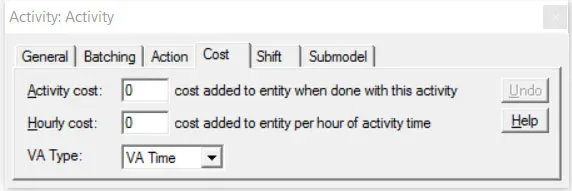
The identification of cost is optional and has no effect on the behavior of the model.
Hourly cost Cost added to each entity per hour of time spent performing this activity. Cost values may range from negative 1,000,000 to 1,000,000. Idle time, while waiting for resources, is not counted. This cost is added to the pre-defined Cost attribute of the entity being processed.
Activity cost Cost added to each entity completing this activity. This cost is added to the pre-defined Cost attribute of the entity being processed.
If costs are entered as a negative number and final completed production is entered as a positive then a net revenue number can be obtained from the Summary Report. See “Output Summary Reports”.
Resource cost must be a number. Expressions, attributes, variables, or scenario parameters are not allowed.
To learn more about costs, see ProcessModel and Activity-based Costing.
-
**VA Time **How the time for each entity completing this activity is categorized. As an entity is processed its total time in the system will be divided into three categories Value Added, Non-Value Added and Book Value Added. This allows an accurate accounting of how much of the total process time adds value from
-
VA - Value Added - Time for those work elements that transform the product or service in a way the customer is willing to pay for.
Value adding (VA Time) activities are those which must be done in order to meet the customer’s requirements. Without these activities, the customer wouldn’t get their desired output. To be a value added action the action must meet all three of the following criteria:
-
Necessary to meet customer requirements.
-
Required for or assists in the production of the product or service.
-
Represents an output that the customer is willing to pay for.
-
Value added time is calculated by summing the entity VA Time. If the VA type is set to RNVA Time (Business Value Added) the time in the activity will be associated to another category. Otherwise all entity time is calculated as NVA Time (non value adding).
It’s not always easy to identify which of the three types an activity is. If you don’t understand customer requirements, spotting Real VA will be difficult. Book/Business Value Added is almost always the most contentious to identify. People will tell you “but we have to do that”, usually for reasons lost in time. Perhaps there was once an audit requirement to carry out a check at a step in the process, but does it apply now? Maybe there was a National Standard that stated an activity had to be done, but is it still required? The biggest challenges, in most public sector processes will be: “why are there so many checks, inspections and approvals required?” What value do they really add and can they be eliminated?
- NVA - Non-value Added - Adding Time for those work elements that are not used to transform the product or service in a way the customer is willing to pay for.
Non Value Added activities are waste! They don’t contribute to the customer’s requirements and don’t need to be performed. Non value added time is characterized by the following:
-
If eliminated, would not impact the product or service to the customer.
-
Creates waste, extra time, rework.
-
Is performed because of inefficiency elsewhere within the process.
-
Represents a equivalent effort to other activities or adds unneeded steps to the process.
Non value added time is applied to an entity when an entity is in the capacity of an activity AND the VA Type is set to NVA Time.
NVA time is also accumulated when an entity:
-
Travels on a route
-
Sits in storage
-
Waits in an input queue
-
Is held by a Wait Until statement
NVA Time is calculated by summing the time an entity spends in the above 5 identified areas. Activities are classified from the customer’s point of view meaning that the value of each action in the process is determined by whether it adds value from the customer perspective-value added-or does not add value from the customer perspective-non-value added. Steps that are required but irrelevant from the customer perspective represent a final classification-business-value added.
- **RNVA - Book-value Added **- Time for those work elements that are required to stay in business. Often government required steps will be classified as RNVA.
The time that an entity spends in the Input queue, Output queue or in route is Non-Value Added.
Capacity
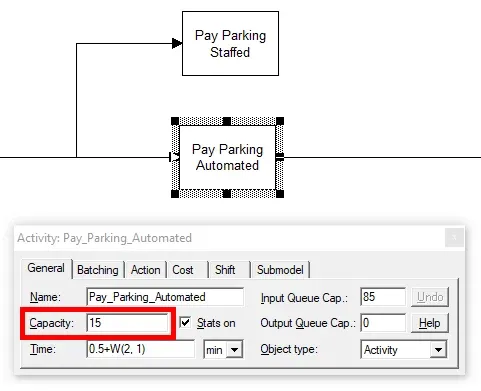
Section titled “Capacity”Capacity is the maximum number of entities (1 - 999,999) allowed to process concurrently at an Activity.
Capacity is like the number of toll booths at an airport exit. Each booth operates independently and in parallel with the others. For example, if a checkout consisted of fifteen self-serve pay lanes, then a single activity could be used with a capacity of 15. A simple version of the booth example might look like the following:
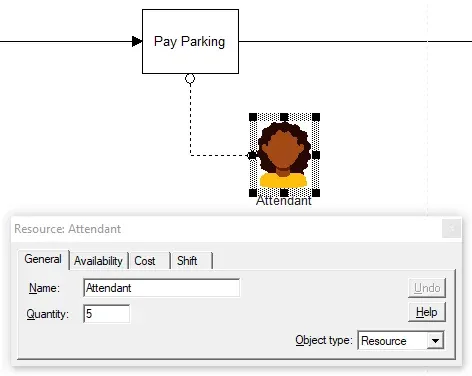
Capacity is often dependent on the number of Resources tied to the activity. For example, if fifteen booths need resources, but only five resources are available, then the available capacity is only five of the fifteen. Because of resource unavailability, ten booths would remain unused.
The Input Queue and Output Queue also have a capacity (0 to 999,999). The Input Queue is a holding area for Entities before the Activity capacity. Action logic occurs after leaving the Input Queue and entering the capacity before performing the time in the Time field. The Output Queue holds entities until sufficient capacity exists at the destination activity.
- Scenario Parameters replace numeric values for experimentation purposes.
- Insert the abbreviation INF in any capacity field to represent the largest numeric value allowed (999,999).
Adding time variation
Section titled “Adding time variation”Time changes due to the variable nature of the entity or activity or as a result of the inconsistent behavior of the resource used at the activity.
Suggested Technique
Section titled “Suggested Technique”- Determine the probability distribution that best fits the activity time (more on probability distributions).
- Enter the probability distribution in the Time field of the General properties sheet for the activity (alternatively, a TIME statement can be used in the action logic for the activity).
Example: A phone-in order may have a time that is triangularly distributed with a minimum of 2 minutes, a mode of 5 minutes, and a maximum of 12 minutes
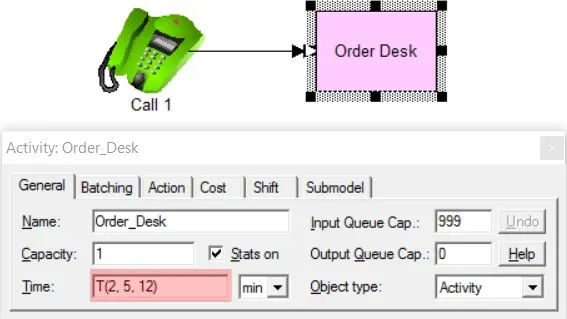
TO DO: In the Time field of the General properties dialog enter T(2, 5, 12) as shown above. Alternatively, you could enter Action Logic for the activity: TIME T(2, 5, 12) Min.
Time based on a percentage
Section titled “Time based on a percentage”The activity time or some other activity action occurring only a percentage of the time.
Suggested Technique for Activity Times
Section titled “Suggested Technique for Activity Times”If only the activity time is different based on percentage, the following technique may be used.
- Select the General tab of the activity’s properties dialog.
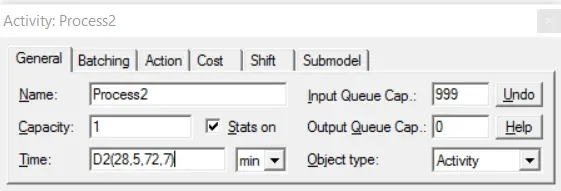
- Enter a Discrete distribution function in the Time field for simple activity time assignment by percentage.
Example: An activity takes 5 minutes 28% of the time, and 7 minutes 72% of the time.
TO DO: Enter the Discrete distribution (as shown above) in the Time field.
- To learn more about the Discrete distribution, see Distributions.
Suggested Technique for Activity Actions
Section titled “Suggested Technique for Activity Actions”- In the Action logic of the activity, use the Percent() function in an IF…THEN statement.
- Define Action logic for the true and false cases of the Percent() function.
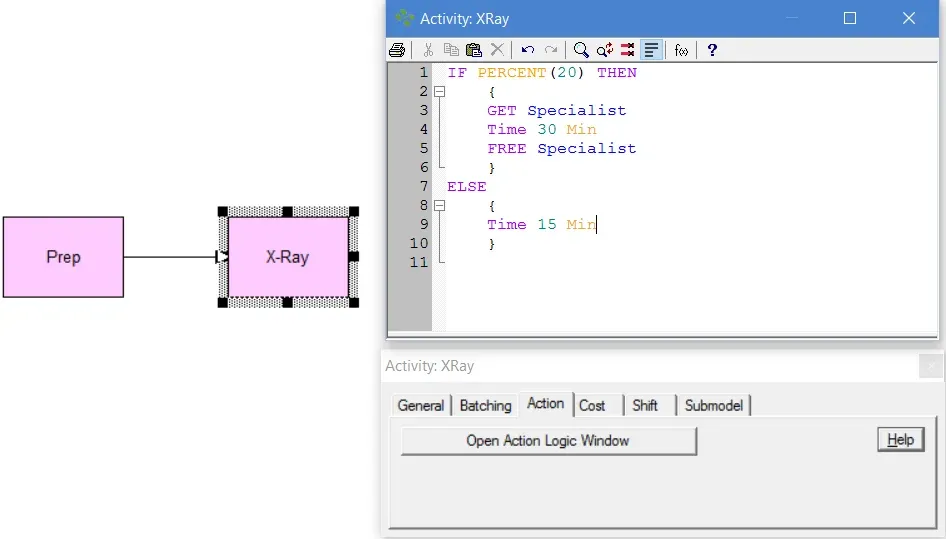
Example: Twenty percent of the time the X_Ray activity requires the use of a Specialist for 30 minutes. The other 80% of the time X_Ray simply takes 15 minutes with no resource required.
TO DO: In X_Ray ‘s Action Logic, enter the logic as shown above.
Time based on an attribute
Section titled “Time based on an attribute”The activity time or some other activity action is based on the value of a particular attribute of the entity.
Suggested Technique
Section titled “Suggested Technique”- Define an attribute for the entity in the Insert -> Attributes & Variables dialog. Optionally, you may use one of the predefined attributes.
- Set the attribute to the desired value in any action logic in the model using the assignment statement.
- Use an IF…THEN statement in the Action logic of the activity specifying the time or other action statements to be executed based on that attribute.
SUYgYV9UeXBlID0gUkVHVUxBUiBUSEVOCiAgIHsKICAgVGltZSA4IE1pbgogICB9CkVMU0UKICAgewogICBUaW1lIDUgTWluCiAgIH0=
Example: Two types of Orders are processed in a system: Regular and Pre-invoiced . At the Log In activity, Orders which have been previously designated as Regular orders require an invoice to be printed and therefore take 8 minutes to process. Pre-invoiced orders take only 6 minutes to process.
TO DO: Define a descriptive attribute called Type with the descriptors Regular and Pre Invoiced. Assign the appropriate descriptor to the attribute in some Action logic prior to the Log_In activity. Enter the Action Logic (as shown above) to determine the type of order and act accordingly.
- If the attribute assignment is based solely on percentage and this is the only activity where the attribute is used to make a decision, use the Percentage-Dependent Activities technique below.
Related to Entity
Section titled “Related to Entity”- What is an Entity?
- What is Entity Cost?
- How do I change Activity Time based on Entity Attribute?
- How do I Change Activity Time Based on Recurring Entity Passes?
- How do I Divide an Entity?
- How do I Randomly Assign Entity Attribute Values?
- How do I Renege an Entity?
- How do I Tracking Entity Conditions?
- How do I Change Entity Graphics During Simulation?
- Why am I Getting Entity Arrival Failures at the End of Simulation?
- Why am I Getting Entity Exits System Before Releasing all Captured Resources?
Time based on recurring passes
Section titled “Time based on recurring passes”An activity through which the same entity passes multiple times, possibly with a different activity time or routing with each pass.
Suggested Technique
Section titled “Suggested Technique”- Define an attribute called Pass (or another appropriate name).
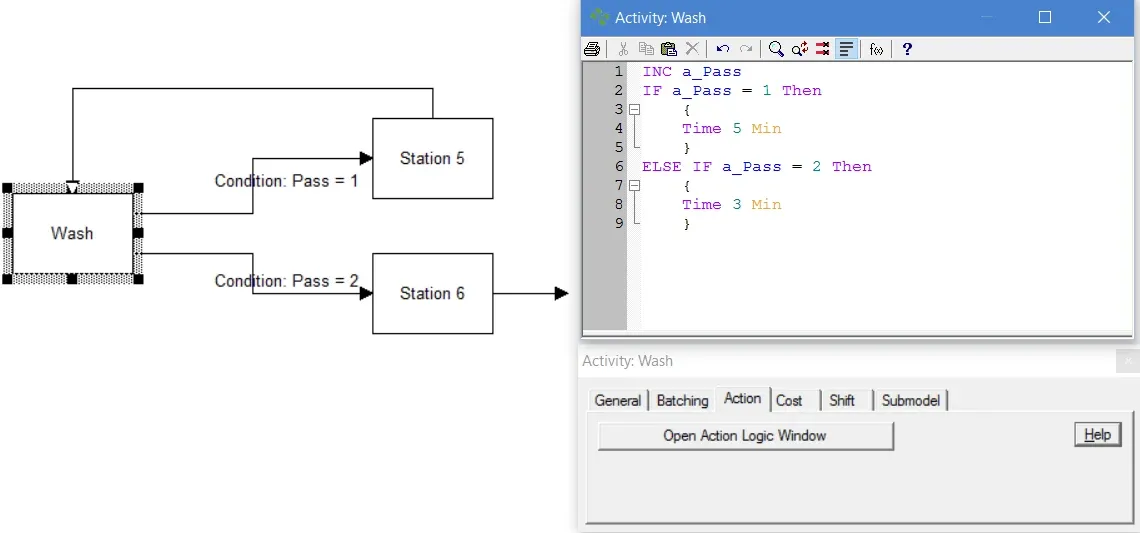
- In the activity Action logic, increment the Pass attribute: INC Pass
-
Use an IF…THEN statement in Action logic to specify a different activity time for each pass through.
-
se Conditional routings based on the value of Pass, e.g. Pass = 1 , or Pass =2 if the routing is different with each pass.
Example: A machined Part must pass through the same Wash activity twice. The wash cycle and the routing are different for each pass. The first time through the Part is washed for 5 minutes and then it goes to Station5. The second time through, the Part is washed for 3 minutes and then it goes to Station6.
TO DO: Define an attribute called Pass. Define action logic for the Wash activity as shown above. Connect Wash to each station with conditional routings, their condition fields set as shown above. Route the Part from Station5 back to the Wash activity.
Related to Entity
Section titled “Related to Entity”- What is an Entity?
- What is Entity Cost?
- How do I change Activity Time based on Entity Attribute?
- How do I Change Activity Time Based on Recurring Entity Passes?
- How do I Divide an Entity?
- How do I Randomly Assign Entity Attribute Values?
- How do I Renege an Entity?
- How do I Tracking Entity Conditions?
- How do I Change Entity Graphics During Simulation?
- Why am I Getting Entity Arrival Failures at the End of Simulation?
- Why am I Getting Entity Exits System Before Releasing all Captured Resources?
Concurrent processing
Section titled “Concurrent processing”Multiple entities are allowed to enter an activity and be processed concurrently (at the same time at the same activity), independent of other entities.
Suggested Technique
Section titled “Suggested Technique”- Set the capacity of the activity to the maximum number of entities that can occupy the activity at any one time.
Example: Because a bank uses five tellers, the Bank_Teller activity is able to concurrently and independently handle up to five Customers at any given time.
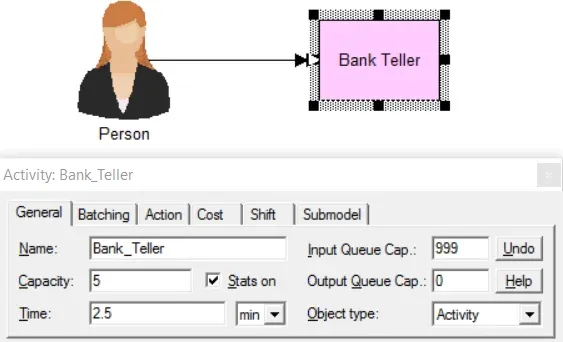
TO DO: Create the activity with a Capacity of 5.
Interrupting an activity
Section titled “Interrupting an activity”In situations where an activity is scheduled to go off shift or on break, it is sometimes desirable to interrupt the current activity rather than wait until it is finished.
Suggested Technique
Section titled “Suggested Technique”- Define and assign a shift file as described in Scheduling Activities.
- Check the interrupt box in the schedule dialog.
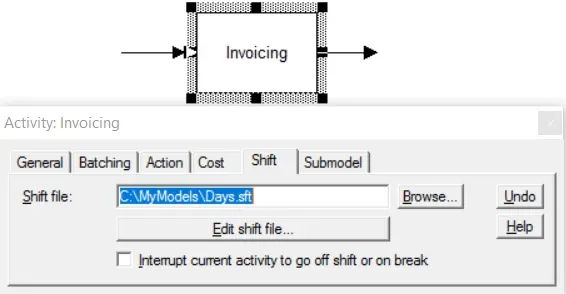
Example: An invoicing activity is actually performed by people who go to lunch at noon even though no resources are assigned to the activity; the resources are assumed since the activity time is the focus of the model. When the assumed people go to lunch and on break, the activity is shut down even if it’s in the middle of processing an invoice.
TO DO: Assign the shift file to the activity. Check Interrupt current activity… as shown above.
Tracking activity contents
Section titled “Tracking activity contents”Tracking the time-weighted average number of entities occupying a stage in the process that consists of more than a single activity.
Suggested Technique
Section titled “Suggested Technique”- Define a variable of type Integer to track the contents.
- Increment the variable in Action logic when entering the particular processing stage.
- Decrement the variable in Action logic after leaving the processing stage.
Example: Once a customer leaves a car at the repair shop, it is serviced, cleaned, and readied for the customer to pickup. We want to know the average number of cars between the start of the Service and the end of the Cleaning activities.
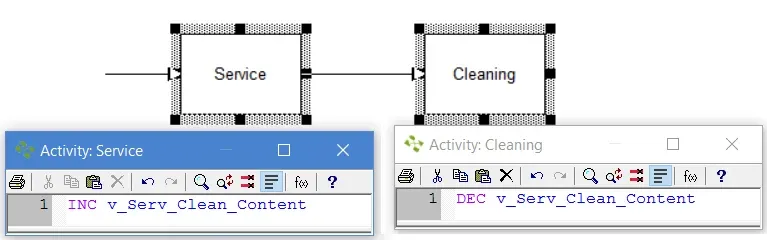
TO DO: Define the variable Serv_Clean_Content as type Integer . Enter the Action logic as depicted in the illustration above.
To examine the results, look for variable statistics in the General Statistics Report (see Output Report) where you will find the average value of the variable. The average value is the average contents of the processing stage being tracked. The change in the contents over time can be viewed by selecting Time Series from the View menu in the Output Module . See Time Series Plots & Histograms.