

Drawing Paths
A path is the floor a moving resource travels on: the aisles a forklift drives, the corridor a technician walks. You draw it on the chart as path nodes joined by path segments, and you type the length of each segment. Travel time always comes from those lengths and the unit’s speed, never from where the boxes sit on the chart, because a flowchart is not drawn to scale.
Paths matter only to a resource that has Moves along paths ticked on its General tab (see Resource). A model without such a resource ignores them.
Drawing a path
Section titled “Drawing a path”Press the Path button on the palette, below the double chevron. The canvas switches to path drawing: routes fade so the floor is easy to see, and a toolbar appears at the foot of the canvas with Draw, Select, One way, Show routes and Done. A line above the toolbar always says what the next click does.
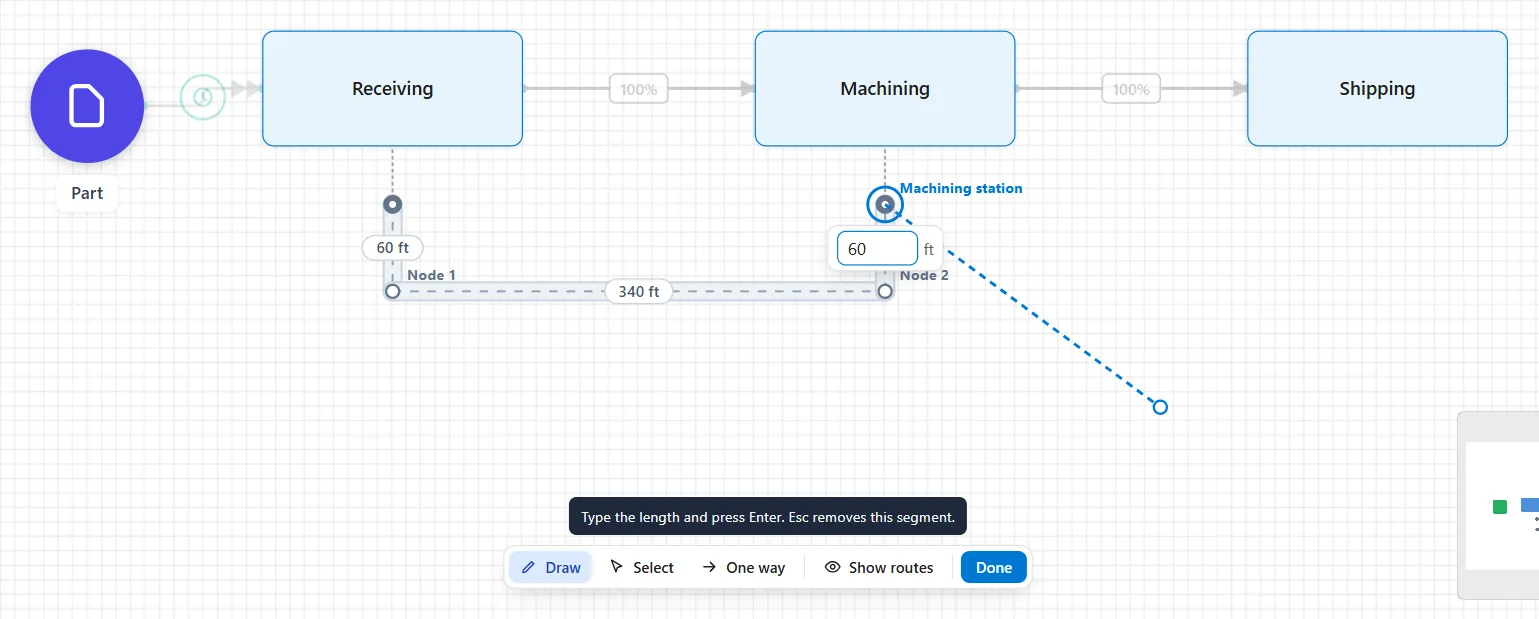
In Draw:
- Click an activity or a queue to link it. If the step has no path node yet, one is made at its edge and the step’s Path node field is set to it. If it has one, the path carries on from that node.
- Click empty canvas to add a node there.
- Each new segment asks for its length in a small box on the line. Type it and press Enter. Esc removes the segment you just drew. You can leave the box empty for now: the segment then reads No length until you type one.
- Double-click to finish the path, or press Done to leave path drawing.
Show routes brings the routes back to full strength while you draw. Done returns the canvas to normal.
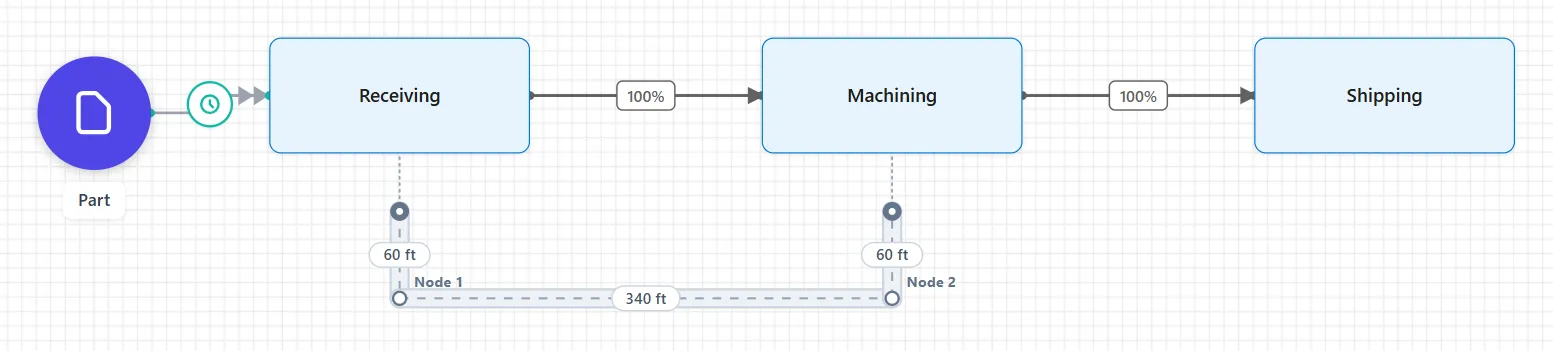
Selecting and changing the drawing
Section titled “Selecting and changing the drawing”In Select, click a segment or a node to open its panel. Drag a node to move the drawing: the lengths stay as typed, so nothing is recalculated. A segment can be bent for a tidier drawing: drag the line to add a bend, drag a bend to move it, and double-click a bend to remove it. Bends change the picture only, never the distance.
- Deleting a segment leaves its nodes.
- Deleting a node deletes the segments that touch it, and clears the Path node field of every step that pointed at it.
- Moving an activity moves the dotted line to its node, never the node itself.
- Arrange and the alignment guides leave path nodes and segments where they are.
- Undo covers drawing, deleting, length changes and the one-way setting, like any other change.
- Copy and paste brings a step’s link to its node only when the node is pasted with it. Otherwise the pasted step’s Path node is cleared.
The path segment panel
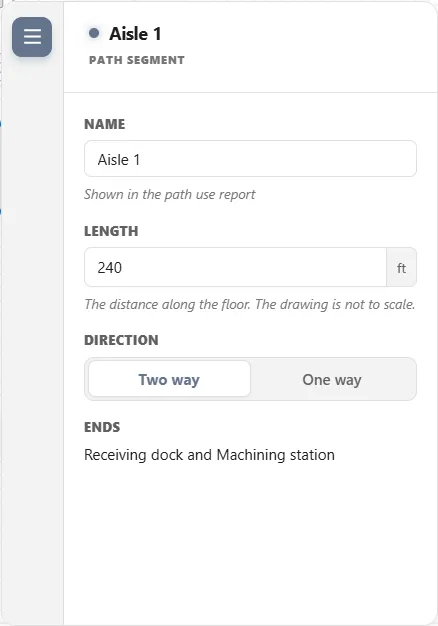
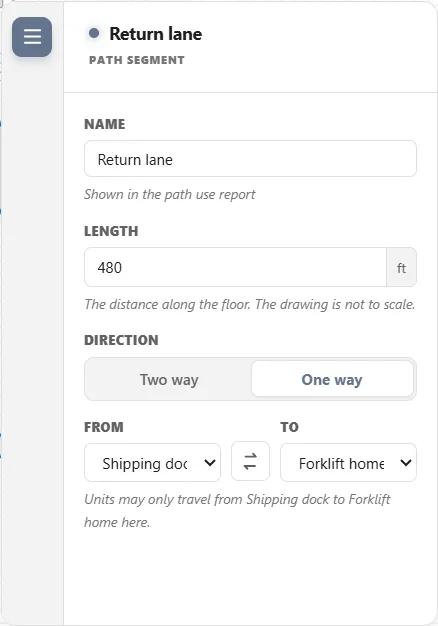
Section titled “The path segment panel”- Name: shown in the path use report. A new segment is named Segment 1, Segment 2 and so on.
- Length: the distance along the floor, in the model’s distance unit. “The drawing is not to scale.” A segment needs a length above zero before the model can run.
- Direction: Two way or One way. Under One way, From and To name the direction, the panel says “Units may only travel from [From] to [To] here.”, and Swap From and To turns it round. With a segment selected, the toolbar’s One way button does the same.
- Ends: the two nodes a two-way segment joins.
The path node panel
Section titled “The path node panel”- Name: shown on the chart, in messages and in the report. A node made from a step takes the step’s name, like “Machining station”.
- Activities here: “Units pick up and drop off at this node for every activity listed.” Use + Add to link another activity or queue. Removing a step from this list clears that step’s own Path node field, because the list is a view of those fields.
- Home for: the moving resources whose Home is this node, with a line naming the units that start the run here.
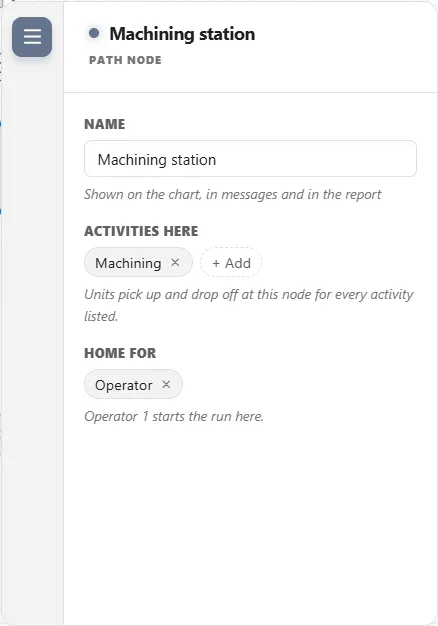
A step’s path node
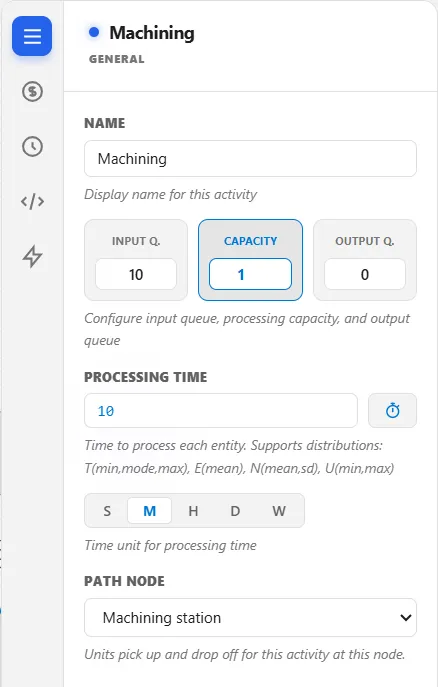
Section titled “A step’s path node”Every activity and queue has a Path node field on its General tab, set to None or to a node on the chart. It is the spot on the floor where a unit picks up and drops off for that step, and it is “Only needed when a resource that moves along paths works here.” The chart draws a dotted line from the node to each step that uses it.
Several steps can share one node. Load part, Run unattended and Unload part are three activities on the chart but one spot on the floor, so link all three to the same node and a unit does not travel between them. A unit carrying a part from one of them to another holds it on the node for the route’s Move Time.
How a trip is worked out
Section titled “How a trip is worked out”A unit always takes the shortest route by length over the paths. With nothing aboard it drives at its Speed empty. A part it carries from one step to the next rides in that route’s Move Time, and only a route whose Move Time is blank or 0 is driven at Speed loaded; a picker always drives loaded at Speed loaded (see How long a ride takes). Between two steps on one node there is nothing to drive, so the unit holds the part on the node for the route’s Move Time. A two-way segment can be driven both ways, a one-way segment only from its From node to its To node. Units can share a node or a segment at the same time: traffic, passing and blocking are not modeled.
The distance unit, Feet or Metres, is set for the whole model in Simulate ▸ Options, in the Units group. Lengths and speeds share it. Switching it converts every length and speed you typed, after one question (see Simulation Options).
Checks
Section titled “Checks”The model checker reports path problems in the Issues list as you build, and the Simulate button stops on an error:
- “Give [segment] a length above zero.”
- “[Segment] must join two different nodes.”
- “[Step] points at a path node that is no longer on the chart. Pick another, or set Path node to None.”
- “[Step]: [resource] delivers here, but [step] has no path node. Link it to a path.”
- “[Step]: [resource] carries parts through here, but [step] has no path node. Link it to a path.”, for a step a unit carries its part through on the way to its Free.
- “[Step]: [resource] carries parts to here, but [step] has no path node. Link it to a path.”, for a step where a carry ends: where a unit that collected from a queue with a Get / Free puts the part down, or a step with a FREE or FREE ALL of the resource in its logic. A step with a Free connection is named by the “delivers here” message instead, and a step that one unit carries a part through and another’s carry ends at is named once, as “through here”.
- A warning, “[Node] is not joined to any path.”
- A warning, “No path reaches [node] from [node].”, when a node a unit needs cannot be reached from where it starts or from its home.
If a unit is sent somewhere no path reaches during the run, the run stops and names the two nodes, ending “No path joins [node] to [node], where [unit] is.”
Related
Section titled “Related”- Resource: ticking Moves along paths and the Movement, Carrying and Behavior tabs.
- Resource Connectors: how a moving resource works at a step or delivers a part.
- Order Picking and Station Schedules.