Start a typical emergency department
The quickest way to a working model is the button Start an Emergency Department model, under the visits box on the Emergency Department face. The sentence above it reads “Opens a new Emergency Department model in place of this one.” Nothing is built until you confirm.
The confirmation screen
Section titled “The confirmation screen”The button opens a window titled “A typical Emergency Department of your size”.
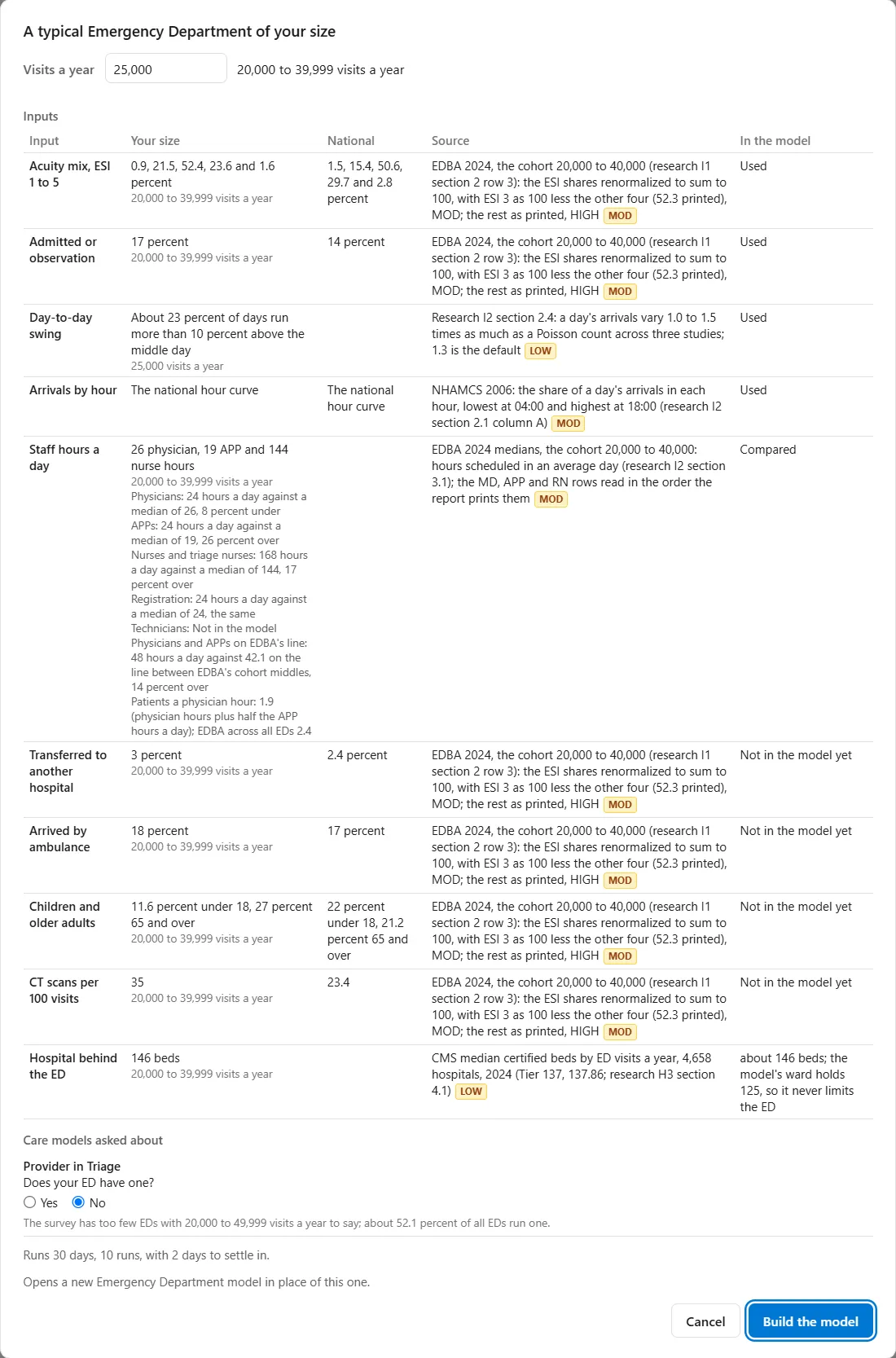
Visits a year is a field of its own. It starts at the number in the visits box, 25,000 in the picture, with the size band beside it, “20,000 to 39,999 visits a year”. It takes the same numbers as the visits box. Enter a number and press Enter, or click out of the field, and the whole table is worked out again for the new size.
Inputs is a table with the columns Input, Your size, National, Source and In the model. It has one row for each of ten inputs: Acuity mix, ESI 1 to 5; Admitted or observation; Day-to-day swing; Arrivals by hour; Staff hours a day; Transferred to another hospital; Arrived by ambulance; Children and older adults; CT scans per 100 visits; and Hospital behind the ED.
- Your size gives the figure for your size band, with the band under it. National gives the national figure beside it, where there is one.
- Source says where each figure comes from. A small LOW or MOD tag follows some sources, for weak and moderate evidence. Rest the pointer on a tag to see its reasons.
- In the model says what the model does with the figure. Used marks a figure the model draws from. Compared marks the staff hours, which the screen sets beside medians group by group, for example “Physicians: 24 hours a day against a median of 26, 8 percent under.” Not in the model yet marks a figure the model does not read. The last row says what the model’s own ward holds: “about 146 beds; the model’s ward holds 125, so it never limits the ED.”
From 12,000 visits the screen also has a section, Care models asked about. For the care model Provider in Triage it asks “Does your ED have one?”, with Yes and No, and No is chosen to start with. A reason sits under the question. In the picture it reads “The survey has too few EDs with 20,000 to 49,999 visits a year to say; about 52.1 percent of all EDs run one.” At a larger size it can read “Typical at your size: 64.9 percent of EDs with 50,000 or more visits a year run one.” Answer Yes and the care model is built into the model. See Care models.
Below that, the line “Runs 30 days, 10 runs, with 2 days to settle in.” says how the model will run. At the foot are Cancel and Build the model. Build the model is grayed out while the number in the field is refused. Enter in the field applies the number; elsewhere Enter builds the model. Esc cancels, and a click outside the window does nothing.
Build the model
Section titled “Build the model”Build the model opens a new model in place of the one you have open. Its title is “Emergency Department, 25,000 visits a year”. At 25,000 visits, with the care model question left at No, it has 36 elements, laid out left to right, with the Emergency Department face open at the right.
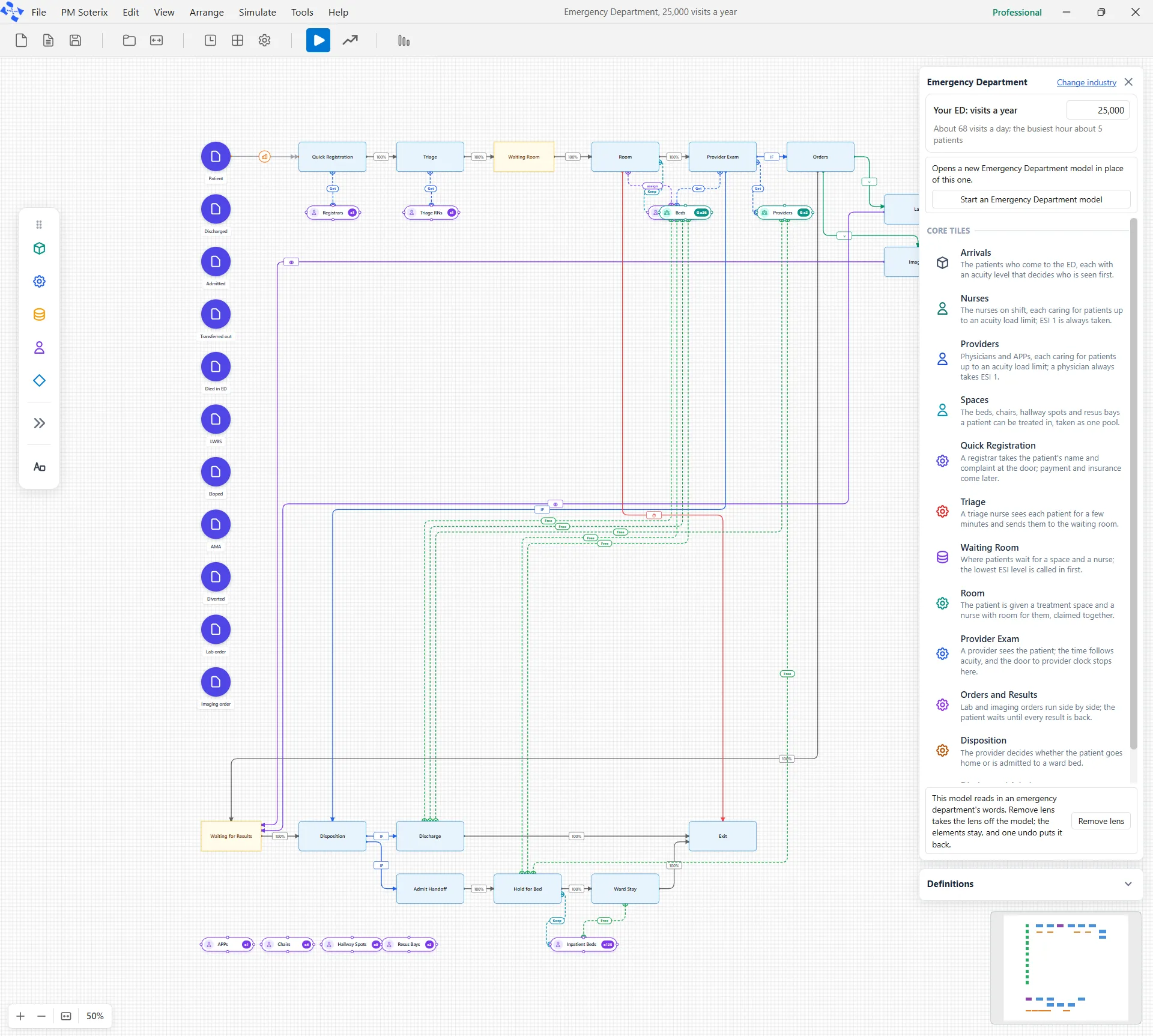
The patient types run down the left: Patient, then Discharged, Admitted, Transferred out, Died in ED, LWBS, Eloped, AMA and Diverted, then Lab order and Imaging order. The steps run along the top from Quick Registration, Triage, Waiting Room, Room and Provider Exam on, with the staff and spaces beside the steps they serve. Nothing has run yet.
The new model is unsaved. It stays out of Recent Models until you save it.
Unsaved work comes first
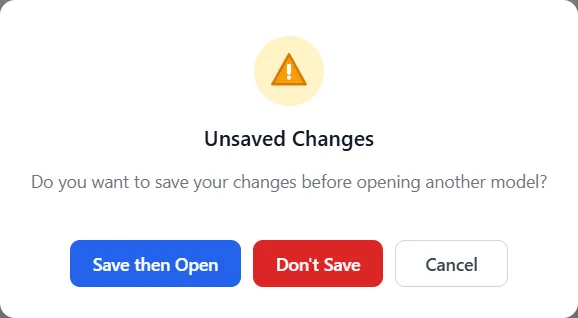
Section titled “Unsaved work comes first”If the model you have open has unsaved changes, Build the model first asks “Do you want to save your changes before opening another model?” in a window titled “Unsaved Changes”. Save then Open saves your model and then builds the new one. Don’t Save builds the new one without saving. Cancel keeps your model open.