

Gate
A Gate controls when entities are allowed to move on. It does no work and holds nothing of its own; it opens and closes, releasing entities while open and making them wait while closed. Use it for a barrier that follows a schedule, responds to a signal, or waits for downstream demand.
Setting up a gate
Section titled “Setting up a gate”A gate’s General tab reads top to bottom:
- Gate Name: the display name for this gate.
- Default State: whether the gate begins Normally Open or Normally Closed when the run starts.
- Schedule: three buttons, Always Open, Time Windows, and Shift Calendar, that decide whether the clock plays any part in when the gate opens.
- The control that choice reveals: pick Time Windows or Shift Calendar and its fields appear directly beneath the buttons.
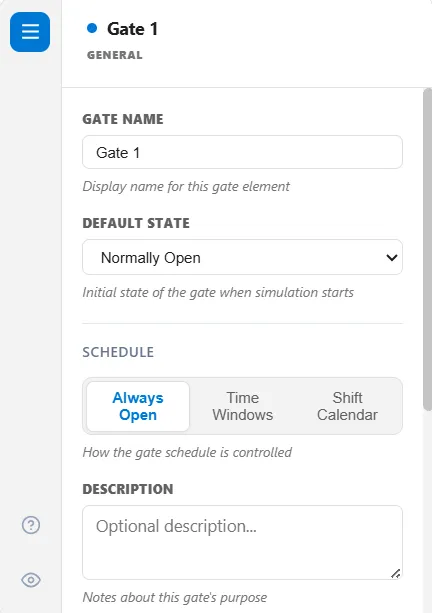
Default State is ignored only when a shift calendar is actually attached. In every other case the engine reads it, including when you have chosen Shift Calendar but not yet picked a calendar, so a gate never starts in an undefined state.
Schedule
Section titled “Schedule”The Schedule buttons put the gate on a clock, so it opens and closes at set times instead of waiting on a condition or on downstream demand.
| Button | What drives the gate |
|---|---|
| Always Open | Nothing. The clock plays no part, and the gate is governed by its conditions, its blocking mode, or logic |
| Time Windows | A list of open periods you write, repeating every week |
| Shift Calendar | A shift schedule you have already defined |
Time Windows
Section titled “Time Windows”Each window is a start time, an end time, and the days it applies to. The gate is open inside a window and closed outside every window. A new window starts life as 08:00 to 17:00 on weekdays, which you then adjust.
The days you tick are real days of the week, lined up against the calendar date your run’s Start Day maps to, so a Monday-to-Friday window really does skip the weekend.
Two things to watch:
- A window cannot run past midnight. The end time must be later than the start, so a night shift of 22:00 to 06:00 is refused. Write it as two windows: 22:00 to 24:00, and 00:00 to 06:00 on the following day.
- Choosing Time Windows and leaving the list empty leaves the gate always open. There is no warning. An empty list is the same as no schedule at all, so add at least one window.
Shift Calendar
Section titled “Shift Calendar”Choosing Shift Calendar hands the gate to a shift calendar. The gate opens when the shift comes on and when a break ends, and closes when the shift goes off and when a break starts, so a gate can follow the working hours of the area it guards without you restating them.
Naming a shift schedule that no longer exists stops the run with a clear error rather than quietly ignoring the setting.
A gate running as Pull or as a Kanban control is driven entirely by downstream demand, so it cannot also be on a clock. On those gates the schedule buttons are hidden and any stored schedule is cleared. See Gate Blocking and Gate Flow Control.
Other ways to open and close a gate
Section titled “Other ways to open and close a gate”Beyond the schedule, one or more mechanisms change the gate’s state during the run, and you can combine them:
- On a condition: give an open or close condition, a live expression over the model’s state. This is how a gate reacts to a signal: a condition such as
Signal("Go").Activeopens the gate the moment that signal is sent (see Signal). - From action logic: open or close the gate directly with
OpenGate,CloseGate, orToggleGatefrom anywhere in the model. Once logic takes control this way, it keeps control for the rest of the run. - On downstream demand: run the gate as a pull or Kanban control, or cap the work in progress downstream, so it releases only when the next step has room.
How many to release
Section titled “How many to release”While the gate is open, the Release Mode decides how many entities go through: one at a time, a set number, everything at once, at a limited rate, or within a repeating window.
Order and capacity
Section titled “Order and capacity”Entities that arrive while the gate is closed wait in the gate’s own queue. The Queue Order sets who leaves first, and a Queue Capacity makes the gate refuse new entities once full, backing them up upstream. The Blocking Mode decides what happens at the other end, when the gate is open but the next step has no room. An entity can also be sent straight to a gate from action logic with SEND, and it arrives exactly as any other entity does.
Reacting to open and close
Section titled “Reacting to open and close”On the Events tab you can run a short command list when the gate opens, closes, releases an entity, or blocks one, for counting or other side effects. These hooks take a small set of commands rather than the full action logic language, so read that article before writing one.
The gate’s other tabs
Section titled “The gate’s other tabs”Every setting above has its own article:
- Gate Flow Control: kanban cards and work-in-progress limits
- Gate Release: how many go through per opening
- Gate Events: the four hooks
- Gate Conditions: opening and closing from model state
- Gate Blocking: push, pull, and lookahead
Most of these tabs are hidden until you reveal them with the eye icon in the gate’s tab strip.