

Build with AI
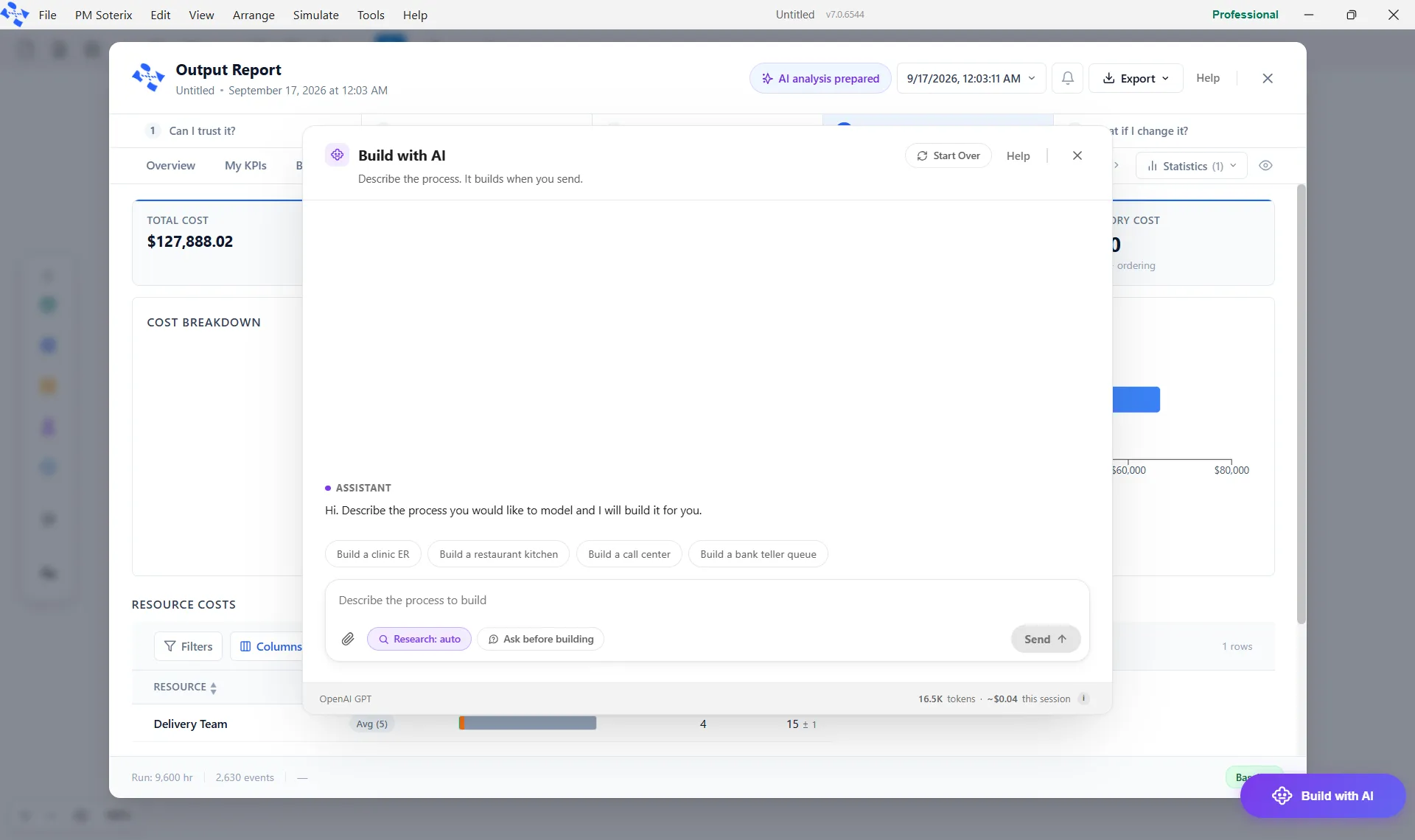
Build with AI turns a plain-language description of your process into a working, simulation-ready model, so you start from a first draft instead of a blank canvas. You can also edit an existing model by describing the changes you want.
It runs on the AI provider you choose, with your own key: Anthropic, OpenAI, Google, Grok, or a local model that runs on your own device. Set one up once on the Configure AI page; the panel shows which provider a session is using along its foot.
Build a model from a description
Section titled “Build a model from a description”- Open the Build with AI launcher, the floating button at the bottom right of the workspace. A chat panel opens.
- Describe your process in plain language, or pick one of the starting suggestions such as Build a clinic ER. A short paragraph is enough, for example: “Emergency department, about 150,000 visits a year. Patients arrive, are triaged, treated, and discharged, with two nurses and one doctor.”
- Research: auto gathers realistic figures for the kind of process you described. Turn on Ask before building if you want it to check its understanding with a question or two first.
- Click Send. It builds the activities, routes and arrivals, lays them out, and places the model on the canvas.
Tips for a good model
Section titled “Tips for a good model”The clearer your description, the better the result. Try to include:
- A name for the process, such as “Customer onboarding” or “Patient discharge”.
- What starts it, for example “It starts when a customer submits a request”.
- Any unusual steps specific to your workflow, for example “In triage we use a portable x-ray machine”.
- The outcomes and decision points, for example “If the form is incomplete, send it back; if approved, move to scheduling”.
Edit an existing model
Section titled “Edit an existing model”With a model open, the same launcher changes it instead of starting fresh.
- Open Build with AI from the floating button, or right-click the canvas and choose the AI option.
- Describe the change you want, for example “Add a cleaning step before Paint that takes five minutes”.
- With Ask before building on, it checks a detail or two before it starts. Answer, then Send.
- The new steps are added to your existing model, which is kept as it was.
LegacyHow this worked in the previous version
Build AI was introduced in ProcessModel 6.2 to speed up model creation. Instead of dragging and dropping shapes, it generated a simulation-ready model from a natural-language description, a list of steps, or an image of an existing flowchart, then estimated the time for each activity and laid the shapes out automatically.
How it worked
- Access the tool: click the Build AI button in the main toolbar, before the “Define Attributes, Variables and Scenarios” button.
- Enter your process: the Build Layout dialog accepted either a text description (a summary, a list of activity names, or a narrative) or an image (click the paperclip to attach a photo of a whiteboard, sticky notes, or a flowchart).
- Tips for great results: name the process, state what triggers it, list any non-standard steps, and include the outcomes and decision points.
- Build the layout: click Build Layout. The tool generated the activities, routes, and arrivals, then ran a re-layout to organize the shapes.