

ProcessModel 7 Self Teach GuideChapter 9
Chapter 9. Make Each Repair Wait for Its Part
By the end of this chapter you can
Make a step wait for parts from a shelf that reorders itself.
Before you start
Until now, a repair could start the moment a Technician was free. A real repair also needs a part: a screen, a battery, a connector. Parts run out, a new box takes time to arrive, and while the shelf is empty, nothing gets repaired, however many Technicians are standing by.
This chapter teaches how to model stock that is used up and reordered:
- An Inventory is a stock location: a shelf of named items. It sits beside the flow; no route goes in or out of it. Logic reaches it by name.
- A reorder rule keeps it stocked: when the stock falls to the Reorder Level, it orders the Reorder Qty, which arrives after the Lead Time.
- REQUEST is the logic that takes stock. If the part is not there, the customer waits until it is.
Here is what changes in the shop:
| Part | Chapter 8 | Chapter 9 |
|---|---|---|
| Parts Shelf | None | A shelf holding one item, Part. It starts empty; a box of ten is ordered when three are left, and takes two hours to arrive |
| Repair Queue | A place to wait for a Technician | Each customer also takes one part here before Repair, and waits without one |
| Everything else | As Chapter 8 left it | Unchanged |
You need your Phone Repair Shop from Chapter 8 (or the practice model below) and about thirty minutes.
Step 1. Open your shop
- On the Welcome screen, under Recent Models, click Phone Repair Shop.
Step 2. Add the Parts Shelf
- Rest the pointer on More, the double chevron in the palette. A list of advanced shapes opens.
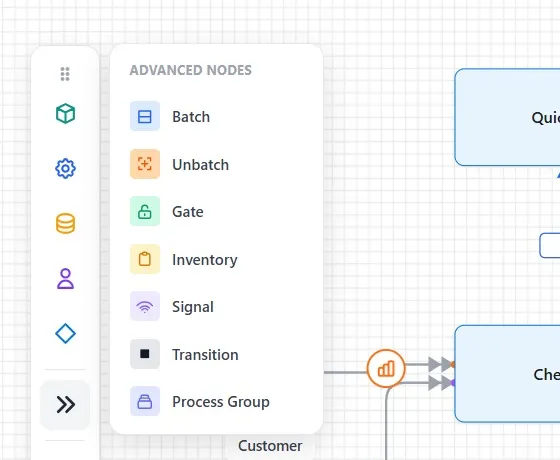
- Drag an Inventory onto the canvas and drop it under the Repair Queue, clear of every line.
- Name it Parts Shelf.
Step 3. Stock the shelf with a reorder rule
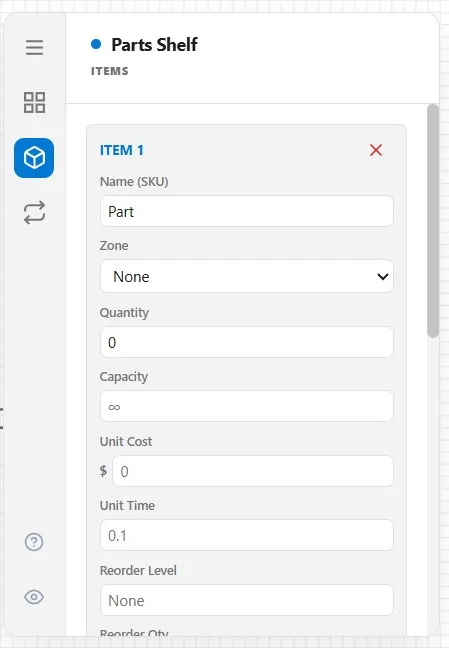
- Click the Items tab, then Add Item.
- Click Name and type Part. Quantity, the stock on the shelf when the day starts, stays at 0: the first box is ordered at once and lands overnight.
- Scroll down. Set Lead Time Unit to Hr, and type 2 in Lead Time: a box takes two hours to arrive.
- In Reorder Qty, type 10: a box holds ten parts.
- In Reorder Level, type 3: when three are left, the next box is ordered.
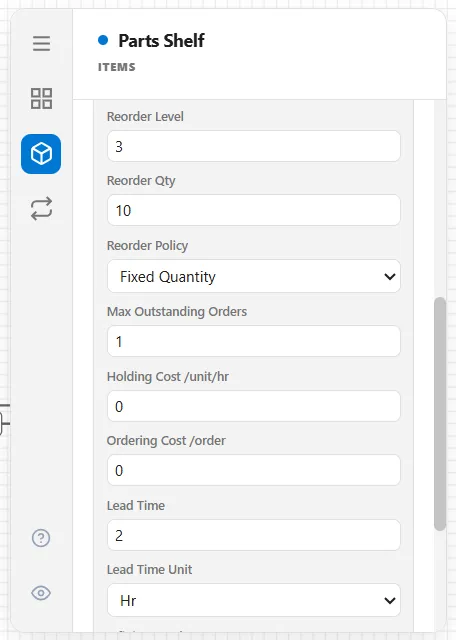
Think about what these three numbers do together. A box is ordered at three left and takes two hours. If the shop uses more than three parts in those two hours, the shelf runs dry before the box lands. That is a stockout, and this run will show you one.
Step 4. Make each repair take a part
Where should a customer take the part? At the Repair Queue, not at Repair, and the reason is worth understanding. Repair’s own logic runs once a Technician has been given to the customer, so a customer waiting there for a part would keep a Technician standing idle, unable to help at Quick Fix. In the Repair Queue the customer waits for the part, and both Technicians stay free.
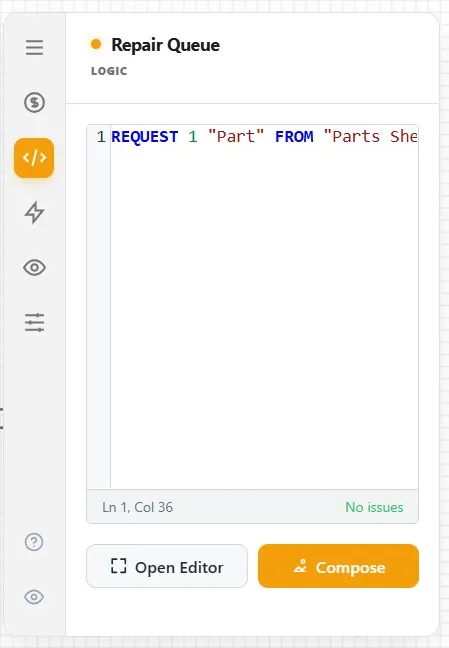
- Click the Repair Queue, open its Logic tab, and click Compose.
- Click Add Action, search for REQUEST from, and pick it.
- Type Part for the item and Parts Shelf for where it comes from. The names must match the item and the shelf exactly.
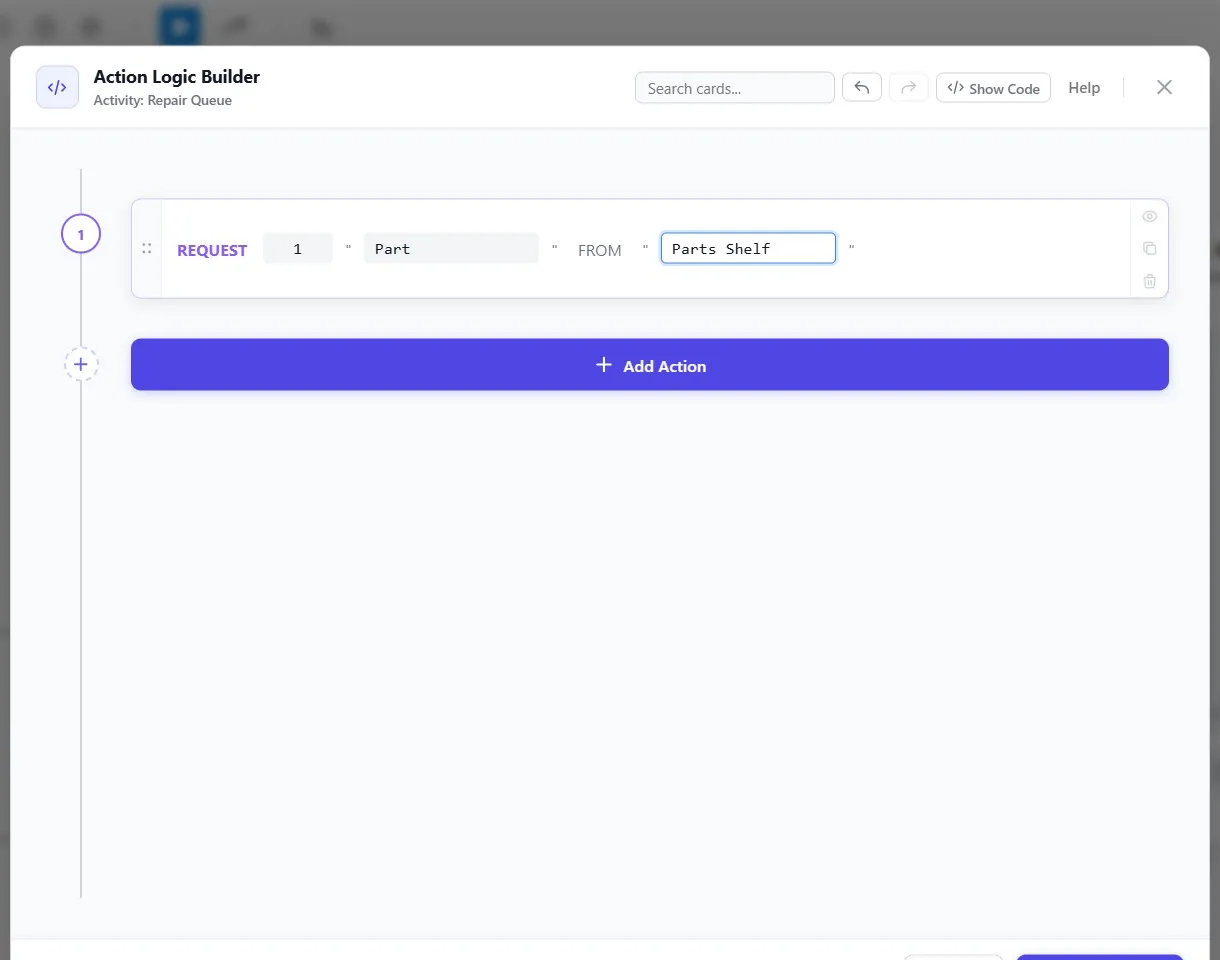
- Click Save Logic.
Step 5. Watch the shelf
- Click Run Simulation and watch the Parts Shelf. During the run it shows its stock as Qty.
Overnight, the first box lands: the shelf reads 10.
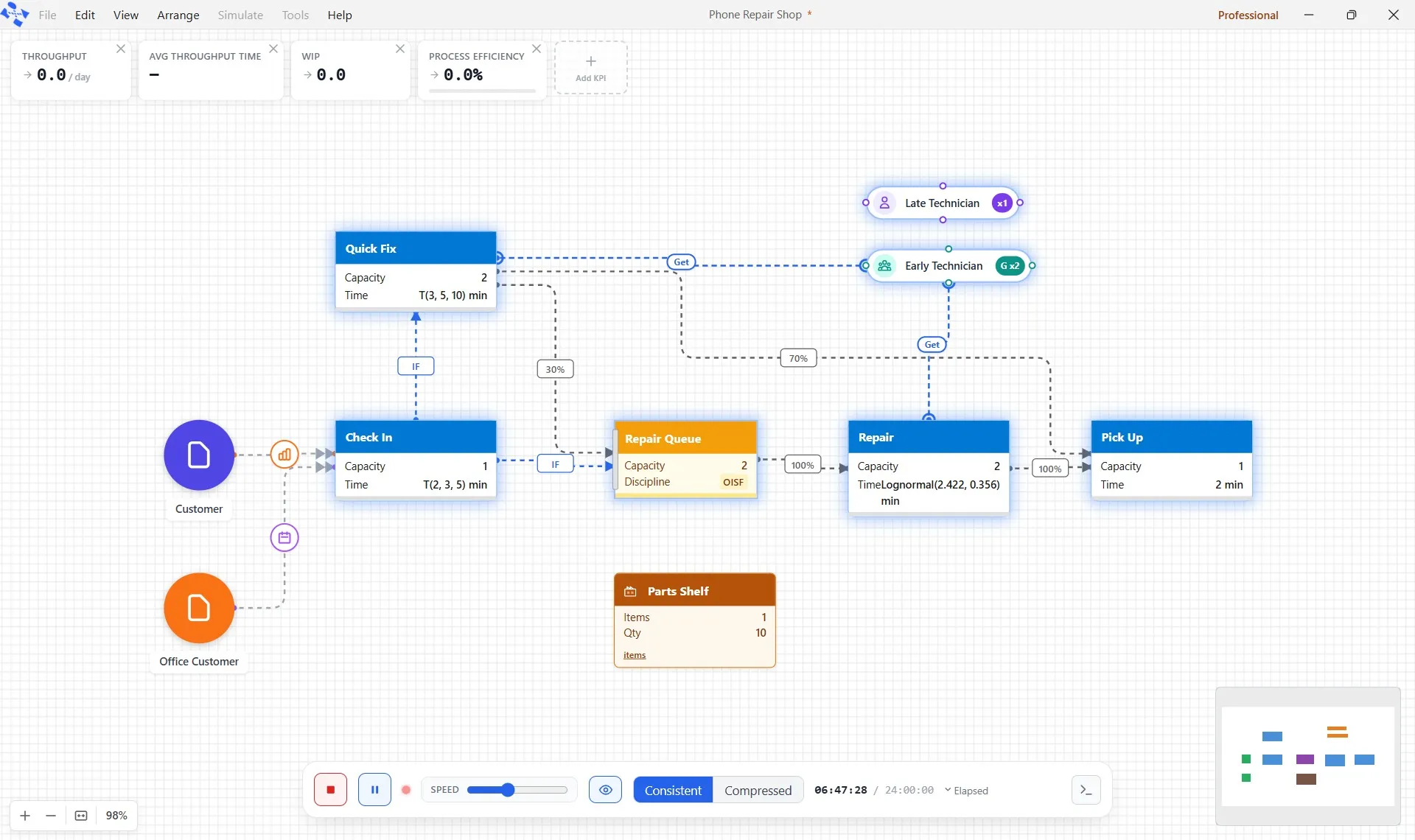
From 7, each repair takes one part, and the count goes down. When three are left, an orange low mark shows and a new box is ordered. Then watch what happens when the shelf reaches 0:
- Customers in the Repair Queue wait for a part.
- The queue fills, and, just as in Chapter 6, a full queue stops Check In.
- Repair and Quick Fix stand idle: the Technicians are free, but there is nothing they can repair.
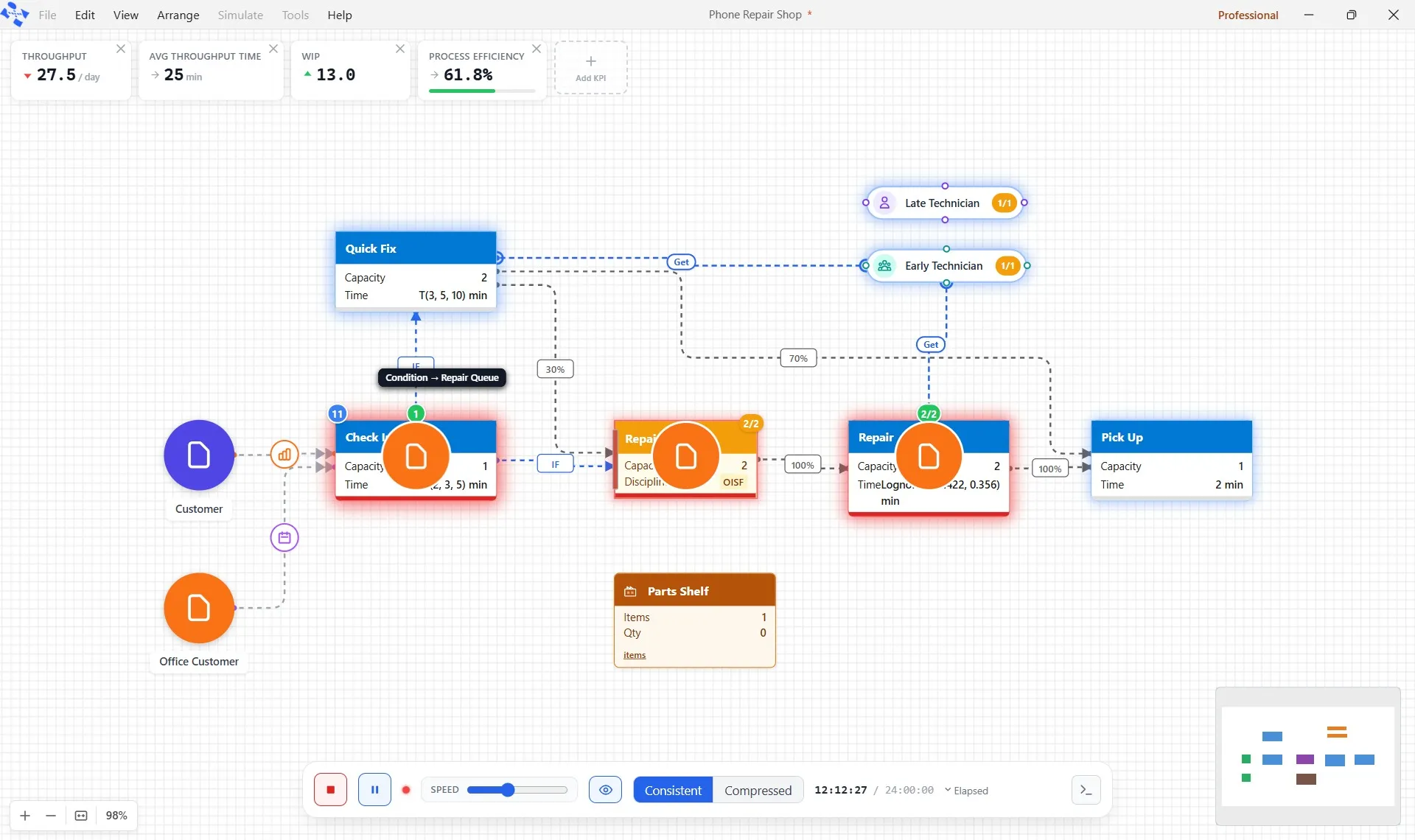
Two hours after the order, the box lands and the repairs move on. After noon it happens again; at the 30th job, Chapter 8’s message stops the run (click Continue); late in the day the shelf runs out once more, for less than an hour.
Step 6. Read the cards
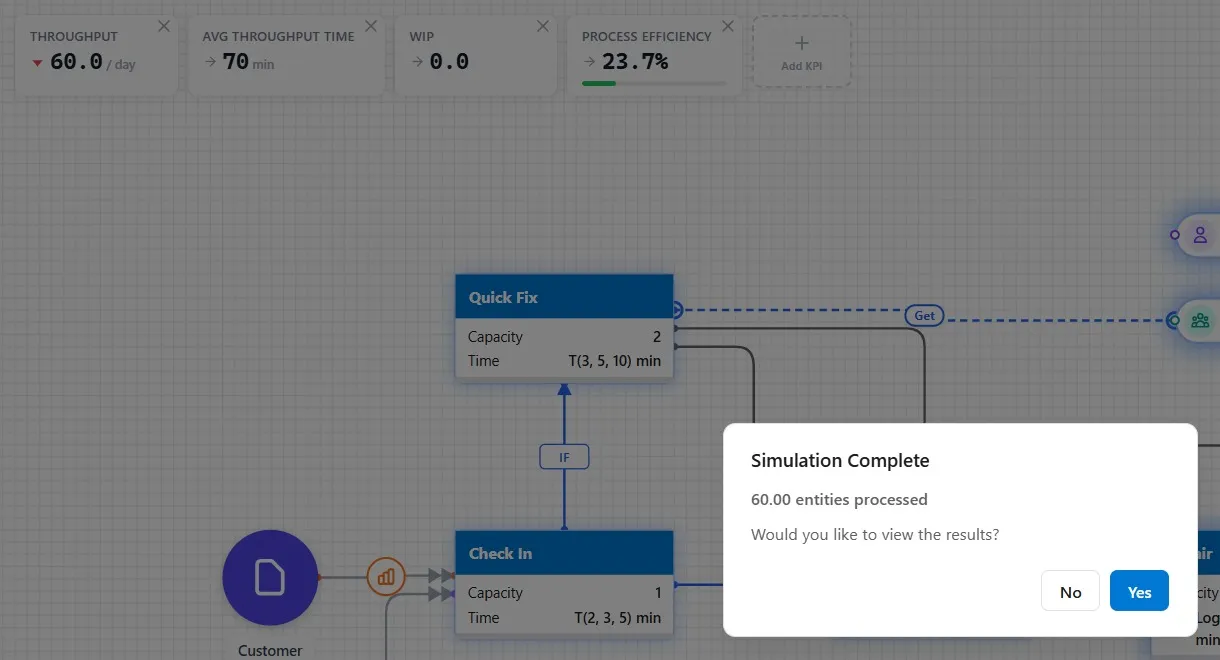
- 60 went through.
- Avg Throughput Time, 70 minutes, up from 51 in Chapter 8.
- WIP, 0: at midnight the shop is empty.
- Process Efficiency, 23.7%, down from 28.1%: more of each customer’s time is spent waiting.
Nothing about the staff or the steps changed. Nineteen extra minutes per customer came from the parts alone: a supply problem showing up as a waiting-room problem. That is the kind of cause a model finds that a look at the shop floor would miss. One run, one possible Monday. Click No.
Step 7. Save it
- Click File, then Save. Chapter 10 starts from this shop.
Your practice model
- Start fromChapter 8. Tag Each Customer and Count the JobsThe shop as Chapter 8 left it. Use your own saved Phone Repair Shop instead if you built it.
- Compare withChapter 9. Make Each Repair Wait for Its PartThe shop as this chapter leaves it. Open it when you are done, and check your settings against it.
Both are in File ▸ Demo Models, in the Self Teach Guide group. A demo model opens as a new model, so the original never changes.
Check yourself
Try it yourself
Fix the stockouts with a smarter reorder rule, not more Technicians.
- Click the Parts Shelf, open the Items tab, and raise Reorder Level from 3 to 6, so the next box is ordered sooner.
- Run the day and read Avg Throughput Time before you answer Simulation Complete.
Mark it done
When you can explain how a parts shortage stops Check In, turn on Done.
You watched this chapter's video.Not watched yet: the video is marked when it plays to the end.
Kept in this browser only, and shown on the course page.