

ProcessModel 7 Self Teach GuideChapter 12
Chapter 12. Try Two Fixes Side by Side
By the end of this chapter you can
Try two fixes side by side before you spend on either.
Before you start
Chapter 11 found where customers wait, at Check In, and traced it back to the parts. Now the fifth question: what if I change it?
There are two fixes a manager might suggest. Hire one more Technician for the morning; or order parts in bigger boxes, 20 instead of 10. Both cost money. In a real shop you would have to pick one and hope. In a model you can try both first, side by side, and spend only on the one that works.
The tool for this is the scenario: a what-if copy of the shop that changes a few settings and leaves the shop itself alone. You build each fix as a scenario, run today’s shop and every scenario together, and read them in one report.
| Part | Chapter 11 | Chapter 12 |
|---|---|---|
| Scenario: One more Technician | None | Early Technician’s Quantity 1 becomes 2 |
| Scenario: Box of 20 | None | The Parts Shelf’s Reorder Qty 10 becomes 20 |
| The shop itself | As Chapter 10 left it | Unchanged |
You need your Phone Repair Shop (or the practice model below) and about twenty minutes. For more on scenarios, see Scenarios. Make a guess before you start: which fix will help more?
Step 1. Open your shop
- On the Welcome screen, under Recent Models, click Phone Repair Shop.
Step 2. Build the first scenario: one more Technician
- On the toolbar, click Logic Builder, then the Scenarios tab. It reads “No scenarios defined” for now.
- Click Add new and name it One more Technician.
- Click Add Object. The menu lists every object in the shop. Scroll to Early Technician and pick it.
- Click Quantity and type 2.
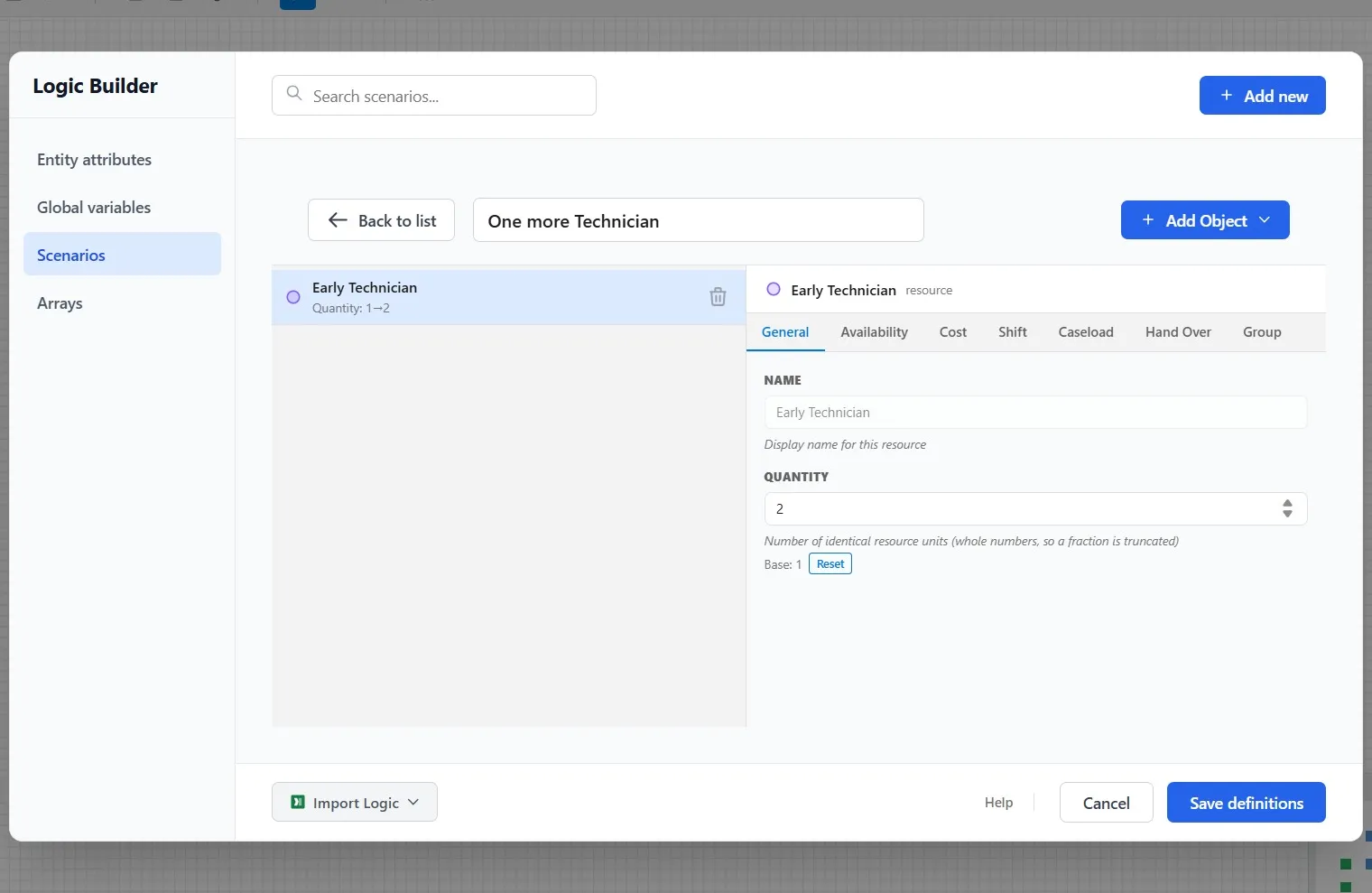
What you should see: the object’s line reads Quantity: 1 to 2, and under the box, Base: 1, the shop as it is. A scenario always shows you both, so you never lose sight of what is real.
- Click Back to list.
Step 3. Build the second scenario: a box of 20
- Click Add new again and name it Box of 20.
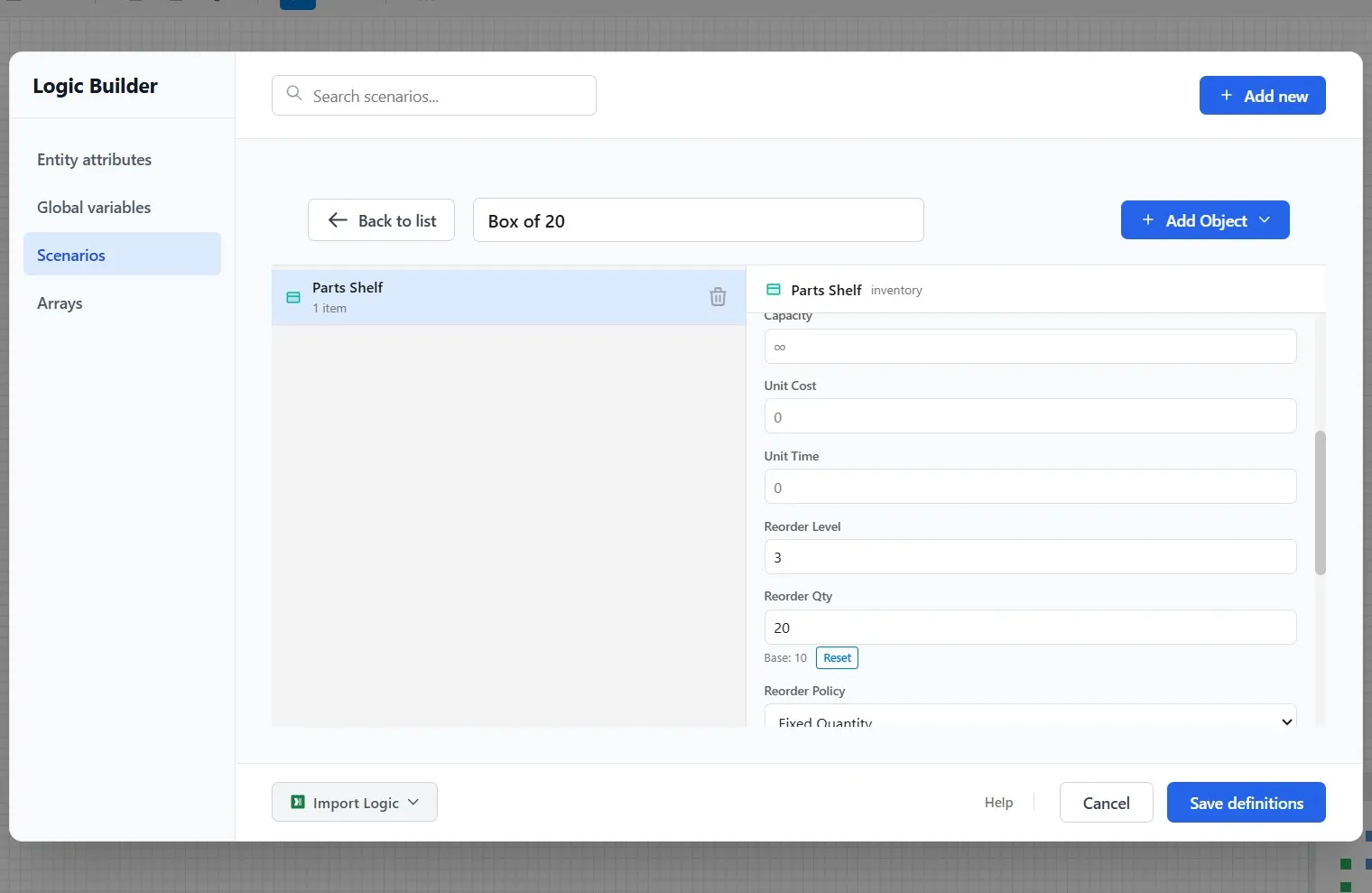
- Click Add Object, scroll to Parts Shelf, and pick it.
- Scroll down to Reorder Qty, click it, and type 20. Under it, Base reads 10.
- Click Back to list.
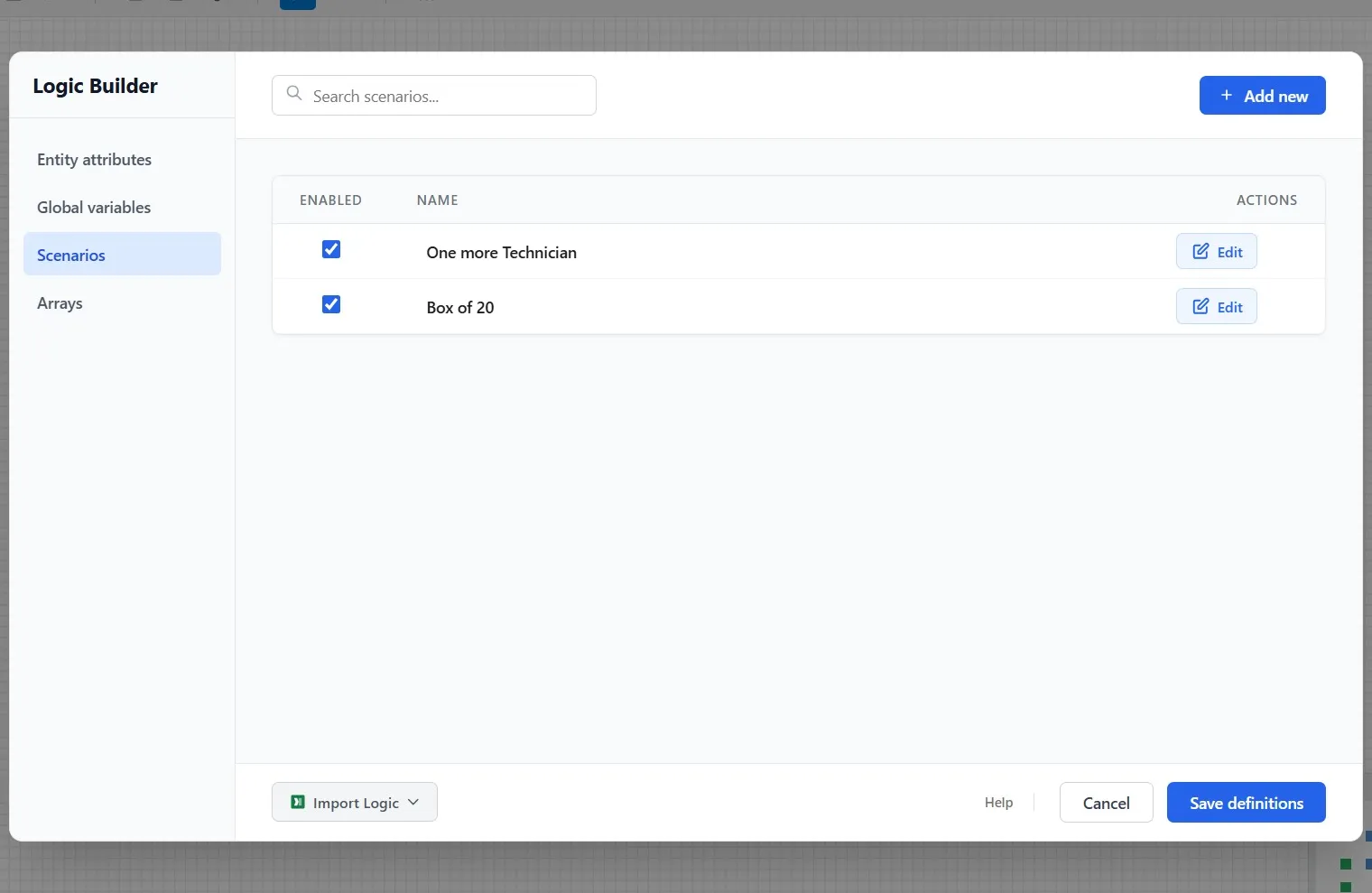
What you should see: both scenarios on the list, each with Enabled ticked. Only enabled scenarios run.
- Click Save definitions.
Notice what you have not done: you have not changed the shop. Early Technician is still 1 and the box is still 10. The scenarios sit beside the shop, ready to be tried.
Step 4. Run all three
- Click Run Simulation.
The shop as it is runs ten Mondays, and then each scenario runs ten of its own: thirty Mondays in all, in a few seconds.
- Click Yes when Simulation Complete asks.
Step 5. Compare each fix with today’s shop
- Click the Experiments tab. It compares a scenario with the shop as it is (the Baseline), and opens on Box of 20.
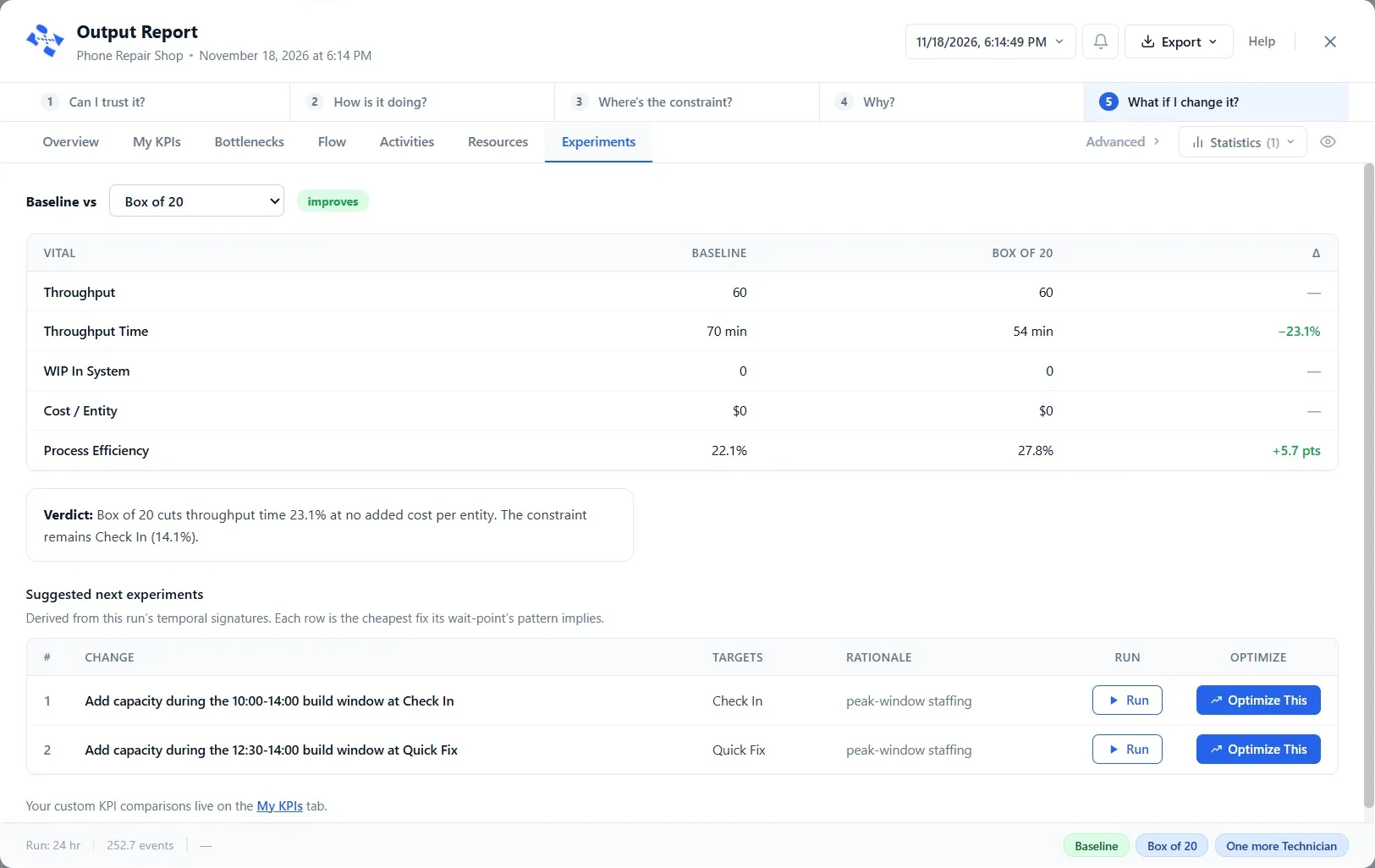
Box of 20 improves the shop: Throughput Time goes from 70 minutes to 54, a cut of 23.1%, and the verdict under the table says so in words.
- Pick One more Technician from the list beside “Baseline vs”.
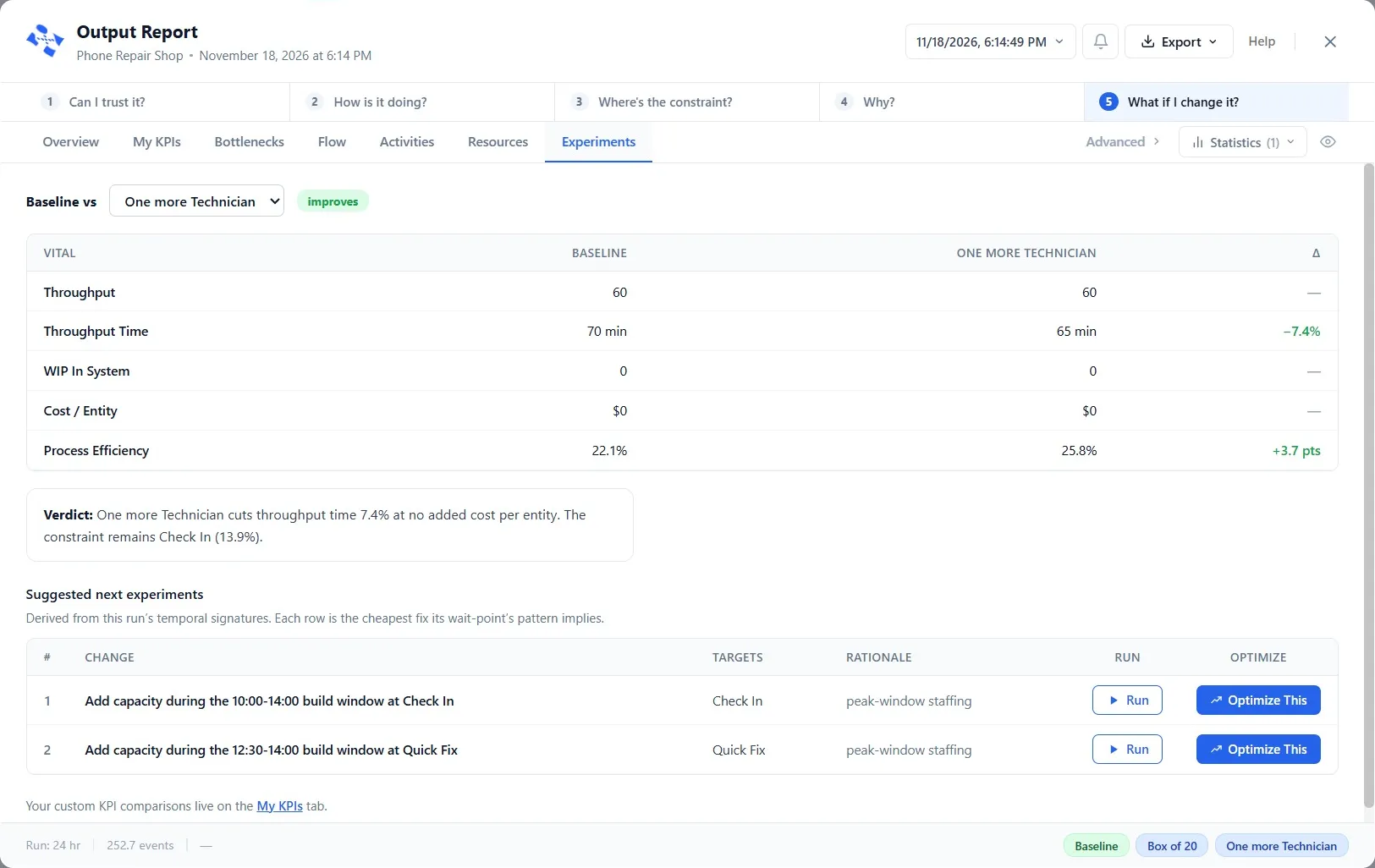
It improves too, but less: from 70 minutes to 65, a cut of 7.4%.
Step 6. Read the answer at Check In
The constraint was Check In, so look there.
- Click the Activities tab. Each step now has a row for each run: the Baseline and each scenario.
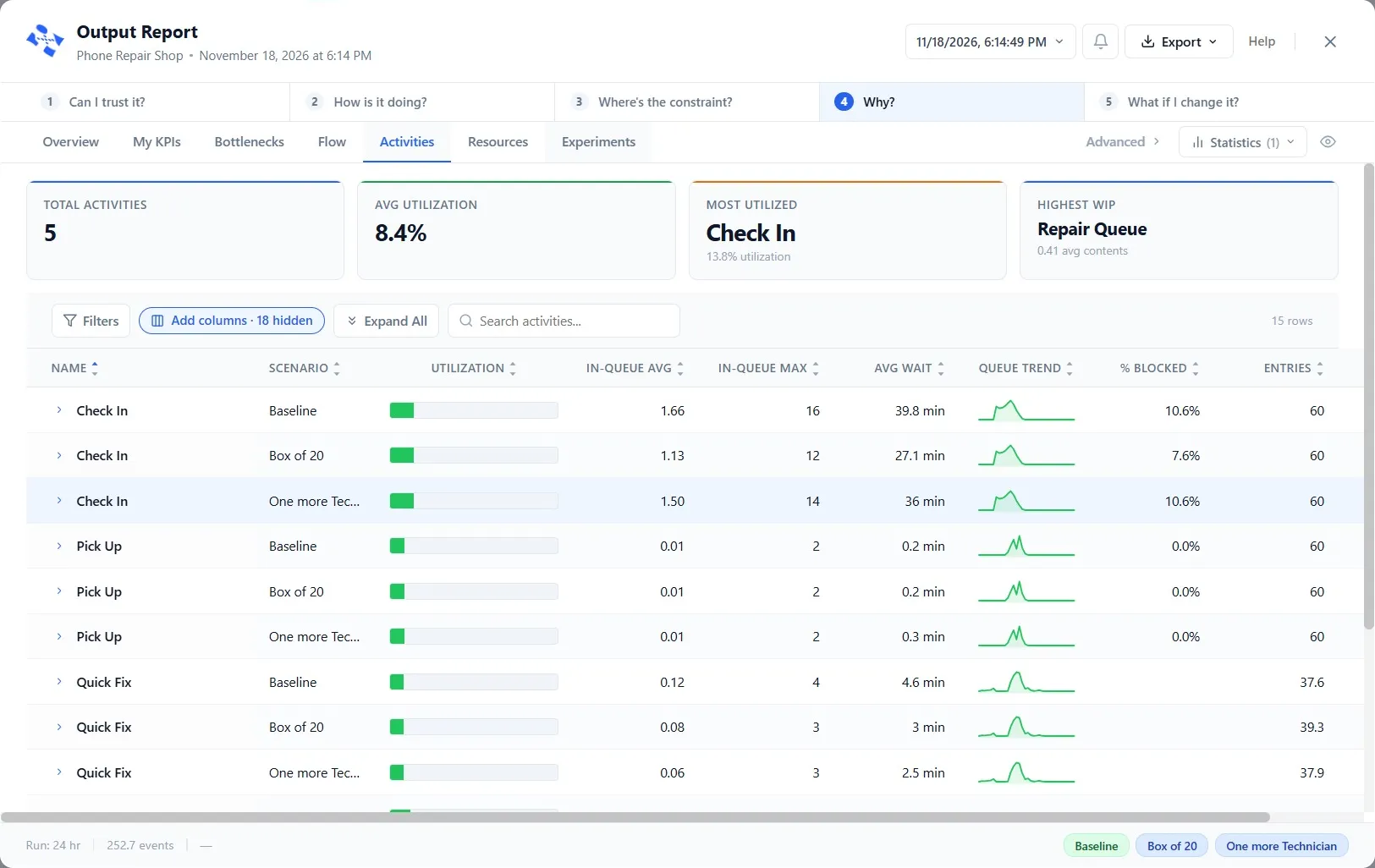
Check In’s average wait: 39.8 minutes in the shop as it is, 27.1 with a box of 20, 36 with one more Technician. The bigger box helps about three times as much.
Here is why, and it is the whole of Chapters 9 and 11 in one sentence: repairs were waiting for parts, not for a Technician. A second Technician cannot repair a phone without a part. A bigger box keeps the shelf from running dry, so the Repair Queue moves, and Check In is no longer blocked.
If you guessed the Technician, you are in good company: it is the fix most people reach for first. The model just saved the cost of a hire that would have helped little.
- Close the report.
Step 7. Save it
- Click File, then Save. The scenarios are saved with the model. Chapter 13 starts from this shop.
Your practice model
- Start fromChapter 11. Find Where Your Customers Really WaitThe shop as Chapter 11 left it. Use your own saved Phone Repair Shop instead if you built it.
- Compare withChapter 12. Try Two Fixes Side by SideThe shop as this chapter leaves it. Open it when you are done, and check your settings against it.
Both are in File ▸ Demo Models, in the Self Teach Guide group. A demo model opens as a new model, so the original never changes.
Check yourself
Try it yourself
Try both fixes at once.
- Open the Logic Builder, the Scenarios tab, and add a third scenario, Both, that sets Early Technician’s Quantity to 2 and the Parts Shelf’s Reorder Qty to 20. Click Save definitions.
- Run and open the report. In Experiments, pick Both.
Mark it done
When you can explain why the bigger box beat the extra Technician, turn on Done.
You watched this chapter's video.Not watched yet: the video is marked when it plays to the end.
Kept in this browser only, and shown on the course page.