

ProcessModel 7 Self Teach GuideChapter 4
Chapter 4. Make Customers Come When They Really Do
By the end of this chapter you can
Make customers arrive the way they really do, rushes and schedules included.

Before you start
In Chapter 3, customers came at random, but evenly: as many at 3 in the morning as at noon. No real shop works like that. Customers come when their day allows: few at opening, a rush at lunch, a quiet evening. And some come in groups, at times you know in advance.
When work arrives matters as much as how much arrives. A shop that handles 48 customers a day with ease can still have a long line at lunch, if a third of them come in the same hour. Averages over the day hide that; a model with the right arrival pattern shows it. This chapter teaches the two arrival types that shape the day:
- A Daily Pattern says how many customers come in a day and how they spread over its hours.
- A Scheduled arrival brings a set number at exact times, like an appointment.
Here is what changes in the shop:
| Part | Chapter 3 | Chapter 4 |
|---|---|---|
| Walk-in customers | At random, 10 minutes apart, day and night | A daily pattern: 48 on Monday, from 7 in the morning to 8 at night, busiest at noon |
| An office group | None | Six customers from one office, together, at 10 every Monday morning |
| Run length | 8 hours (midnight to 8 in the morning) | 24 hours, one whole Monday |
| Steps and staff | As Chapter 3 left them | Unchanged |
You need your Phone Repair Shop from Chapter 3 (or the practice model below) and about thirty minutes.
Step 1. Open your shop
- On the Welcome screen, under Recent Models, click Phone Repair Shop.
What you should see: the shop as Chapter 3 left it, with its arrival reading E(10).
Step 2. Change the walk-ins to a daily pattern
- Click the arrival line from Customer to Check In. Its type is Periodic.
- Open the Type list at the top of the panel. It lists six ways for customers to arrive.
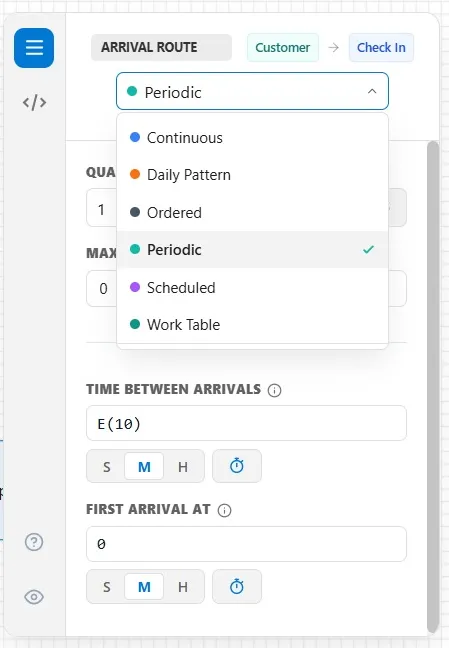
- Choose Daily Pattern. The panel reads No days configured: a pattern needs at least one day.
- Click Open Pattern Builder. The builder starts with no days.
- Click Add Day and choose Monday.
- In Day Quantity, type 48: 48 walk-ins come on a Monday.
- Click the Business hours preset.
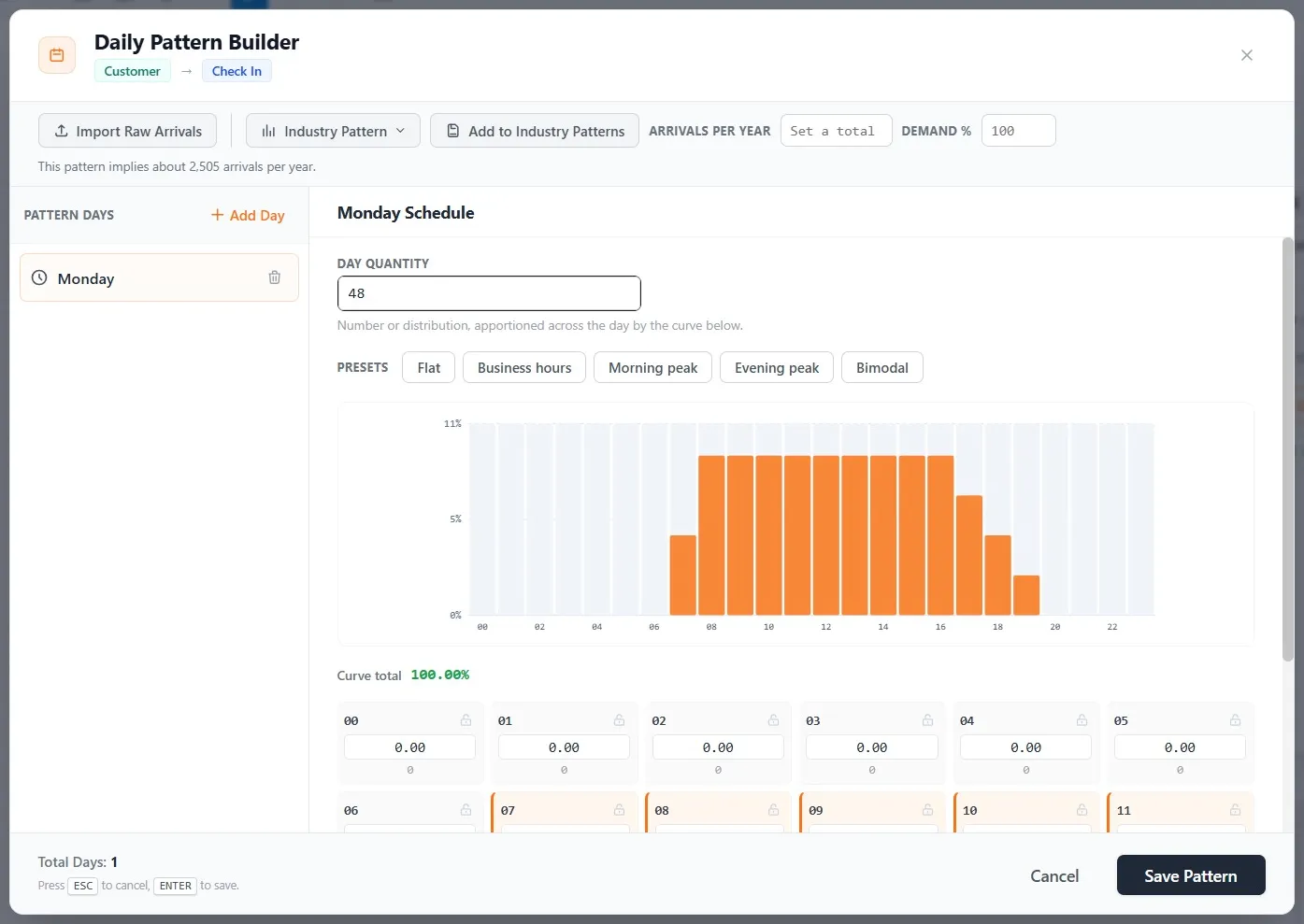
What you should see: a bar chart of the day’s 24 hours. Each bar is the share of the day’s customers who come in that hour. With Business hours, customers come from 7 in the morning to 8 at night, and the shares add up to 100%.
Now give the day its lunchtime rush.
- Click the box for 12, the hour from noon to 1, and type 30: 30 percent of the day’s customers.
- Click outside the box to set it.
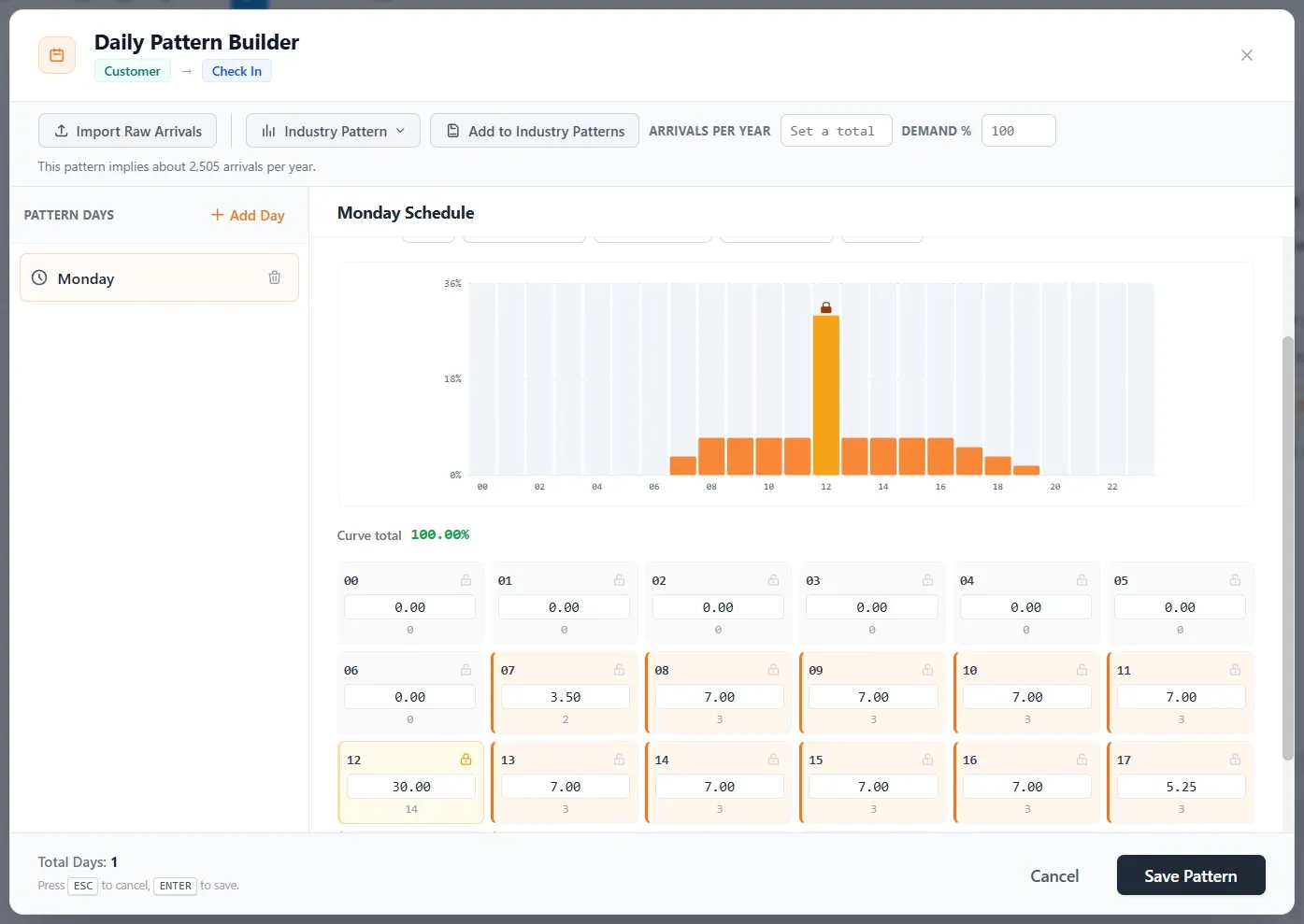
What you should see: the noon bar towers over the rest. A lock marks noon, and the other hours shrink to share the remaining 70%, so the curve still totals 100%. That is 30% of 48, about 14 customers between noon and 1, against about 3 in each other busy hour.
- Click Save Pattern. The panel reads 1 day configured.
A pattern is a shape, not a timetable. Each Monday, the day’s 48 customers are shared out over the hours by the curve, and each hour’s customers arrive at random moments inside that hour.
Step 3. Add the office group on a schedule
A business client sends six of its staff, each with a phone, every Monday at 10 in the morning. You know exactly when they come and how many, so they are a Scheduled arrival.
- Draw a second line from Customer to Check In, just under the first.
- Click it. It starts as Periodic too. Open the Type list and choose Scheduled, for arrivals at exact times.
- Click Open Schedule Builder. It is empty. Click Add Row.
- Week 1 and Day Monday are already set. Click the hour of Time and type 10, for 10 in the morning.
- In Quantity, type 6: six customers in one arrival, a group.
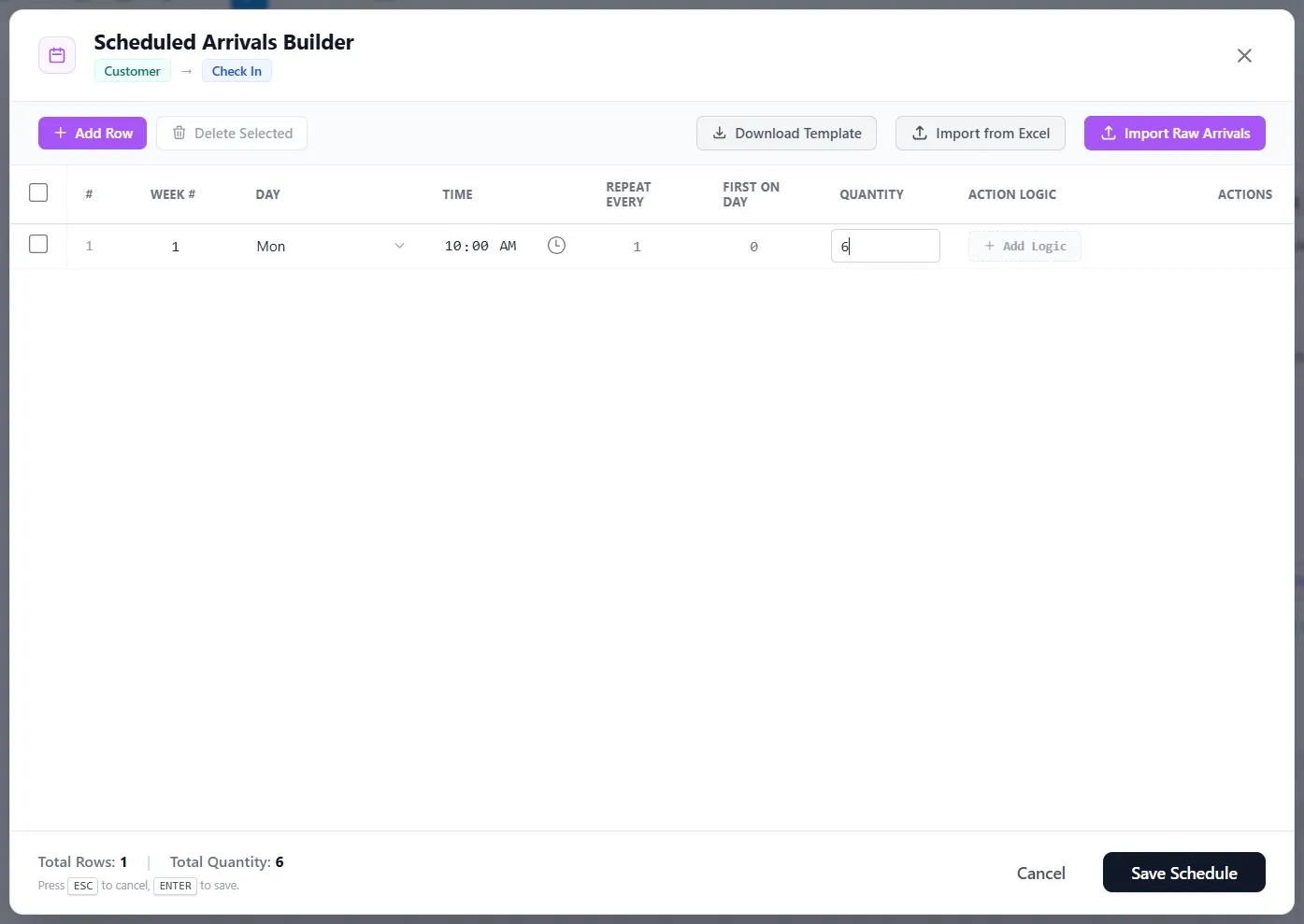
- Check the foot: Total Quantity 6. Click Save Schedule.
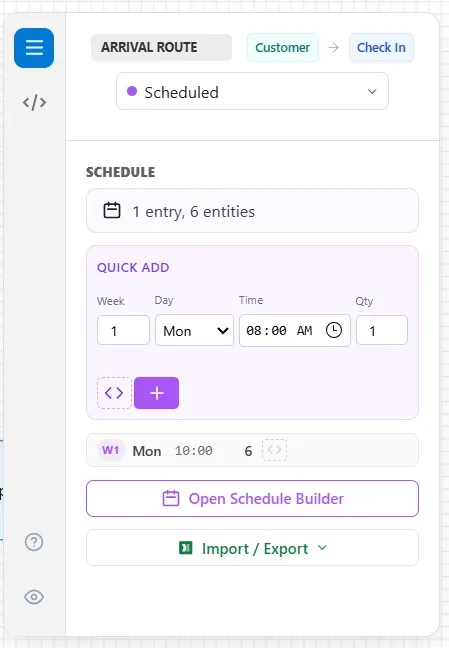
What you should see: the panel reads 1 entry, 6 entities. Each arrival line now carries its own badge, so you can tell the pattern from the schedule at a glance.
Step 4. Run a whole day
Every run starts at midnight on Monday, so the pattern’s hours sit on the run’s clock. Your run is still 8 hours long, so it would end at 8 in the morning, before the rush. Run the whole day instead.
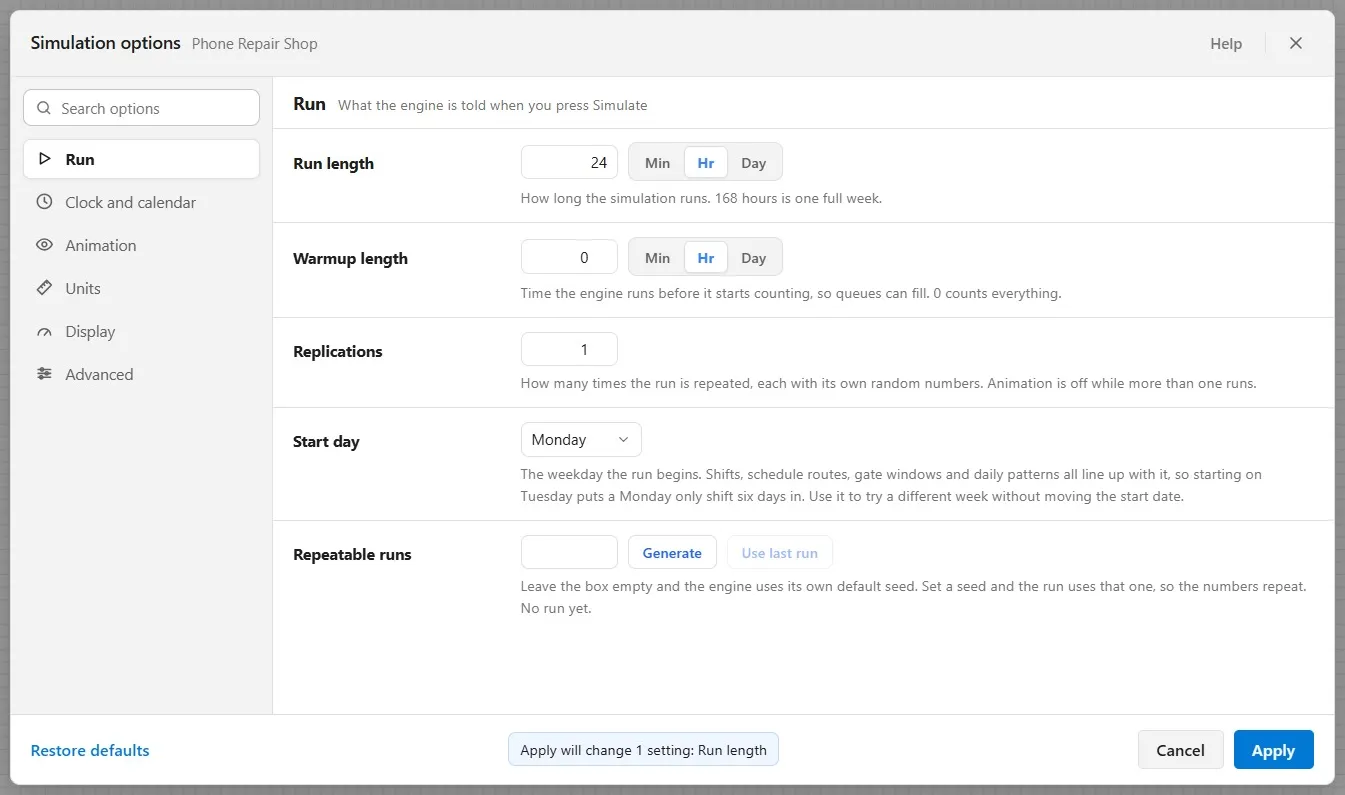
- Click Simulation Options.
- Type 24 in Run length; Hr is already chosen.
- Read the foot (it names one change, Run length) and click Apply.
Step 5. Watch where the lines form
- Click Run Simulation, and watch the clock in the run bar and the counts on the corners of Check In and Repair.
Here is what happens, hour by hour. Nobody comes before 7, so the night passes with nothing to see. From 7, walk-ins start to arrive, a few each hour.
At 10, the six office customers arrive together. Check In takes one at a time, so five wait there. As they finish, the line moves on to Repair.
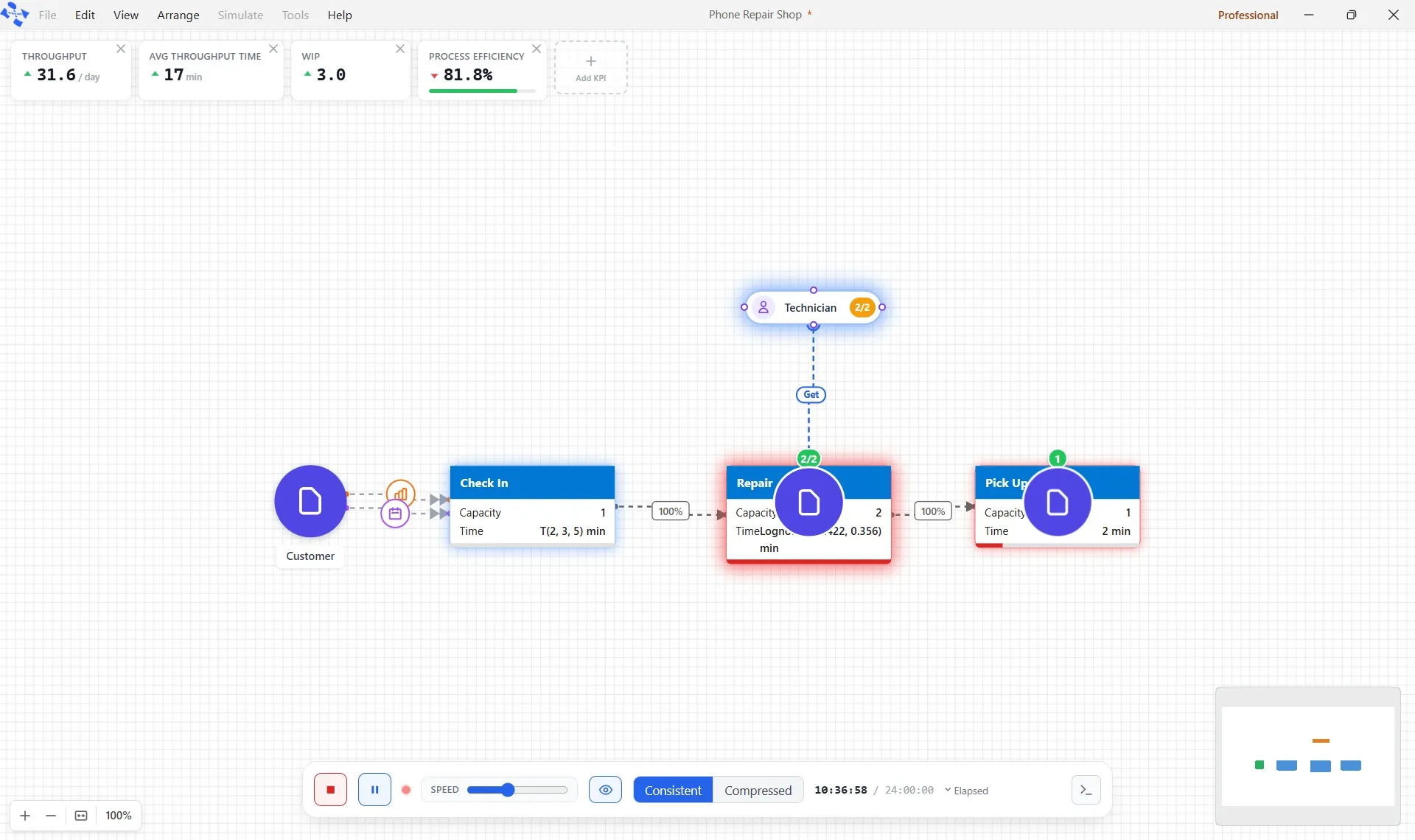
At noon, the rush begins. This time the line builds at Repair, up to five near 1 o’clock, and then drains away as the rush passes.
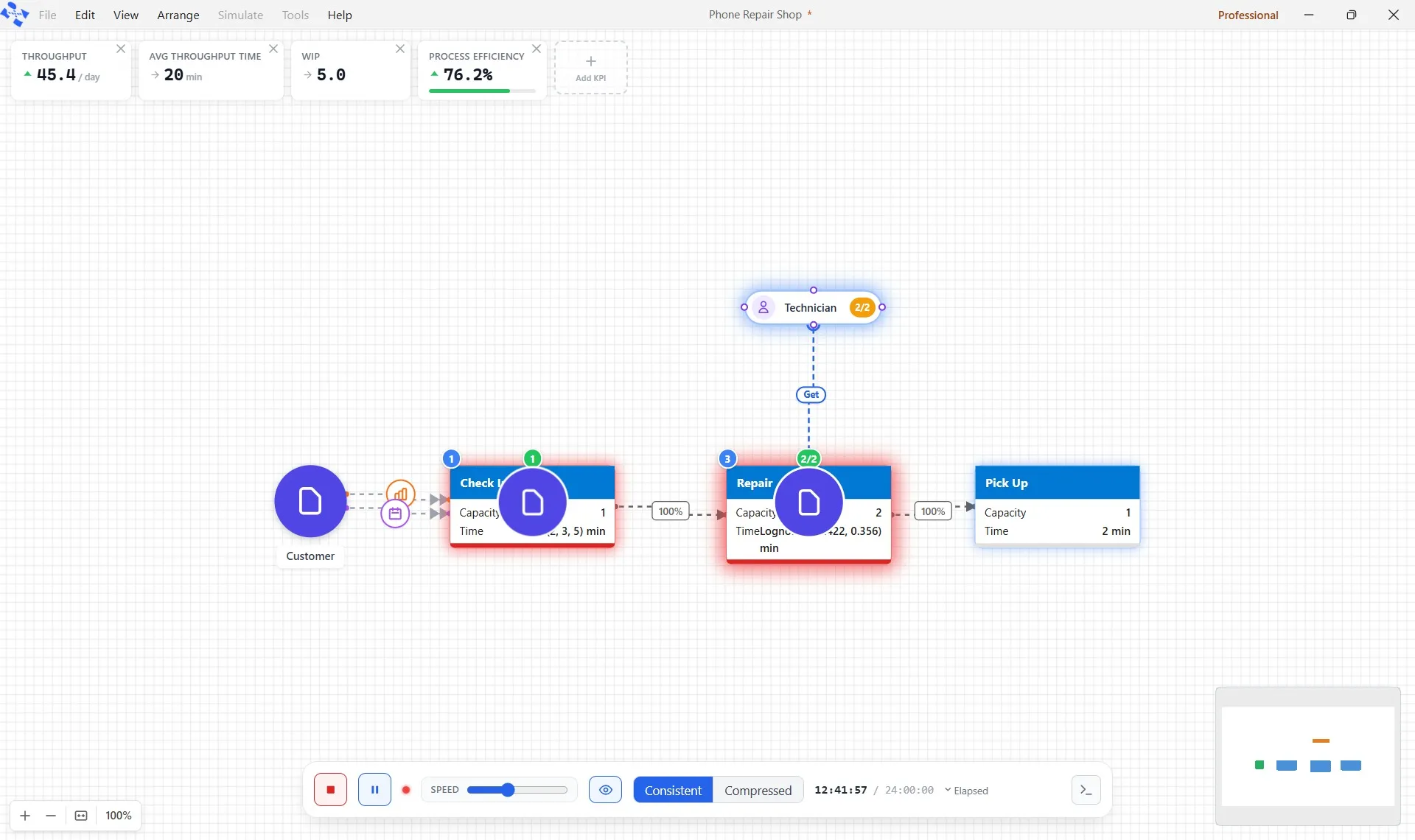
The afternoon is calmer, with a short wait now and then. In the evening fewer come, and the last arrive before 8. Notice that the two Technicians are still on all night: in this model they work around the clock, until Chapter 7 gives them shifts.
Step 6. Read the cards
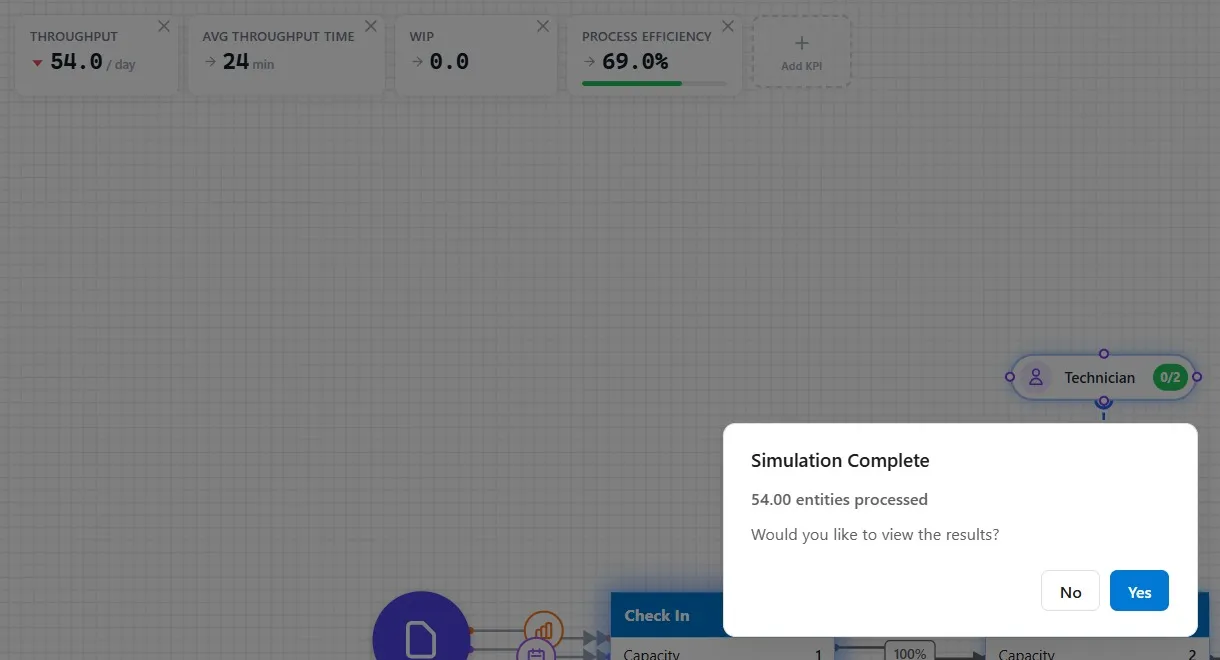
- 54 went through: the 48 walk-ins and the 6 from the office.
- Avg Throughput Time, 24 minutes, up from 20 in Chapter 3.
- WIP, 0: at midnight the shop is empty.
- Process Efficiency, 69%, down from 89.2%.
Compare with Chapter 3. Only a few more customers came (54 against 45), with the same staff and the same times. But they came bunched together, so lines formed at set hours, and the average wait grew. The day’s total was never the problem; its shape was.
As before, this is one run: one possible Monday. Chapter 10 runs many. Click No.
Step 7. Save it
- Click File, then Save. The star leaves the title bar, and the shop keeps its name. Chapter 5 starts from it.
Your practice model
- Start fromChapter 3. Make Your Times VaryThe shop as Chapter 3 left it. Use your own saved Phone Repair Shop instead if you built it.
- Compare withChapter 4. Make Customers Come When They Really DoThe shop as this chapter leaves it. Open it when you are done, and check your settings against it.
Both are in File ▸ Demo Models, in the Self Teach Guide group. A demo model opens as a new model, so the original never changes.
Check yourself
Try it yourself
What if the office group came at the worst possible moment?
- Open the office group’s arrival, click Open Schedule Builder, and change the time from 10 to 12, so the six arrive in the middle of the lunchtime rush. Click Save Schedule.
- Run the day and read the cards before you answer Simulation Complete.
Mark it done
When you can explain why the same 54 customers make a longer wait when they bunch together, turn on Done.
You watched this chapter's video.Not watched yet: the video is marked when it plays to the end.
Kept in this browser only, and shown on the course page.