

ProcessModel 7 Self Teach GuideChapter 10
Chapter 10. Run the Day Ten Times, Not Once
By the end of this chapter you can
Run the day many times and read all the runs in one report.
Before you start
Every chapter so far ended the same way: “this is one run, so it is one possible Monday.” Now it is time to take that seriously. Your shop is full of chance: when customers arrive, how long each repair takes, which phones are Older. Each run draws one set of those chances, so each run is one Monday out of countless possible ones. A decision based on one Monday is a decision based on luck.
The cure is simple: run many Mondays, each with its own chances, and read them together. Each run is called a replication. Their average is far steadier than any single day, and the spread between them tells you how much a real Monday might vary.
This chapter is short and changes one number, but it explains four settings you have used without thinking about them. Here is what changes:
| Part | Chapter 9 | Chapter 10 |
|---|---|---|
| Replications | 1: one Monday | 10: ten Mondays, each with its own random numbers |
| Run length, Warmup length, Repeatable runs | 24 hours, 0, empty | Unchanged, and now you know what each one means |
| Everything else | As Chapter 9 left it | Unchanged |
You need your Phone Repair Shop from Chapter 9 (or the practice model below) and about fifteen minutes.
Step 1. Open your shop
- On the Welcome screen, under Recent Models, click Phone Repair Shop.
Step 2. Read the Run group, one setting at a time
- On the toolbar, click Simulation Options. It opens on the Run group. Each setting has its own one-line explanation beside it; read them with this lesson.
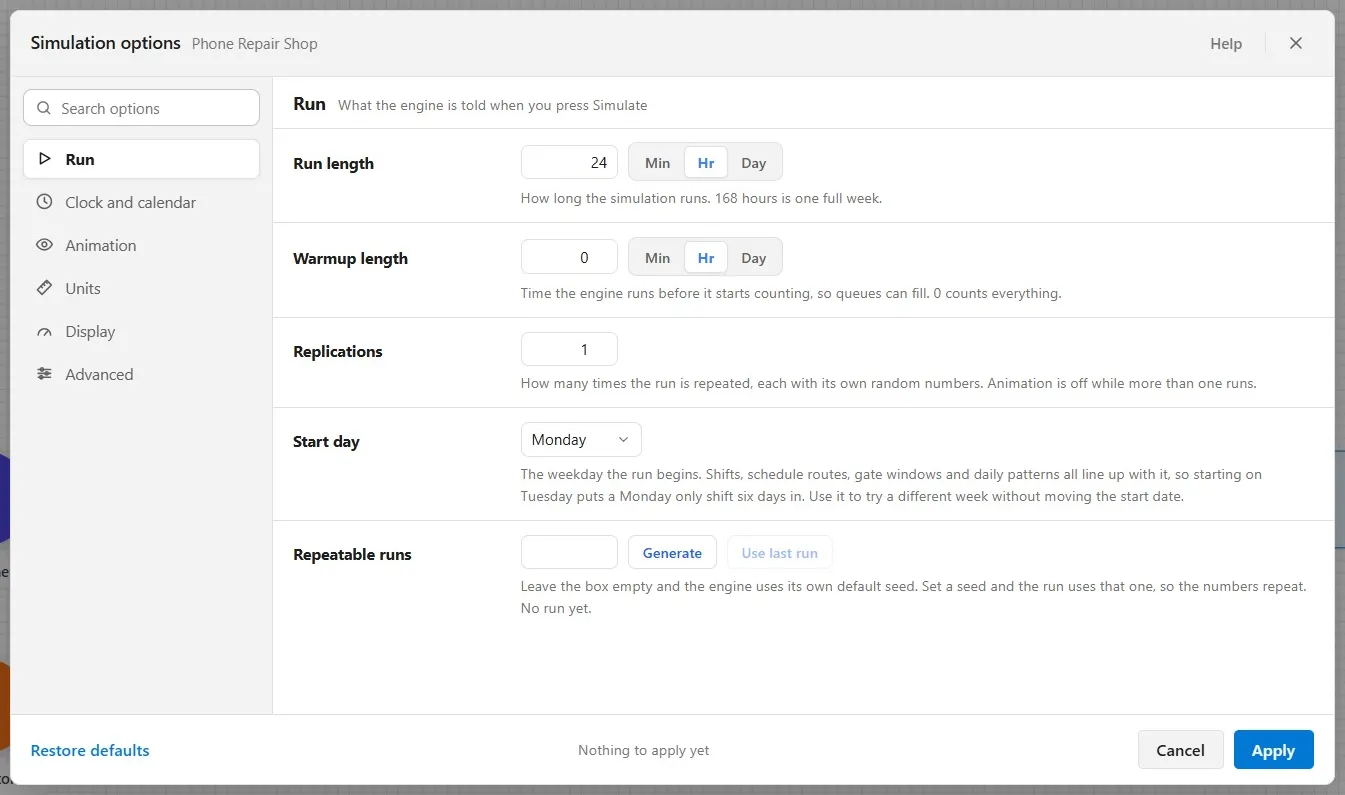
Run length, 24 hours. One Monday, from midnight to midnight. You set this in Chapter 4.
Warmup length, 0. A warm-up is time the model runs before it starts counting, so that lines can fill up to a normal level first. A process that never empties, such as a factory that runs day and night, needs one: otherwise its first hours, starting empty, would make it look better than it is. This shop opens empty every morning, just as a real repair shop does, so the whole day should count. Its warm-up stays 0.
Repeatable runs, empty. This answers a question you may have wondered about: why did the same model always give exactly the same cards? Because with this box empty, ProcessModel uses its own default seed, a fixed starting point for its random numbers. Same seed, same random numbers, same results. That is useful: when you change one thing, the difference you see comes from your change, not from luck. Type your own number here, or click Generate, to start the random numbers from a different point.
Step 3. Run ten Mondays
- Click Replications and type 10: ten Mondays, each with its own random numbers.
- Read the foot: Apply will change 2 settings: Replications, Animation. With more than one replication, nothing is drawn while they run, so they finish in seconds.
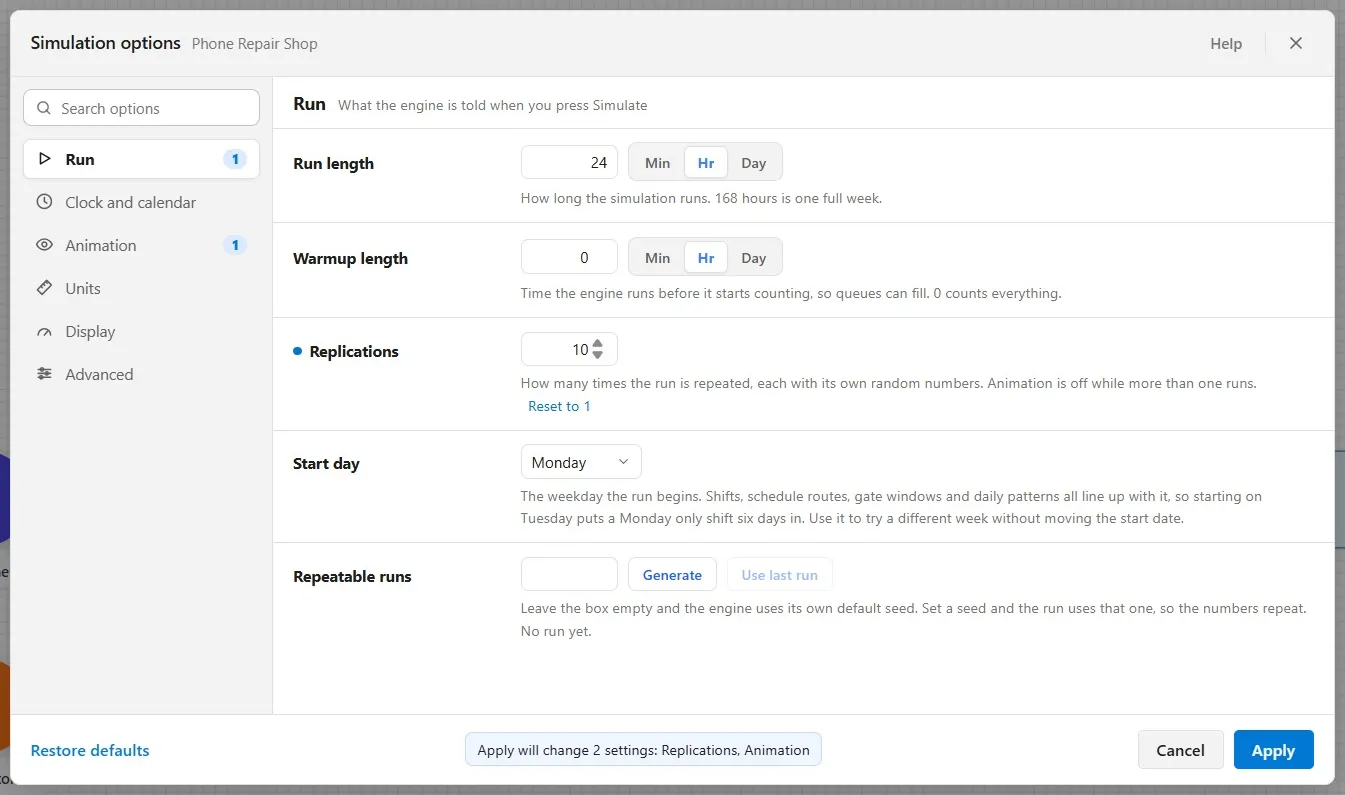
- Click Apply, then Run Simulation.
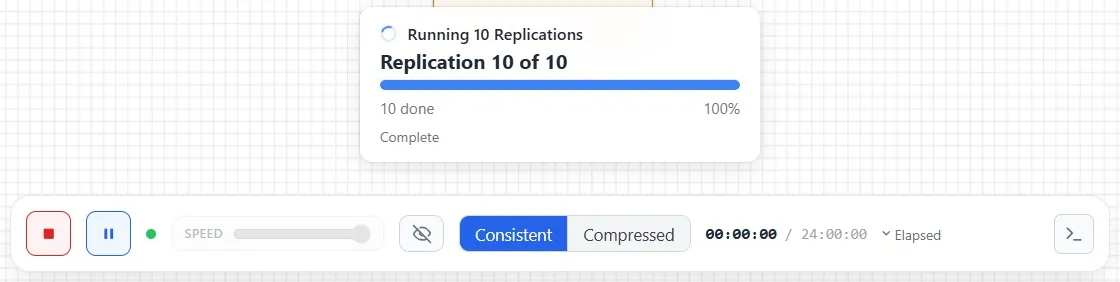
What you should see: a card that counts the replications, done in a few seconds, then Simulation Complete.
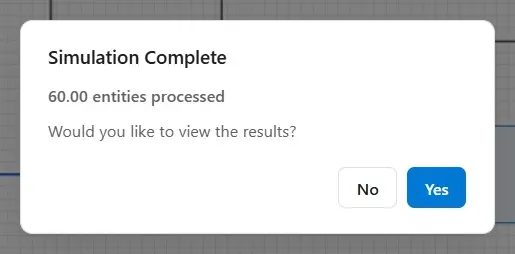
With several replications, the number processed is the average for one run: 60 customers on an average Monday.
Step 4. Read ten Mondays in one report
Until now you answered No and read the live cards. With ten replications there are no live cards, and this is what the Output Report is for.
- Click Yes.
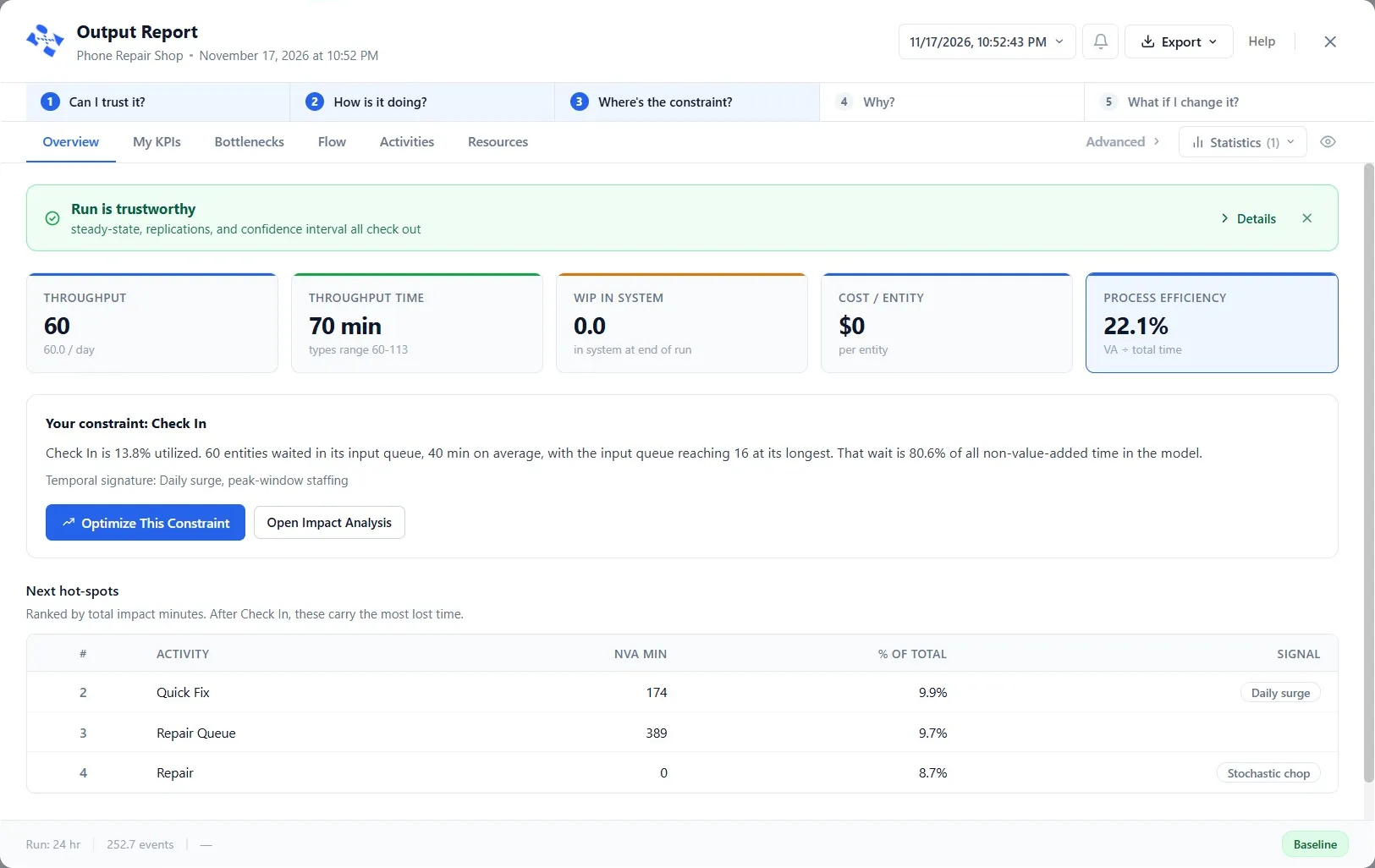
What you should see:
- The green banner: Run is trustworthy. The report checks whether there are enough replications and whether they agree well enough for the averages to be relied on. In Chapter 1 you saw the same green line on a demo.
- Five figures, each now the average of ten Mondays: Throughput 60, Throughput Time 70 minutes, WIP 0, Process Efficiency 22.1%.
Compare with Chapter 9’s single run: 70 minutes and 23.7%. Throughput Time agrees; efficiency is a little lower on average than on that one Monday. The single run was not wrong, only one draw. The average of ten is the number you can plan with. Chapter 11 reads the rest of this report: where customers wait, and why.
- Close the report with the X at its top right.
Step 5. Save it
- Click File, then Save. Chapter 11 starts from this shop, with ten replications set.
Your practice model
- Start fromChapter 9. Make Each Repair Wait for Its PartThe shop as Chapter 9 left it. Use your own saved Phone Repair Shop instead if you built it.
- Compare withChapter 10. Run the Day Ten Times, Not OnceThe shop as this chapter leaves it. Open it when you are done, and check your settings against it.
Both are in File ▸ Demo Models, in the Self Teach Guide group. A demo model opens as a new model, so the original never changes.
Check yourself
Try it yourself
See the seed at work.
- Click Run Simulation again, with nothing changed, and open the report.
- Then open Simulation Options, click Generate beside Repeatable runs to set a new seed, click Apply, and run again.
Mark it done
When you can explain what a replication is and why the results repeated, turn on Done.
You watched this chapter's video.Not watched yet: the video is marked when it plays to the end.
Kept in this browser only, and shown on the course page.