
This version changes how PM Optimizer picks a winner and how an Emergency Department model grows. Four groups of changes are below, in the order you are likely to meet them.
PM Optimizer picks one winner and says why
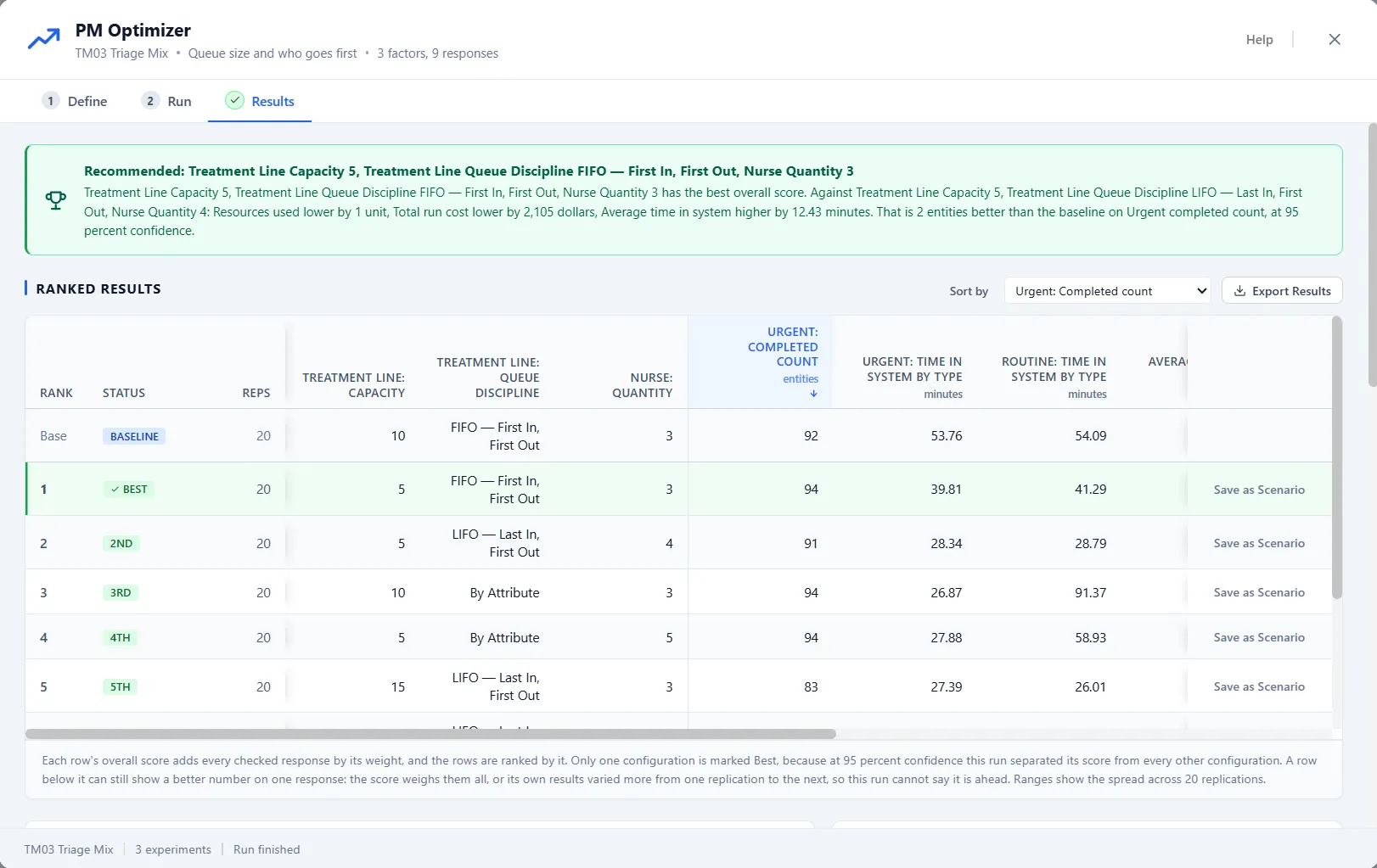
PM Optimizer no longer asks you to pick a primary response. Every response you check counts at its weight, 1 to start, and the weights combine into one overall score. The configuration with the best overall score is the winner.
The Results step names the winner and says why it beat the next row, response by response, then compares it with your baseline. The ranked table reads Best, 2nd, 3rd and so on. The live leaderboard and the screening of your settings use the same overall score.
When setups score the same, the one that uses less wins: fewer resources first, then less capacity at every step, then fewer changes from today’s model. Setups that each use less somewhere stay marked Tied, for you to choose between. Total run cost, average time in system and Resources used are now part of every new study.
Start with PM Optimizer, then Responses and Results. The PM Optimizer page gives the larger picture, and from guessing to a guided search walks through a run.
Care models land beside their step
The Emergency Department palette now lists nineteen care models under the core tiles, in four groups that start closed. Each row says whether the care model suits your size, what it costs to run and, where it needs another care model, which one. Click a row and its card opens beside the palette, with your sizes next to the pack’s and the reason the care model helps.
Add puts the care model into your model, sized to your visits. It appears in a frame beside the step it changes, the steps after it move over to make room, and a side path sits in a lane above its step. One Undo takes it all back.
To take a care model out, right-click its frame and choose Remove Care Model. Its steps go, the flow closes up as it was, and the variables and attributes it added go with it, unless something else uses them. If a scenario uses the care model, you are told which one.
Read Add, move and remove a care model, then The Emergency Department palette and Care models.
New steps in the Emergency Department
Admissions take their real steps. An admitted patient waits for bed control, the admitting doctor’s orders, the nurse report and the transport while holding the ED bed, and boarding runs through all of it. A typical ED of your size boards about as long as EDs of that size do, and the start screen asks six short questions about your hospital’s beds if you want your own figures. See Admissions, boarding and going home and Start a typical emergency department.
Registration, triage, the nurse who sets a patient up and the admission handoff each take their own minutes for every ESI level. Lab in Detail and Imaging in Detail show each test drawn, sent and run, and each scan taken and read. A phlebotomist, a bedside tech, point-of-care testing, a CT scanner in the department and bedside ultrasound are options you switch on.
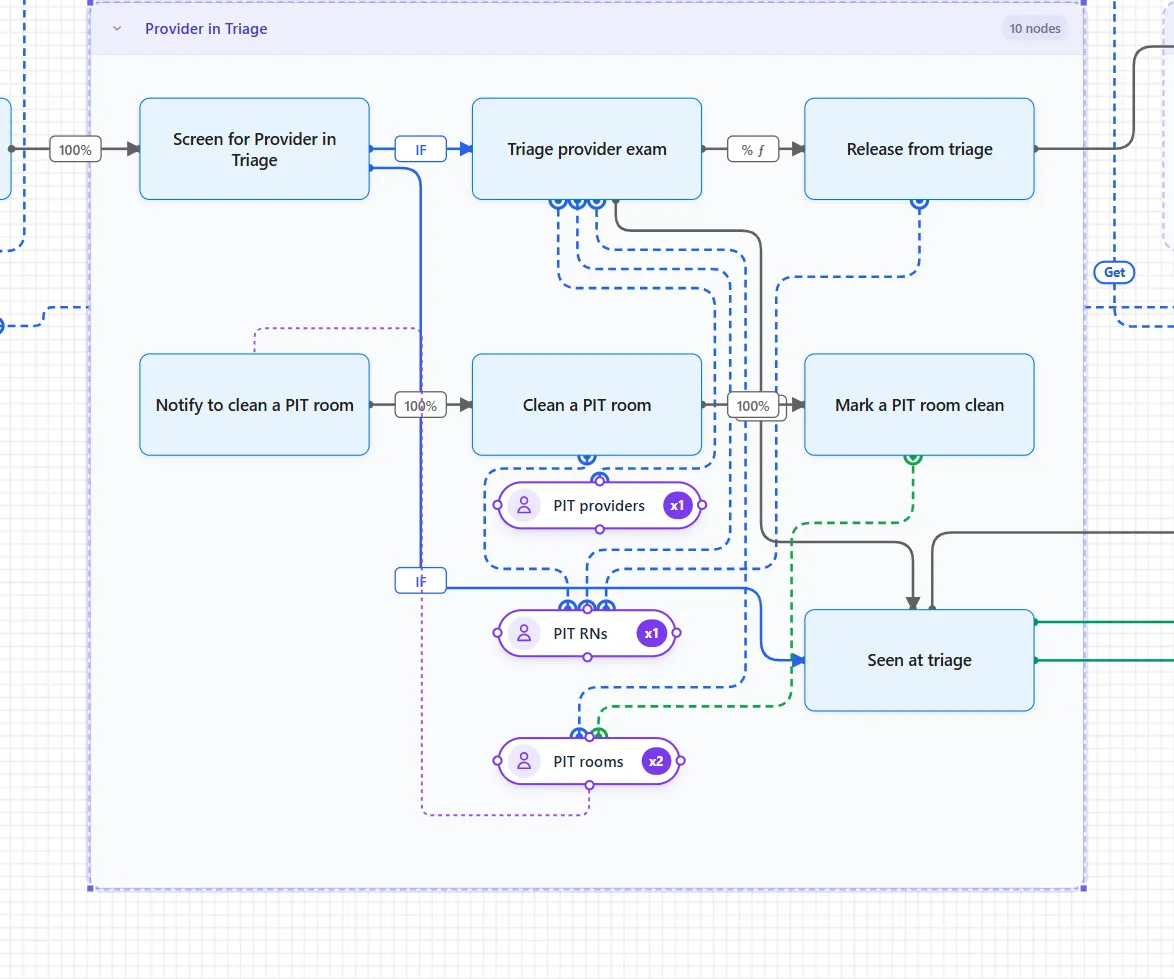
Tests can start at triage: Nurse Standing Orders and Provider in Triage order them before the main exam, and the provider still adds what was missed. The ED Pharmacist checks orders and gives first doses alongside care, and the Flow tab reports door to antibiotic in a model that has it. See Lab, imaging and the pharmacist and Care models for the front door and the streams.
A bed, chair or room is held after a patient leaves until it is cleaned. An EVS crew cleans beds and resus bays, and the area’s nurse or tech turns chairs, recliners and rooms. Transfer Out sends patients another hospital must take on by ambulance, and Early Bed Request asks for the ward bed at the exam for a likely admission. The Getting Out tab reports both. See Cleaning beds, chairs and rooms and The emergency department report tabs.
The smaller changes
One Ctrl+Z now takes back a variable or an attribute you added or changed, and a scenario you added or changed, along with the rest of that step. Arrays and PM Optimizer studies stay as they are. See the Logic Builder.
The Display card in Settings has an Appearance setting with three choices: System, Light and Dark. System follows your computer and changes the moment your computer does.
The installer shows ProcessModel’s own artwork and says when it will install Microsoft WebView2. If WebView2 is missing when ProcessModel starts, ProcessModel offers to install it. See System requirements.
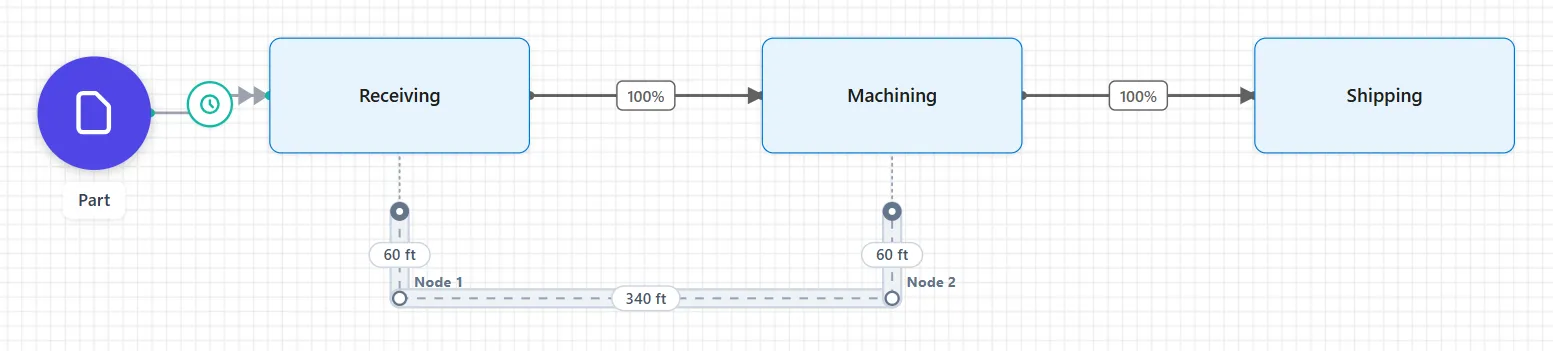
A machine now connects to a manifold. Drag from a manifold to a machine, or from a machine to a manifold, and the machine’s Draws From or Sends To table gets the row instead of the drag being refused. PM AI Bridge’s connect does the same. See Manifold.
Where to read more
The full list of changes in this version, with the smaller fixes, is in the changelog. For the version before this one, read what’s new in 7.0.8468, and for the larger picture of this generation of the product, see what’s new in ProcessModel 7.