
Version 7.0.8468 came out on October 27, 2026. Four changes lead it, and each one removes something you used to work around. They are below in the order you are likely to meet them.
Resources that move along paths
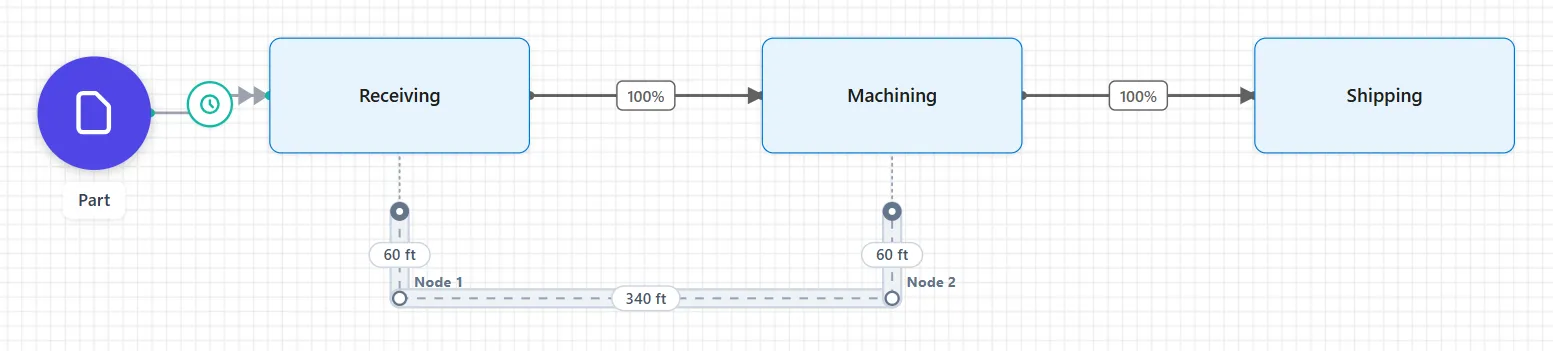
A forklift in a model does not just wait at a step: it has to get there. Version 7.0.8468 lets you draw the floor it travels on. The Path tool lays down path nodes and path segments on the chart, and you type the length of each segment. A unit that moves along paths, such as a forklift, carries parts between steps at its own speed, so the travel time comes from the distances and not from where the boxes sit on the chart.
A moving resource can also work in new ways. It can pick a list of orders, stop by stop. It can answer a rush call and then go back to the job it set aside. It can cover stations by the hour, one set in the morning and another in the afternoon. The Output Report shows each unit’s travel, so you can see how much of a shift went to driving.
Start with Drawing Paths, then Order Picking and Station Schedules.
The emergency department has its own report
An emergency department model now has a report of its own. Seven numbers sit across the top, and below them are six tabs written in the words a department uses, from the Front Door to Money. The report is scored against the rules you set in Simulation Options, so the report judges the department by your lines.
More of the department can be modeled, too. Direct Bedding, Team Triage and Tele-Triage are new care models, and the model can now include ambulance offload and diversion. The care models are described in Care models, and the report in the report tabs.
If you are new to the palette, Emergency department modeling is the place to begin.
Gates and routes
Two changes here make a gate behave the way it looks on the chart. A route that leaves a gate, or enters an activity that is closed for its shift, now runs its logic and takes its move time.
A gate set to release a number lets that many items out each time it opens. If you set it to release five, five go.
See Gate Release and Using Gates.
PM AI Bridge keeps lessons, and has a page for your IT team
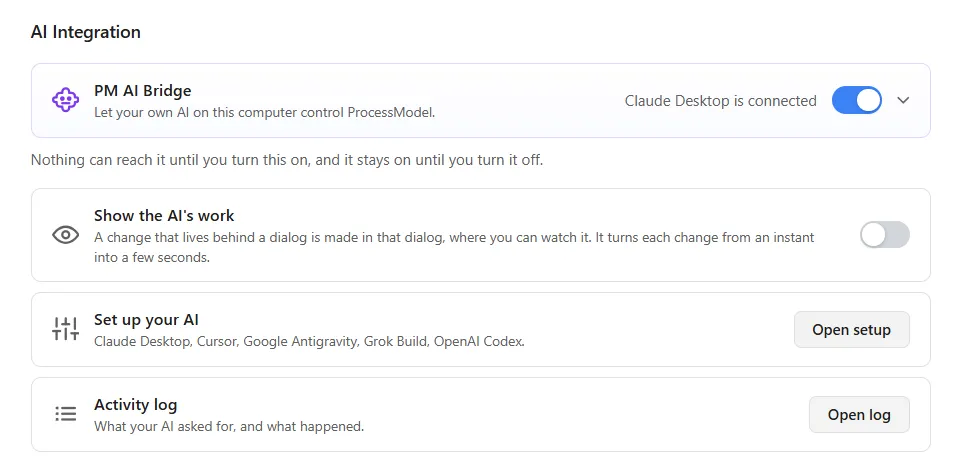
When you let an AI app on your computer work in your models through PM AI Bridge, it can now keep the lessons it learns: what it finds out about how ProcessModel behaves, and how you like to work. It reads them back in the next session, whichever AI app you use. You can see every lesson, remove one, or clear them all.
If your organization runs its own AI, the Set up window now ends its first step with a page for your IT team. It says what to enter, what PM AI Bridge does on the computer, and what to do if something goes wrong.
Read more on the PM AI Bridge page and in the PM AI Bridge help.
Where to read more
The full list of changes in this version, with the smaller fixes that keep the logic editor and the report figures honest, is in the changelog. For the larger picture of what this generation of the product added, see what’s new in ProcessModel 7.