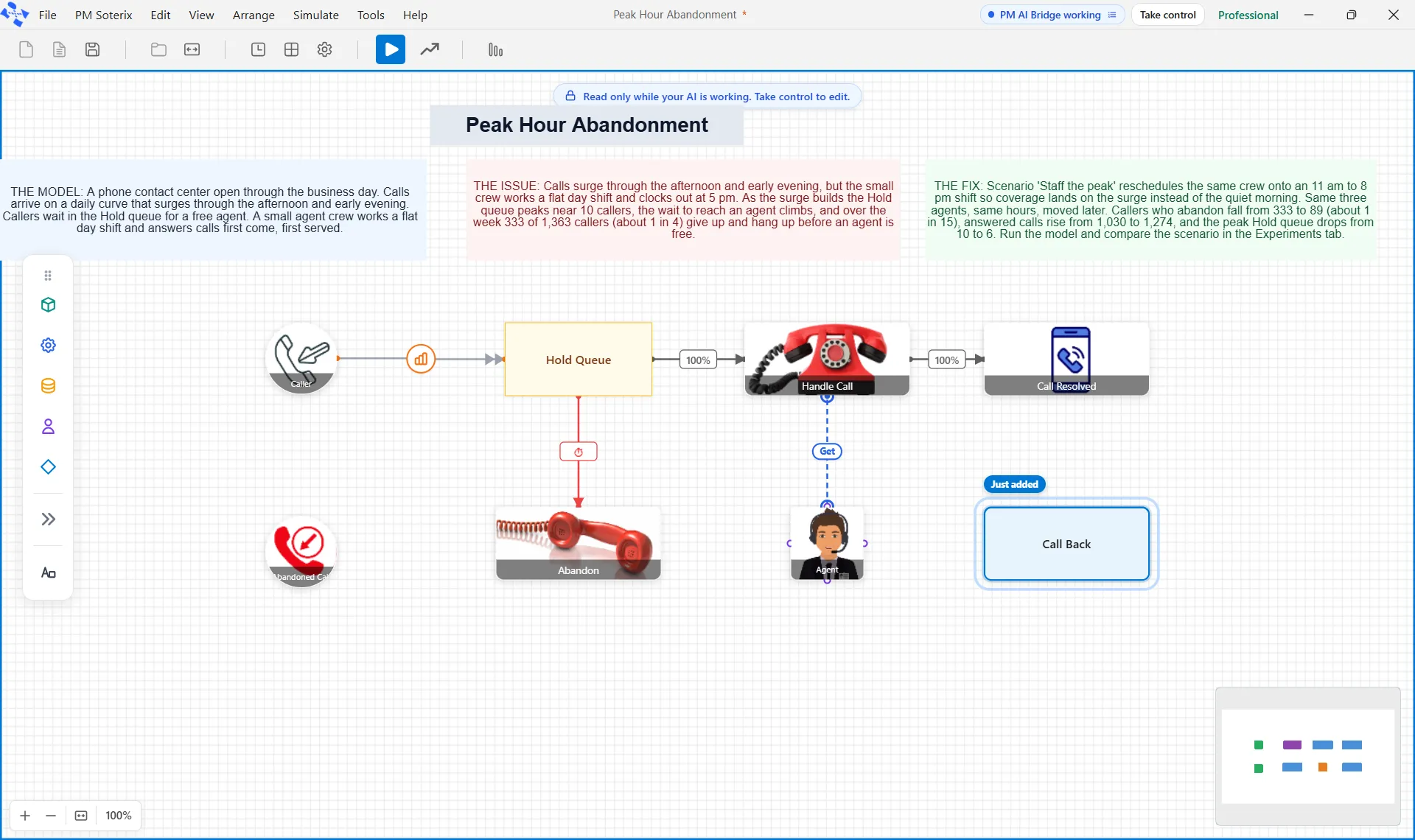
Most simulation work ends the same way. You build the model, you trust the model, and then you sit there changing one number at a time. What if we add a second nurse. What if the queue holds twelve instead of eight. What if both. Each answer takes a run, and the number of combinations grows faster than your afternoon does.
PM Optimizer replaces that afternoon with a guided search. You say which settings may change and what you want to improve, and it goes looking for the best combination on its own. It is built into ProcessModel, so there is no second piece of software to buy, license, and wire up to your model.
Three steps, left to right
The window opens over your model and works in three numbered steps.
Define is where you set the question. Pick the settings you will allow to move, each with a range or a list of values to try. Pick the results you want to measure: throughput, time in system, cost, utilization, and more. Then choose how widely to explore, from every combination in a tidy grid to a search that learns as it goes.
Run shows the work happening. A best-so-far curve climbs as configurations finish, a leaderboard fills in behind it, and a stop button is always there if you have seen enough.
Results turns all of it into a decision.
It screens the settings before it spends your time
Not every setting matters. Before the real search begins, a short round of probes measures which of your chosen settings actually move the result, and the ones that barely register are unticked for you. Nothing is deleted, and you can tick anything back on. The search then spends its runs on the handful of settings that decide the outcome instead of spreading itself thin across the ones that do not.
A search that learns, with a budget you set
The default design is the Smart Optimizer, and it does not march through a fixed list. It spreads a first batch across the whole space, learns which areas look promising, and concentrates there, a batch at a time. It handles smooth ranges as well as fixed steps, which the grid designs cannot do.
You give it a run budget, anywhere from twenty runs to a thousand. It stops when the budget is spent, or earlier when better results simply stop appearing, so you are never watching a search that has nothing left to find.
It also spends its replications where they matter. Because a model with variability gives a slightly different answer every run, every configuration gets a quick pass to place it, and then the leaders earn extra runs, repeated together until the group stops changing. The precision lands on the decision rather than being sprayed evenly over configurations that were never in contention.
Results you can take to a meeting
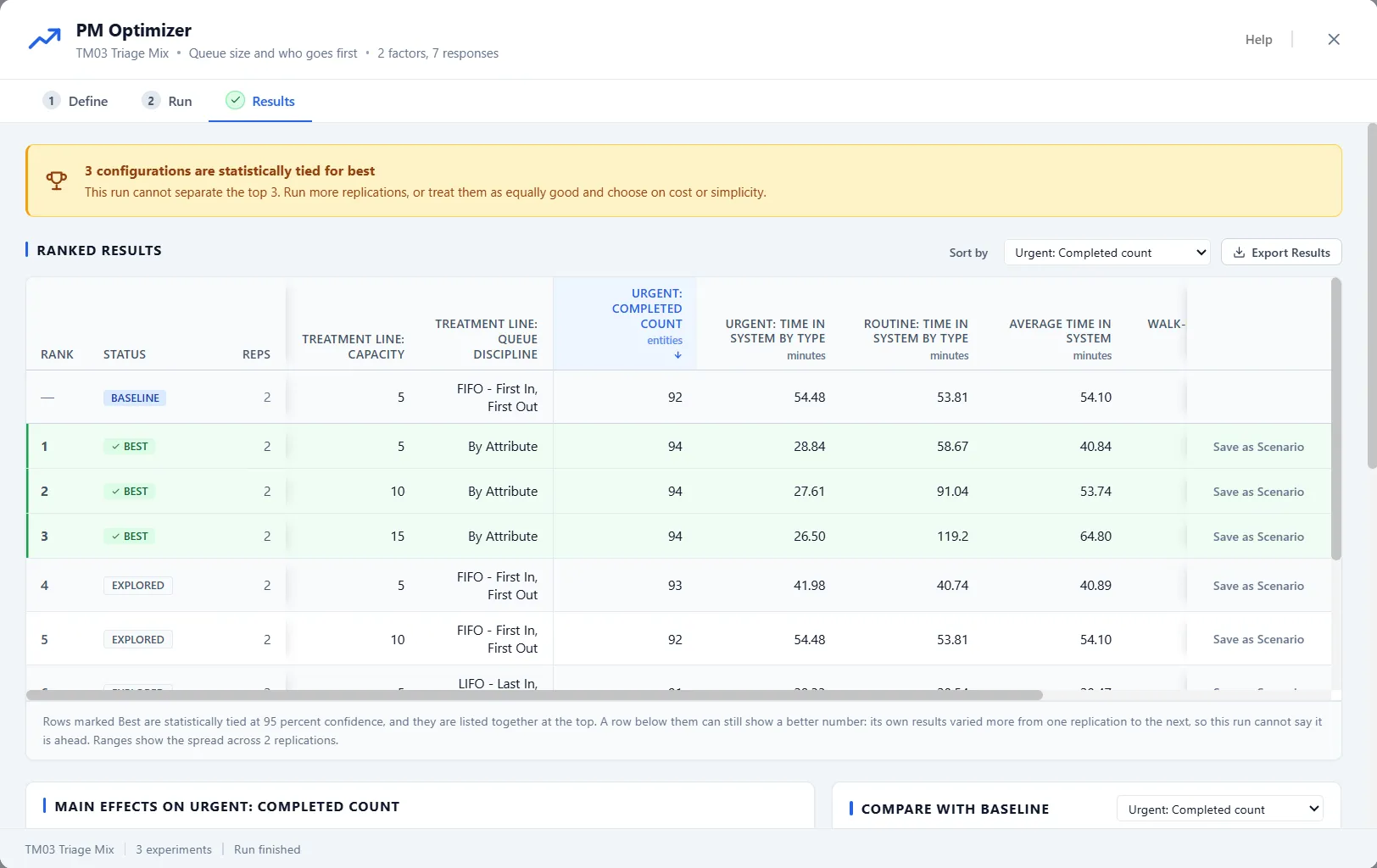
The Results step opens with a plain sentence, not a spreadsheet. It names the configuration that did best, says how much better it is than your model as it stands today, and says how sure it is: three more entities an hour at 95 percent confidence, rather than a single perfect answer nobody can defend.
Underneath, every configuration is ranked. The ones that are statistically tied for first are marked as such, which matters more than it sounds: when two setups cannot be told apart, you are free to pick the one that is cheaper, simpler, or easier to sell internally. A chart shows which setting moved the needle most. And when you care about two goals that pull against each other, more throughput but a longer wait, a trade-off view highlights the configurations that nothing else beats on every goal at once.
Found a winner? Save it as a scenario in one click. It lands in your model as an ordinary scenario, ready to run. Nothing the experiment did changed your model or your saved results.
One click from the report to the experiment
The best part is that you often do not have to set any of it up.
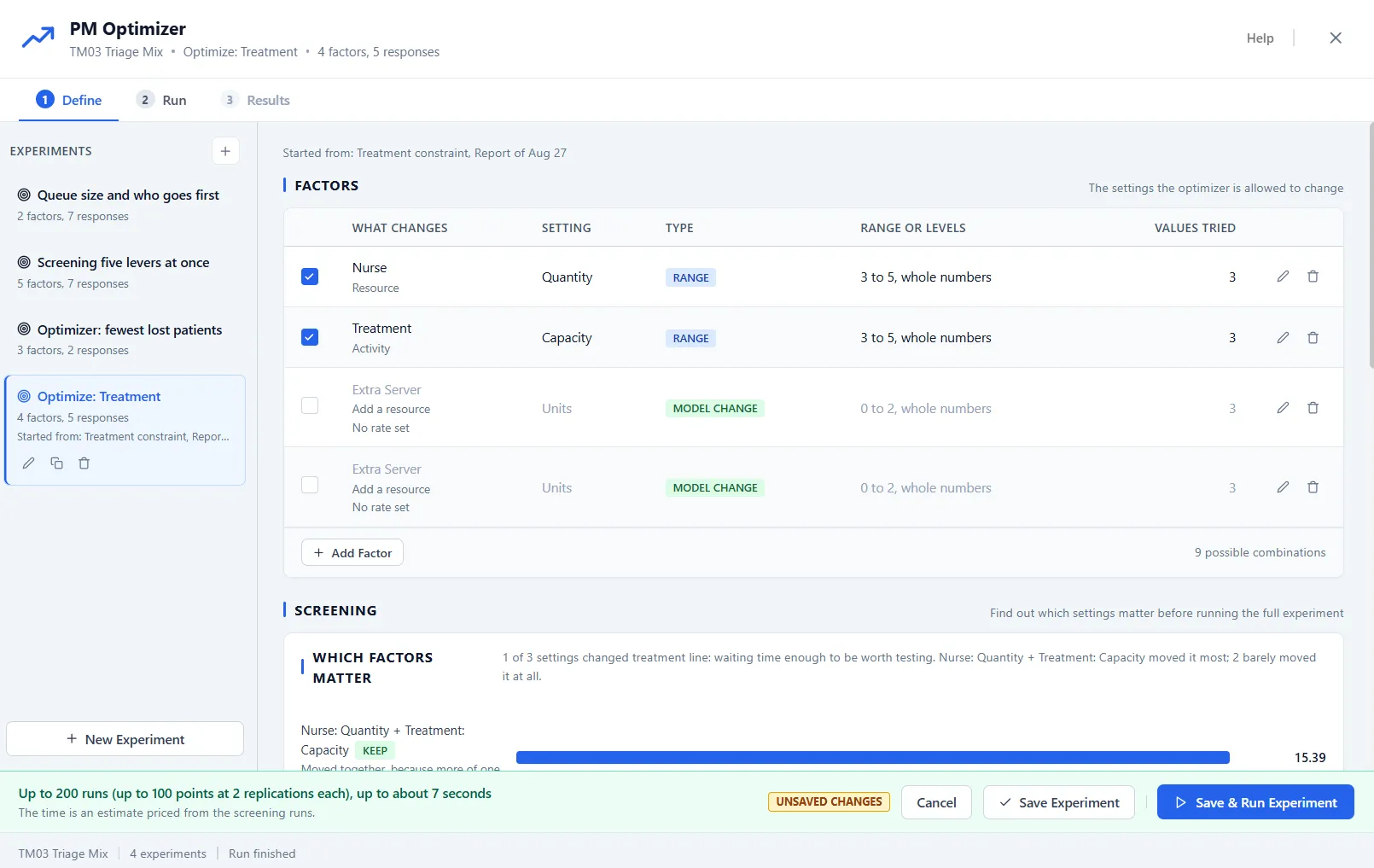
When the Output Report names your constraint, an Optimize This button hands that finding straight to PM Optimizer as a ready-made experiment. It reads the evidence from the run, how hard the step worked, whether it was blocked, how full the queue ran, when the pile-ups happened, and picks the levers that fit the diagnosis. A step starved of staff gets the resource quantity and the capacity that would bind the extra hands. Mistimed coverage gets shift patterns to compare.
Two things it will never touch: your times and your arrivals. How long the work takes and when demand shows up are facts you declared about your process, not dials to be turned. The experiment changes how the work is handled, not the work itself.
It also measures today’s configuration first, so your current output becomes a floor. A setup that shortens the queue by quietly doing less work can never win on a technicality.
Where to read more
The full walkthrough lives in the help center: PM Optimizer for the overview, Optimize This for the seeded flow, and reading the results for what every column means. For everything else that changed in this generation of the product, see what’s new in ProcessModel 7.